
Add a new sender email address
Introduction
In addition to the email address you used during registration, you can link multiple sender email addresses to your Artshell account, so you can choose the one that best suits the type of message you want to send.
For example, you could use:
- newsletter@azienda.it for newsletters;
- info@azienda.it for institutional communications;
- vip@azienda.it for event invitations.
Each new email address must be verified before it can be used. If it belongs to a custom domain, we also recommend that you configure its DNS settings to improve email deliverability.
Add a new sender address
Click the panel icon Settings at the bottom left, then select the option Email settings.
Click the " Add Email " button in the lower right corner and fill out the form with the required information.
You will need to enter:
- Sender's name, which is the name displayed to the recipient;
- Email address;
- Disclaimer.
Important: Please note that the same email address can be associated with only one Artshell account. If it is already set up as a sender in another account, you'll need to remove it from that account first.

What is a disclaimer?
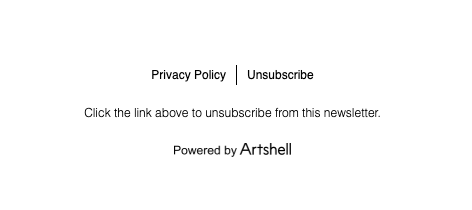
The disclaimer is the text that automatically appears in the footer of every email sent through Artshell, below the " Privacy Policy " and " Unsubscribe" links.
You can use it to provide recipients with information such as:
- the reason why they are receiving the email;
- references to your organization;
- legal information;
- copyright.
For example:
You are receiving this email because you requested information about our services.
or
Copyright © 2026 Company Name. All rights reserved.
Verify the new address
After you save the new address, Artshell will automatically send an email from no-reply@artshell.eu with the subject line: "Start sending emails and newsletters with Artshell"
To complete the setup:
- Open the email you received;
- Click on the confirmation link.
Only after this verification can the new address be used as the sender's address.
If you can't find the email, check your Spam or Junk folder as well.
Do you use a custom domain?
If the new address belongs to a custom domain, such as info@nomeazienda.it, Artshell will recommend that you configure its DNS settings.
This configuration improves email deliverability and allows email providers to verify that you are authorized to send messages on behalf of the domain.
DNS configuration is performed only once for each domain. If you have already configured the DNS for the @companyname.it domain, all other addresses belonging to the same domain (for example, newsletter@nomeazienda.it or vip@nomeazienda.it) can be added without having to repeat the configuration. However, you will still need to verify each new email address using the confirmation email sent by Artshell.
If you add an address from a different domain, you'll need to configure the DNS settings for the new domain as well.
For the complete procedure, please refer to the article Configure domain DNS.
Conclusions
Adding multiple sender addresses allows you to better organize your communications and choose, on a case-by-case basis, the most appropriate sender identity for newsletters, invitations, or official emails.
Once you have verified the new address and, if necessary, configured the domain's DNS settings, it will be immediately available for sending communications from Artshell.