
How to Manage Insights in Multiple Languages
Introduction
Artshell lets you create and manage yourinsights in Italian, English, and French, customizing the content for each language and making it available in the online shared version as well.
Using the multilingual menu, you can add content in a new language or copy existing content, preserving its structure and modifying it as needed.
In this guide, you'll learn how to add and manage language versions of an insight, update them online, and troubleshoot common issues.
Important
Artshell does not automatically translate content. Translations must be entered manually in the respective language versions.
Before you begin
Before proceeding, we recommend that you read these articles to learn about the key features of insights and multilingual management:
- Multilingual: managing content in multiple languages
- Insights: What They Are and How to Use Them
- CCreate, edit, or delete an insight
- ToCustomize an insight: add text, Artworks , and media
Add a new language to an insight
When you open an insight, the content is displayed in the language in which it was entered. To add a new language version:
- Go to the Insights section of your Artshell account.
- Select the Insight you want to translate and click the icon pencil to enter edit mode.
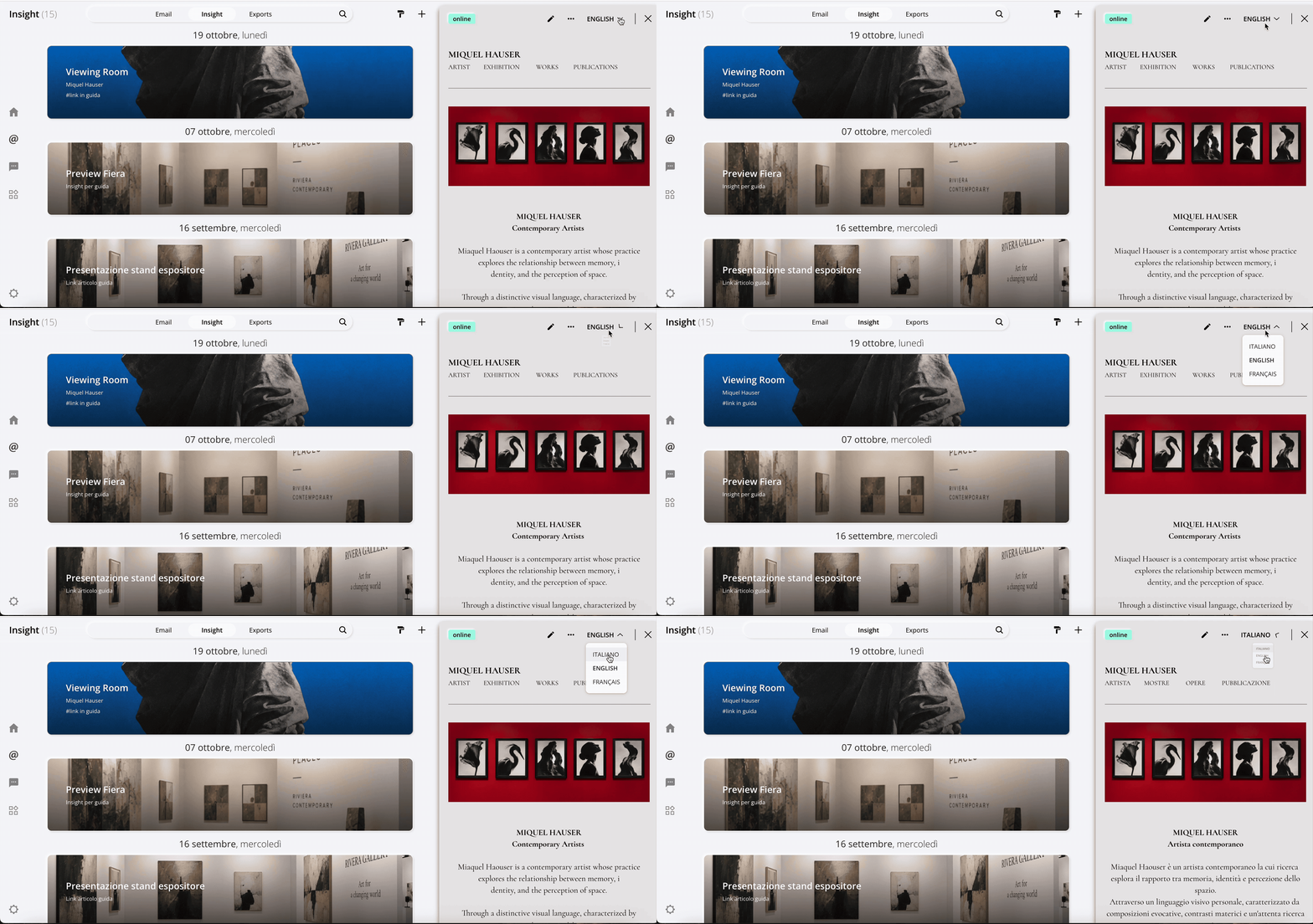
- Open the multilingual menu, located in the upper-right corner of the screen.
- Select the language in which you would like to enter the content: Italian, English, or French.
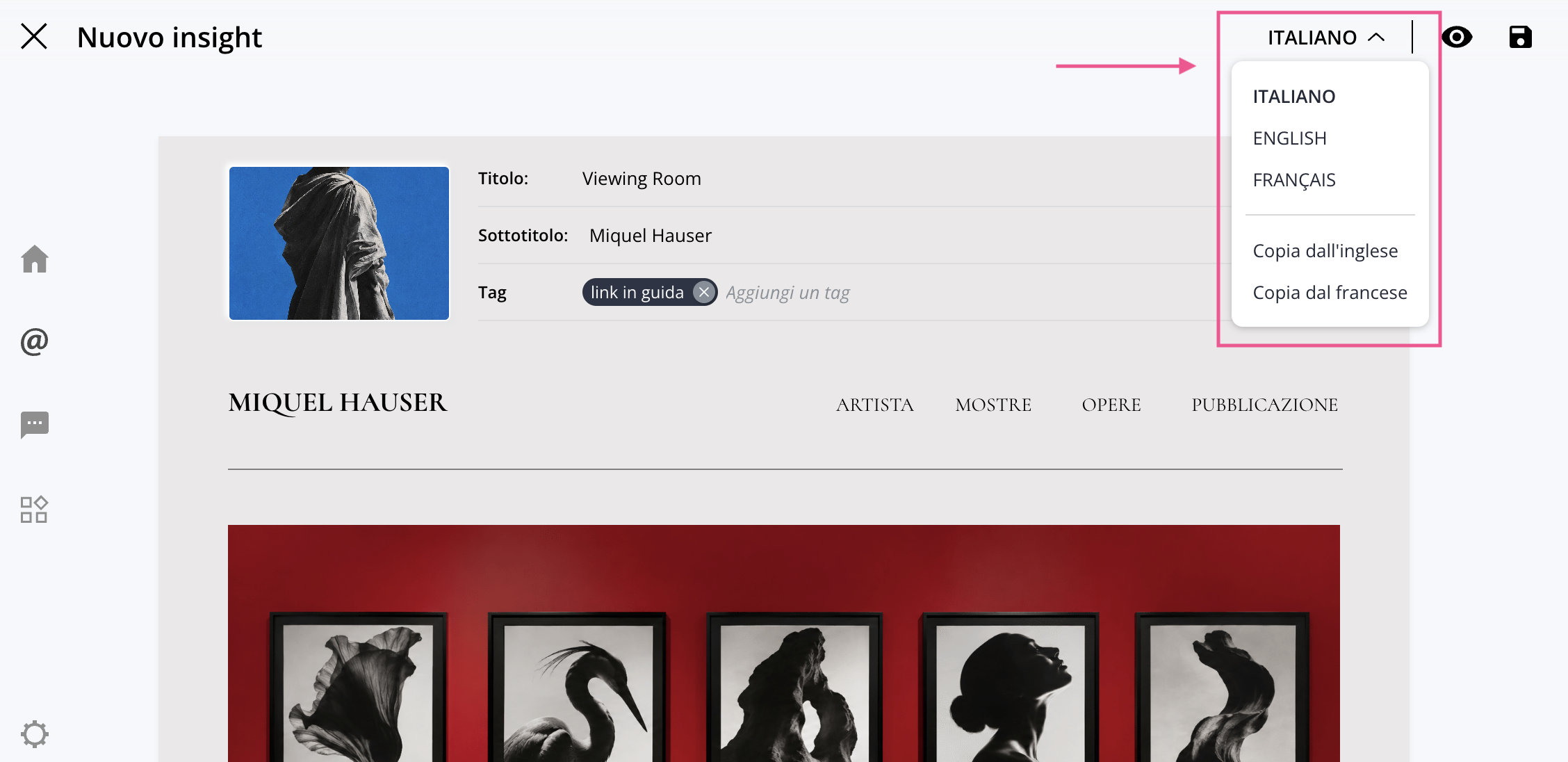
At this point, you can choose whether to copy content from another language or create a new version of the insight from scratch.
Copying content from another language
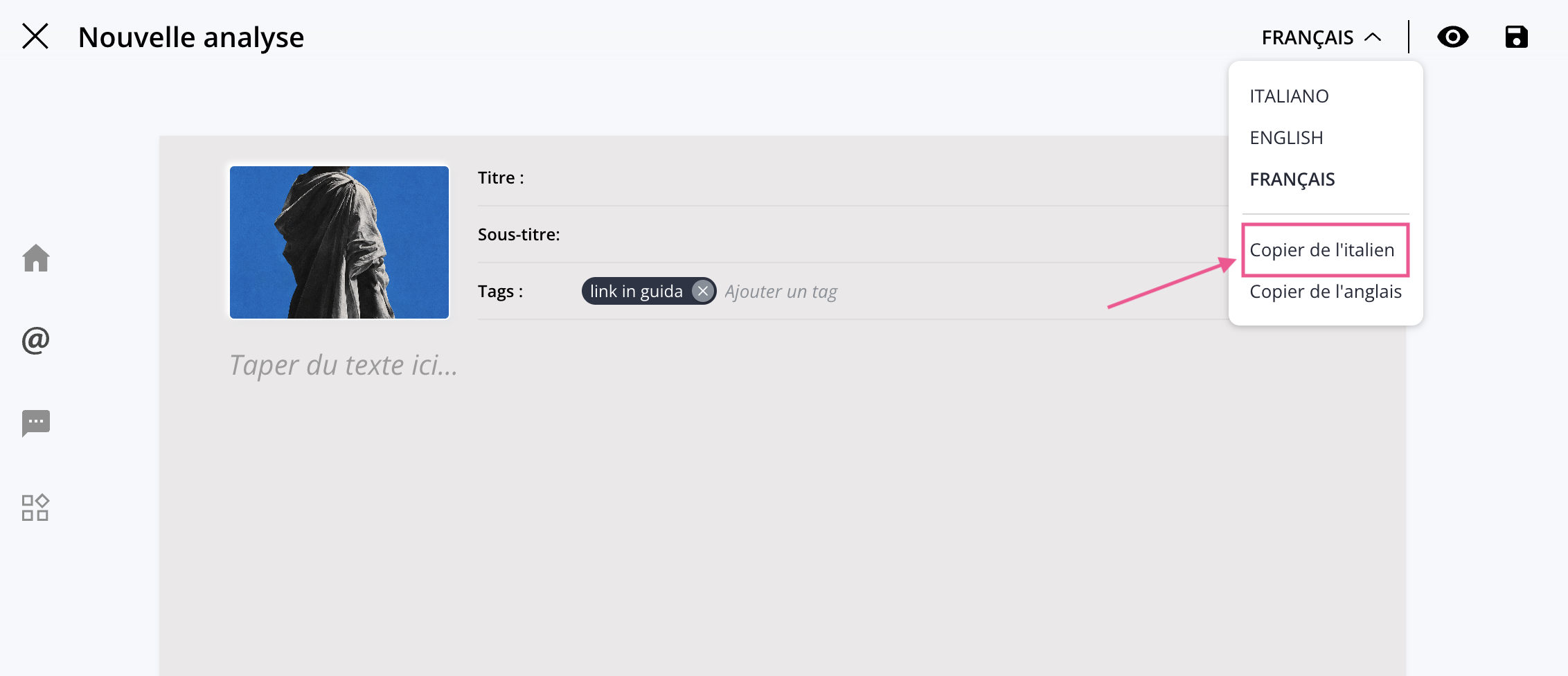
If you want to keep the same structure and formatting as the original insight, you can use the " Copy From" feature.
Select the language you want to translate into: Artshell will open a blank version of Insight. Click " Copy from " and choose the language from which you want to copy the content.
All content in the selected language will be copied, and you'll be able to translate and edit it without having to recreate the insight from scratch.
Warning
If the language you're working on already contains content, the copy function will overwrite it with content from the source language. Before proceeding, make sure you don't replace any information you want to keep.
Add new content
If you'd prefer to create a different version of the insight, you can write the content in the selected language without using the copy function. This way, you can customize the text and content based on the audience you want to reach, without necessarily having to replicate the same structure as the other versions.
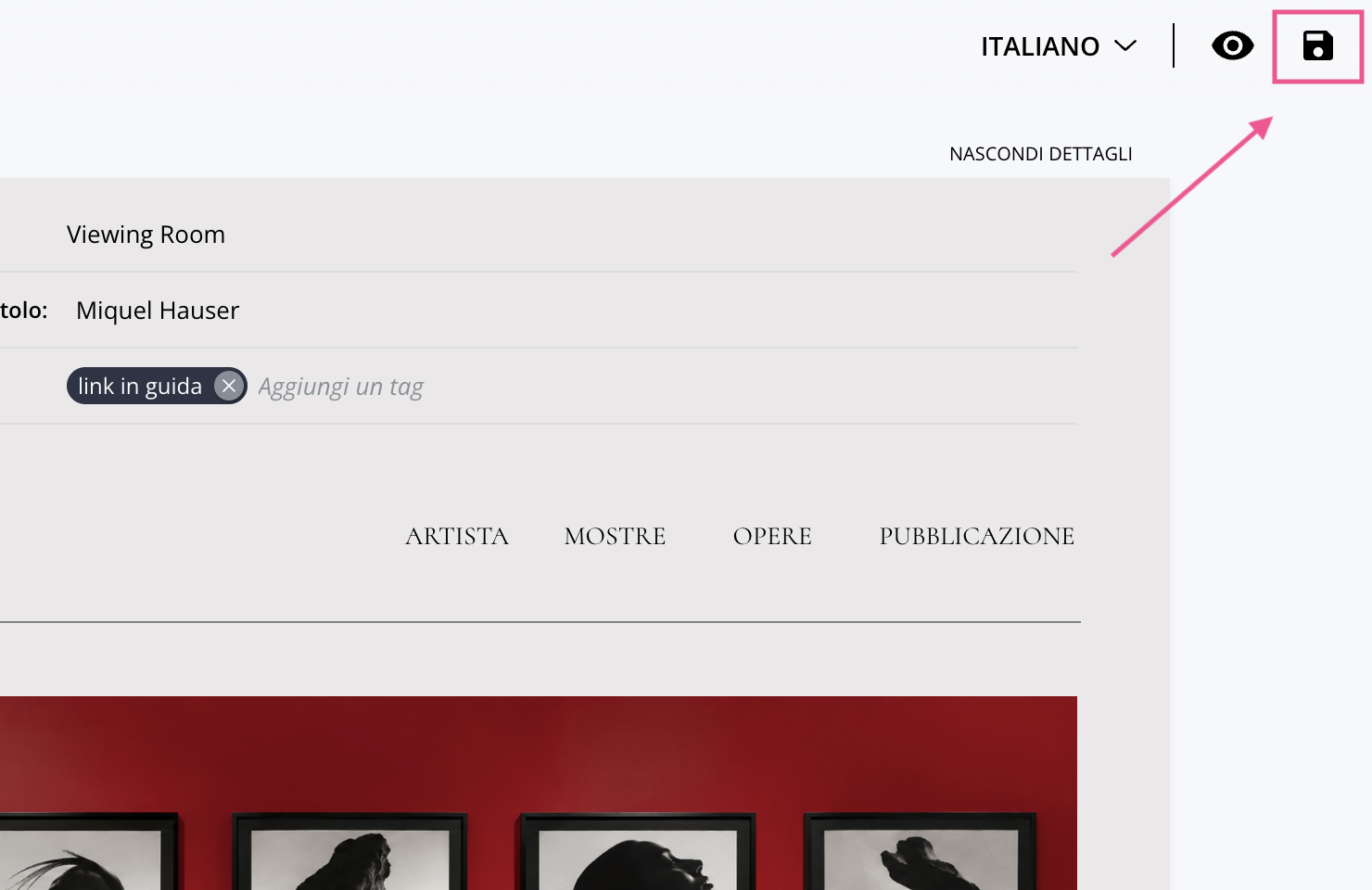
When you're done, click on Save
to confirm the changes.
Important
Changes to insights are not saved automatically. Always remember to click Save before exiting edit mode.
How to Make Language Versions Available Online
After entering and saving the translations, share the insight using Artshell's export and publish features. For the complete procedure, see the guide "Export or Publish an Insight."
Update the translations for an insight that has already been shared
If you add or edit a language version after publishing the insight, you must also update the online content.
To do this:
- Open the insight and make sure you've saved your changes.
- Go to the Online section of record.
- Click " Sync " to update the shared content.
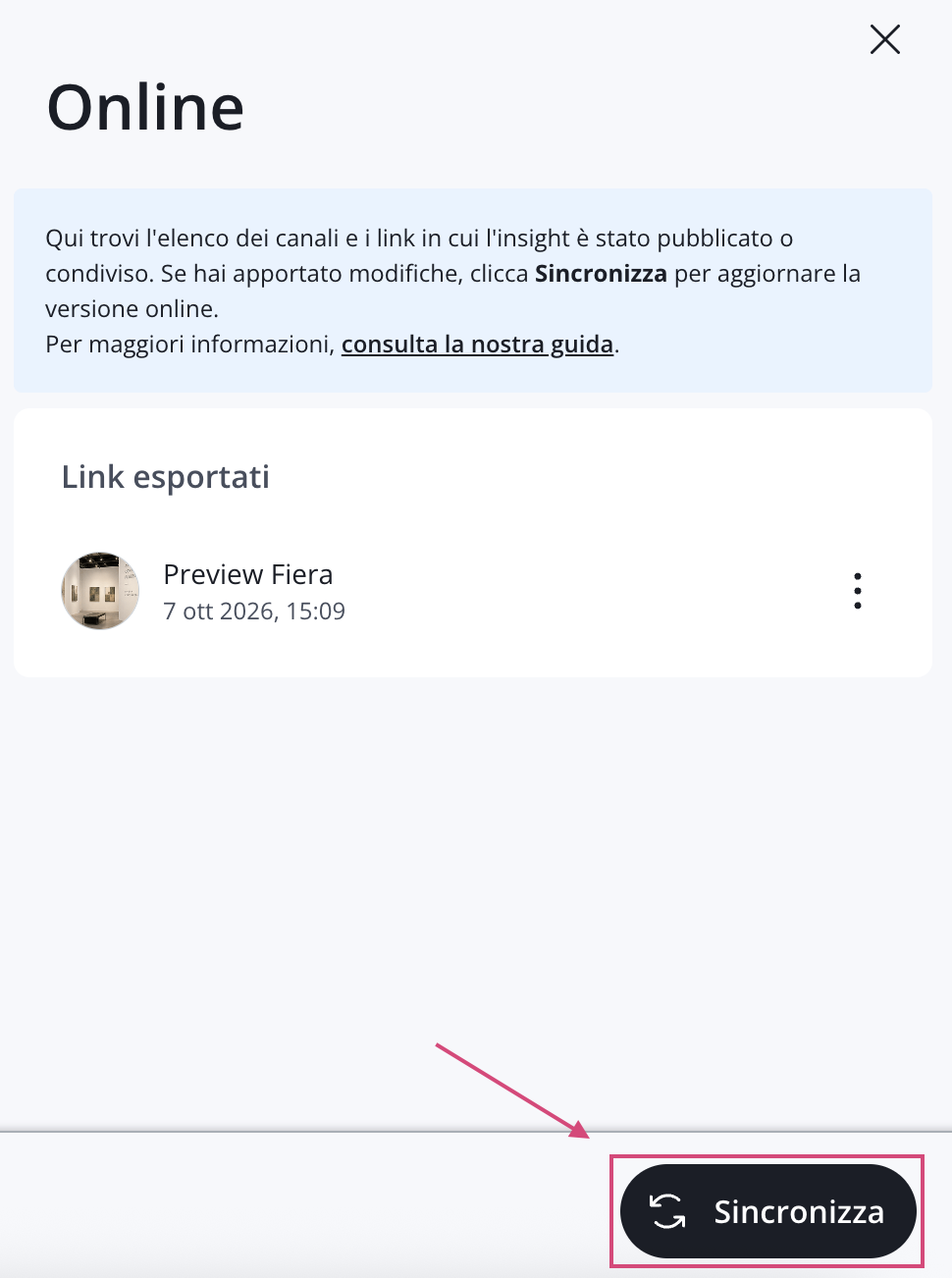
Synchronization allows you to update content while keeping the same public link, without having to generate a new URL.
Note
If you've added a new language but the multilingual menu doesn't appear in the online version of the insight, make sure you've saved your changes and synced the link you've already published.
Please also note that the multilingual menu appears only when content is available in at least two languages.
In addition, saving and syncing are two separate actions. The Save button saves your changes to your Artshell account, while Sync updates the version that’s already shared online.
How to Use the Multilingual Menu
You can view the different language versions of your insight both within Artshell and in the online shared version.
- In Artshell: open the insight and use the multilingual menu in the upper-right corner of the Preview to switch between languages.
- In the online version: open the public link for the insight and use the language menu in the upper-right corner of the page.
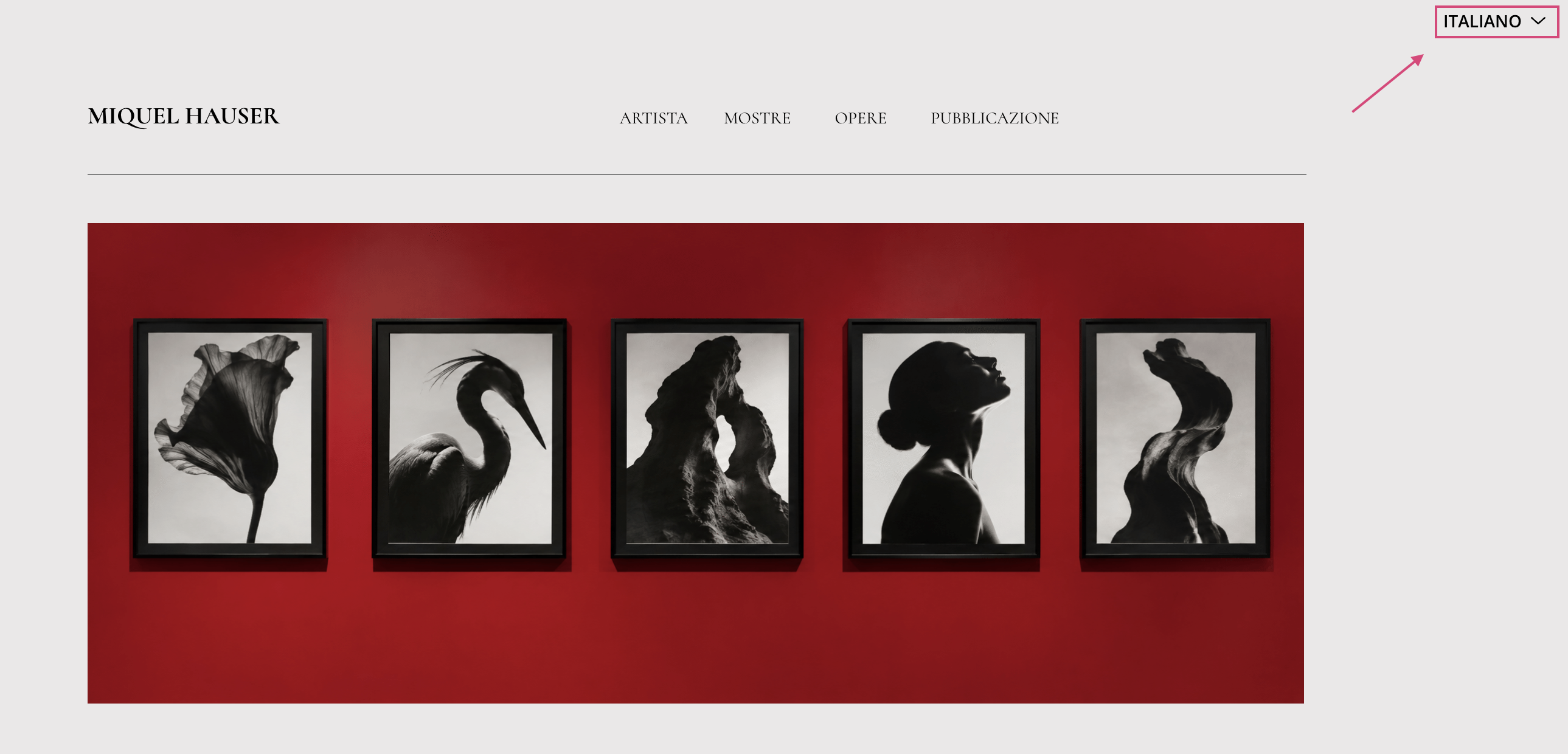
The multilingual menu allows readers to switch between different language versions of the insight. When content is available in at least two languages, the menu displays all three options— Italiano, English, and Français—even if you haven’t filled out all the versions. If the reader selects a language for which you haven’t entered any content, Artshell automatically displays the Italian version.
Example
You created an Insight in Italian and then added the English translation, without filling out the French one.
After updating the online publication:
- When you select " Italian," the reader displays the content in Italian.
- When you select " English," it displays the content you've entered in English.
- If you select " Français," the content will be displayed in Italian, since a French version has not been created.
If, on the other hand, the insight contains only one language version, the multilingual menu is not displayed, and readers are taken directly to the available content.
Manage the language of content added to the insight
Within an insight, you can add various types of content, such asArtworks, events, and other elements in your Artshell account. When you create a version of the insight in another language, it’s important to also check the language of the content you want to include.
records s of Artworks, events, and other elements may, in fact, have their own language versions, independent of those in the insight.
Warning
If the content added to the insight is not available in the selected language, some information may be displayed in a different language.
Example: If you're preparing the English version of an insight and want to add an event, make sure that the event's record also contains the information in English. If necessary, open the original record for the content and add any missing translations.
Delete the translation of an insight
To hide content in a specific language, you must clear the corresponding language version.
To do this:
- Go to the Insights section and open the insight you want to edit.
- Click on the icon for the pencil to enter edit mode.
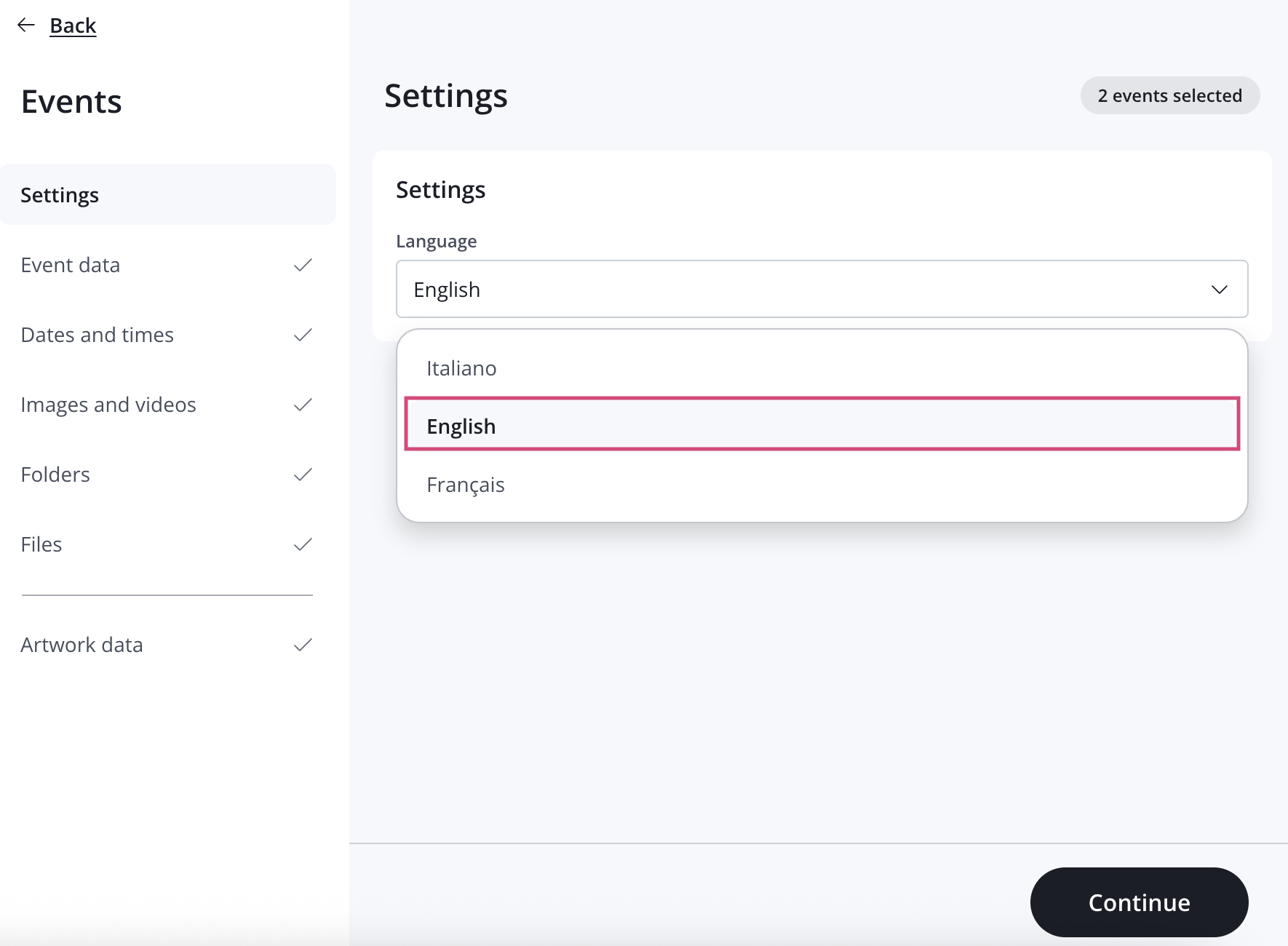
- Open the multilingual menu and select the language whose content you want to delete.
- Remove all content in that language, including the title, subtitle, text, tags, and other elements.
- Click Save to save your changes.
If the insight has already been shared online, remember to click " Sync " to update the published version as well.
Note
Removing content in a particular language does not necessarily cause the multilingual menu to disappear.
- If two languages remain selected, the menu will continue to display "Italiano," "English," and "Français." If you select the language that is not currently selected, the content will be displayed in Italian.
- If only one language is selected: the multilingual menu will no longer be visible, and the insight will be displayed directly in the available language.