
Configure your domain's DNS
Introduction
Emails are an essential communication tool, but to be truly effective, they must reach their intended recipients—a process that can be hindered by technical errors, spam filters, or incorrect settings in the content of emails or newsletters.
If you use an email address with a custom domain (for example, info@nomeazienda.it), we recommend that you configure its DNS records.
The DNS configuration allows email providers to verify that Artshell is authorized to send emails on behalf of your domain, improving the deliverability of your communications and reducing the risk of them being classified as spam.
In this guide, you'll learn how to retrieve DNS records from Artshell, how to configure them, and how to verify that they're working properly.
Note: If you use an email address with a generic domain, such as @gmail.com, @outlook.com, @hotmail, @yahoo.com, etc., you cannot configure its DNS settings, since these are not domains you own but are managed directly by the provider.
Before we begin, what are DNS?
If you're not familiar with DNS, you can expand the panels below to learn what they are and why it's a good idea to configure them.
Click on the headings below to expand them and read the explanations:
What are DNS and what do they mean?
DNS for your website
When we browse the internet, we use domain names like wikipedia.org or nytimes.com to access websites. However, computers communicate with each other using IP addresses, which are sequences of numbers.
The Domain Name System (DNS) translates domain names into IP addresses, allowing browsers to find the correct websites. In practice, the DNS is like the internet’s phone book: it lets us use understandable names instead of having to remember long strings of numbers.
If you'd like to learn more, you can read this article from Amazon
DNS for your email address
When you send an email, you can think of the address as a mailing address:
For example, at nome@dominio.com,
- Name: This is the name of the person you're writing to.
- domain.com: this is the "city name".
Just as a letter must be sent to the right post office before it can be delivered, emails also need to find the correct "destination" where they can be delivered. In this context, the DNS acts as a digital postal system, ensuring that emails are routed correctly. DNS records specify which servers are authorized to send and receive messages for a given domain.
The key records for sending emails are:
| Record name | What does it do? |
| MX | Specifies which mail servers should receive emails for a domain. |
| SPF | Specify which servers are authorized to send emails on behalf of the domain, reducing the risk of spoofing and phishing. |
| DKIM | It adds a digital signature to emails to ensure that they have not been altered and that they truly come from the specified domain. |
| DMARC | It defines the rules to be applied when a message fails SPF and DKIM checks, and provides reports on abuse attempts. |
Why is it helpful to understand how it works?
Understanding DNS is essential for diagnosing and preventing issues with sending emails from Artshell. Incorrect configuration can cause:
- a higher likelihood that emails will end up in the spam folder;
- an increase in the number of Contacts ;
- failure to receive messages in the recipients' email inboxes.
Choose the path that's right for you
The procedure you need to follow depends on who manages your domain.
-
I don't have a technical contact person
Follow these steps if you want to request configuration from the provider that manages your domain (for example, Aruba, Register.it, GoDaddy...).
-
I have a technical contact person
If your domain is managed by an IT department or a developer, you can send them the DNS records generated by Artshell directly.
Setup Without a Technical Contact
If you don't have an IT technician, you can follow the steps listed below and contact your domain host (such as GoDaddy, Aruba, etc.) for assistance.
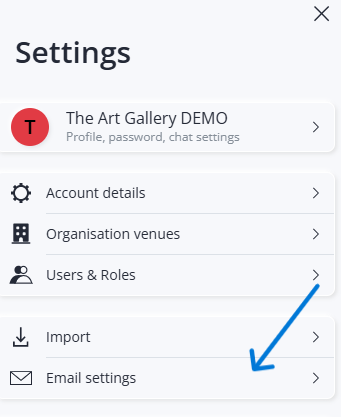
Step 1: Open Email Settings
Click the panel icon Settings at the bottom left and click the item Email settings.
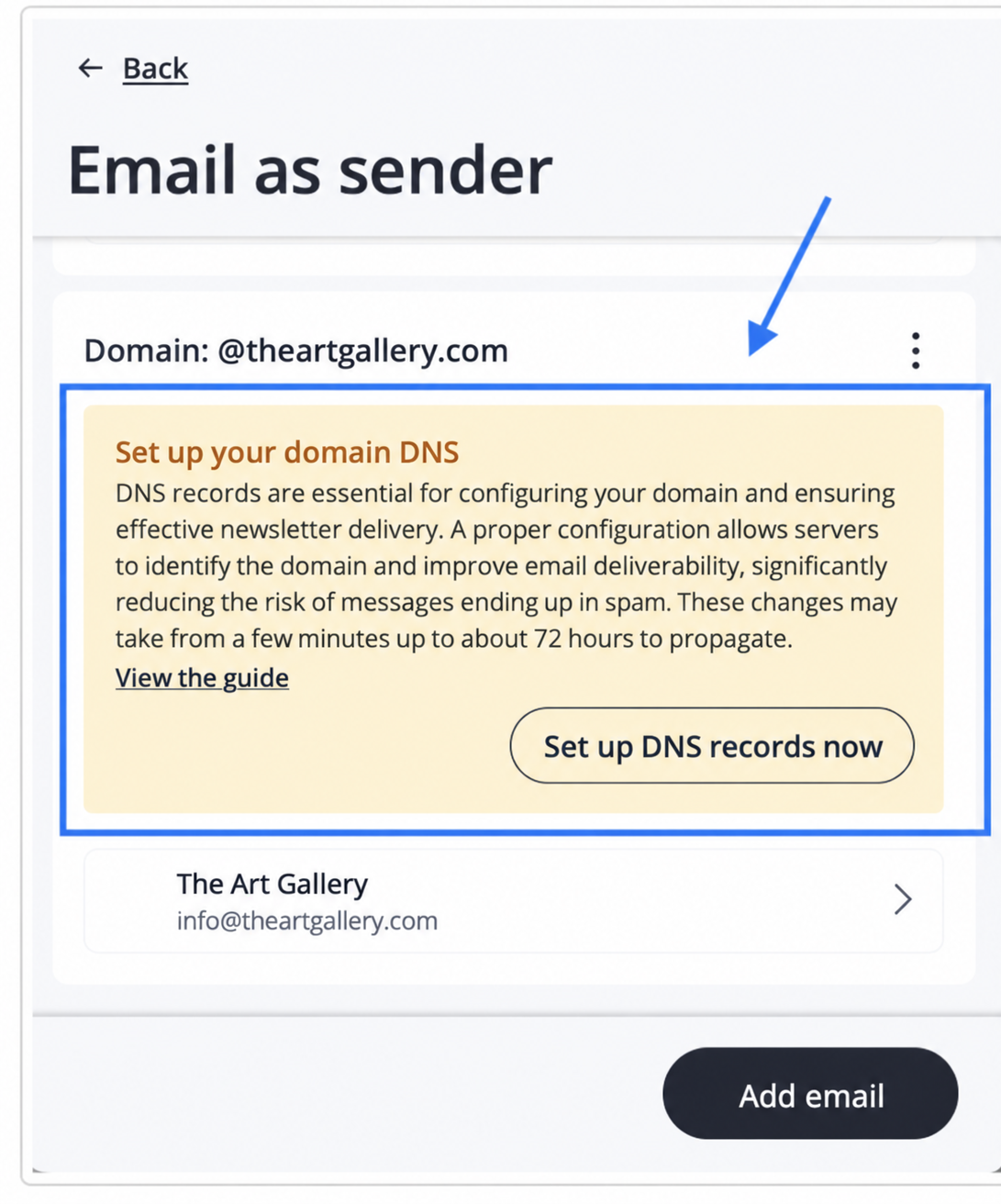
Step 2: Click "Configure DNS now"
In the domain section, click Configure DNS now on the yellow alert notice.
Step 3: Download the DNS records
Next, select Download DNS to get the CSV file containing all the records to be configured. If necessary, you can also download the file multiple times.

Step 4: Submit the records to your domain provider
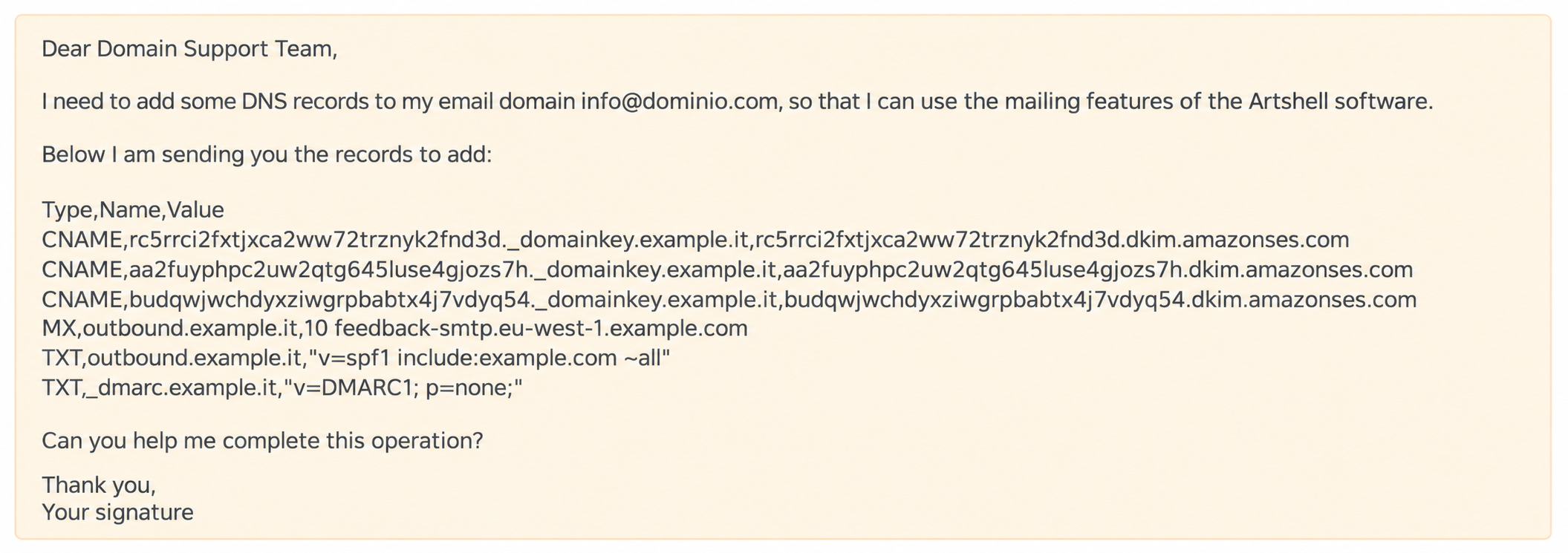
Contact your domain's support team (not the Artshell support team). You can use a message similar to the following:
Subject: DNS Record Configuration

Dear [Support Name],

I need to add some DNS records to my email domain [Your Domain]
so that I can use the mailing features of the Artshell software.

Here are the records to be added:
[paste the records here]
Can you help me complete this task?
Thank you,
[Your Name]
You can paste the records directly into the body of the email, as shown in the example below.
Step 5: Wait for confirmation
Please wait for confirmation from your domain's support team regarding the addition of the new DNS records.
Step 6: Check to see if the configuration was successful
Once you receive confirmation from your provider, return to Artshell to verify the configuration. Click " Email Settings" again, then click " Check Status."
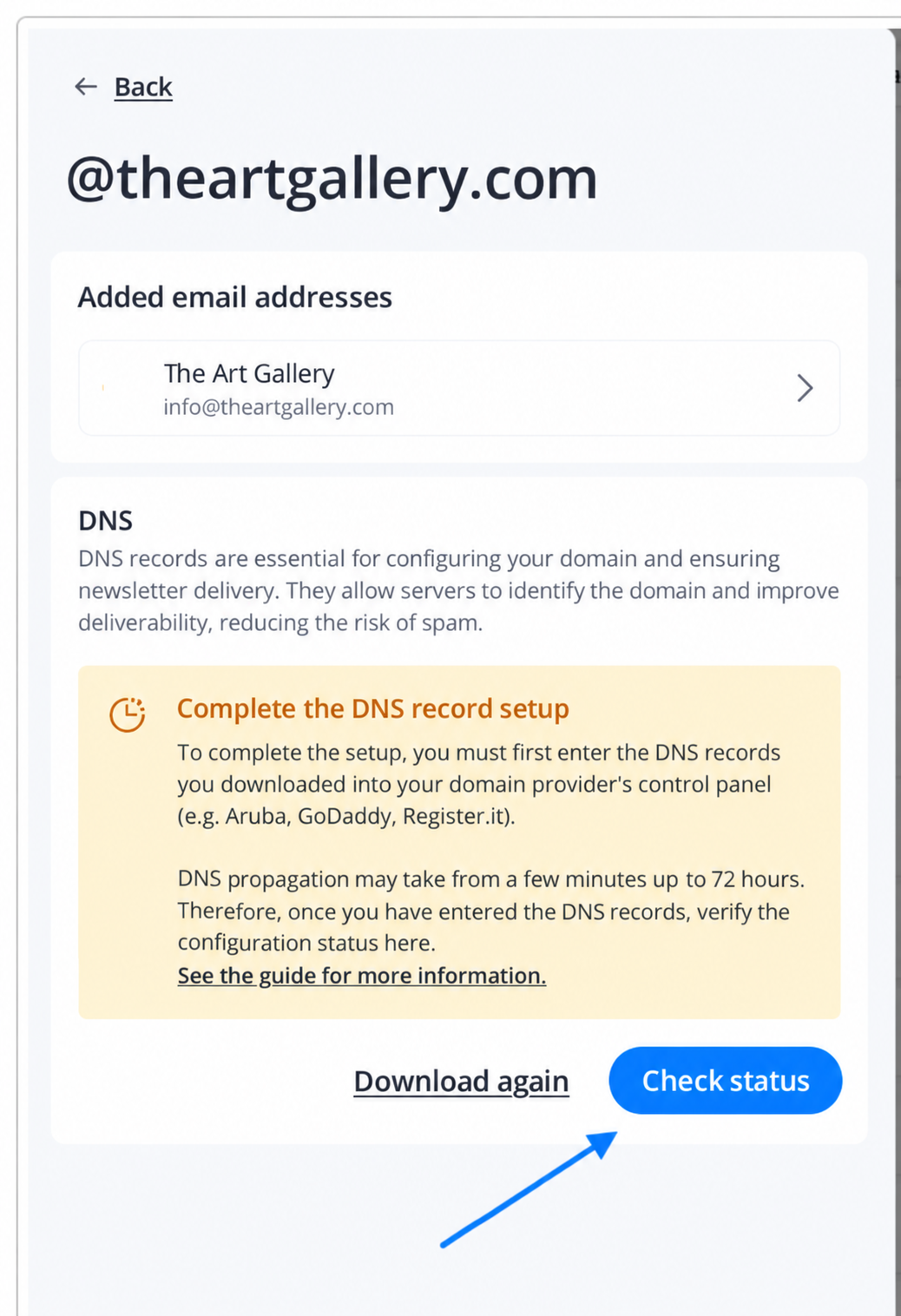
The system will display one of the following results:
- Configuration complete: All records have been configured correctly.
- Configuration in progress: The records have been entered but have not yet been propagated across the Internet. Propagation may take up to 72 hours.
- Configuration failed: One or more records are incorrect or missing. Check with your provider to ensure that all records have been entered correctly and that there are no conflicts with existing records.
Setup with a Technical Contact
If your domain is managed by a technician or developer, you can send them the DNS records generated by Artshell directly.
The procedure is as follows.
Step 1: Download the DNS records
Open Email settings by clicking the icon at the bottom left. In the section for the domain you want to configure, click the button Download DNS to download the file .csv with the records to be added to the domain. If necessary, you can download the file multiple times.
Step 2: Log in to the domain control panel
The domain control panel is typically provided by the domain registrar (for example, Register.it, Aruba, GoDaddy). To access the domain control panel, you'll need a username and password.
Step 3: Find the DNS section
In the control panel, look for a section labeled "DNS," "DNS Management," or something similar.
This section should include an option to add new DNS records. You will be asked to provide the following details for each record:
- Record type (e.g., TXT, MX, CNAME)
- Hostname
- Value
- TTL (Time to Live)
Step 4: Add the DNS records
Copy the records from the downloaded .csv file and enter them into the respective Type, Name, andValue fields; for TTL, you can leave the default value. When entering the records you receive, make sure to:
- Do not add extra spaces at the beginning or end of the record.
- Make sure any special characters are entered correctly.
Step 5: Save your changes
Once you've added all the records, save your changes in the DNS control panel. It may take some time for the changes to propagate (usually anywhere from a few minutes to 72 hours).
Step 6: Verify the configuration
Go back to Email Settings and click " Check Status " to verify that everything has been configured correctly.
In this case as well, you may get one of the following results:
- Configuration complete: All records have been configured correctly.
- Configuration in progress: The records have been entered but have not yet been propagated across the Internet. Propagation may take up to 72 hours.
- Configuration failed: One or more records are incorrect or missing. Check with your provider to ensure that all records have been entered correctly and that there are no conflicts with existing records.
Have you already set up a domain?
DNS configuration is performed at the domain level, not for individual email addresses.
This means that if you have already correctly configured the @companyname.it domain, all other addresses belonging to the same domain (for example, newsletter@nomeazienda.it, vip@nomeazienda.it, or staff@nomeazienda.it) can be added without having to reconfigure the DNS.
However, you will still need to verify each new email address using the confirmation email sent by Artshell.
If, on the other hand, you add an address from a different domain, you'll also need to configure the DNS settings for the new domain.
Conclusions
Configuring DNS is one of the most important steps in ensuring the reliability of communications sent through Artshell.
Once this is complete, you'll be able to use all addresses belonging to the same domain without having to repeat the configuration.
To learn how to further improve the deliverability of your communications and reduce the risk of your emails being marked as spam, see the article Tips for sending emails and newsletters.