
Edit an event
Introduction
You can update the information for an event you've already created at any time—for example, to change dates and times, correct details, add new content, or update booking settings.
In this guide, you'll learn how to edit an event, save your changes, and understand the restrictions that apply when there are already reservations.
Note: If the event has already received reservations, some settings may not be editable. This article includes a dedicated section explaining which fields are locked and when they may become available again.
Step 1: Open the record
- Go to the Events section ;
- Select the event you want to edit to open its record;
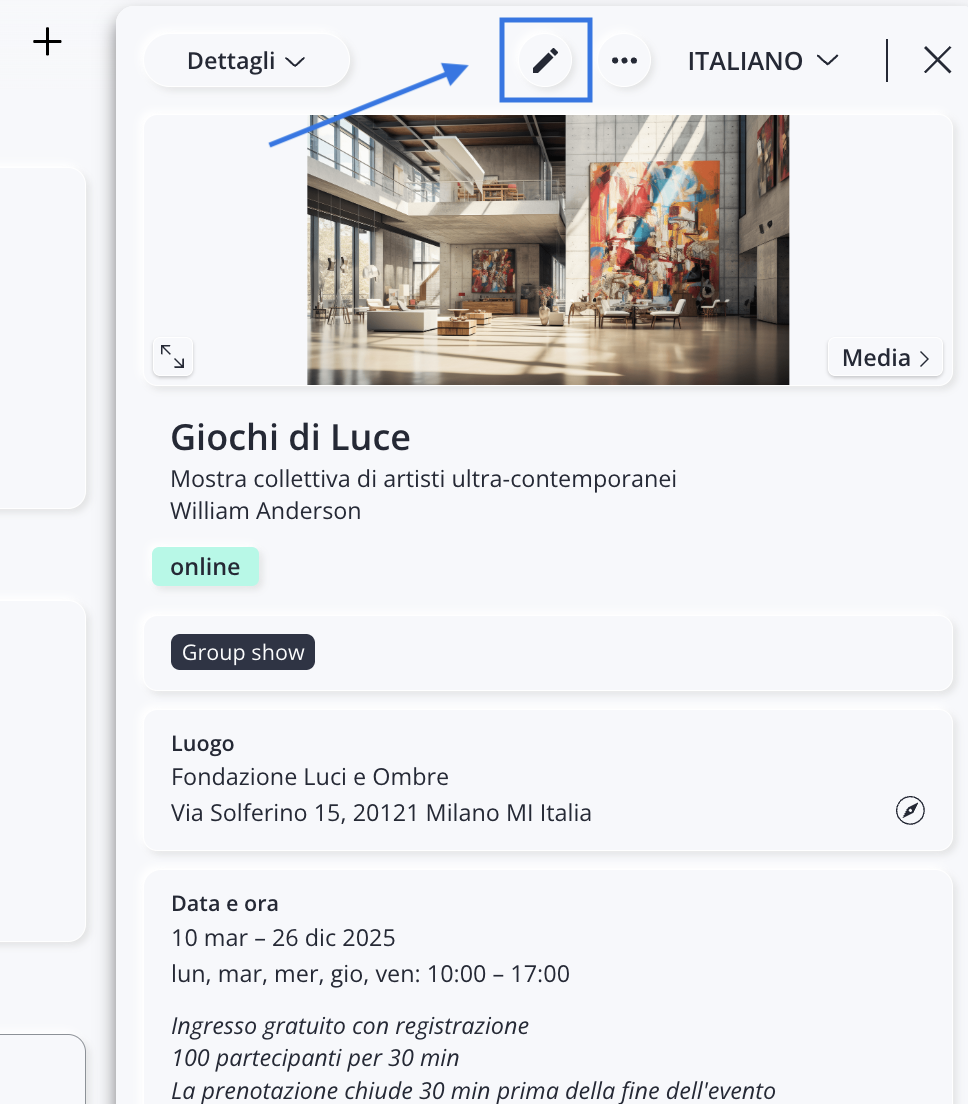
- Click the icon to enter mode edit.
Step 2: Update the information
You can edit all the information in the record , including:
- image, title, and subtitle;
- organizer and curator;
- event location;
- dates, times, and activities;
- entry procedures;
- event attributes;
- reservations;
- confirmation email;
- QR code;
- Contacts, artists, sponsors, links, and attachments.
You don't need to update all the fields—you can edit only the information that's relevant to you.
For a detailed description of the record sections, see the article Add an Event.
Step 3: Save your changes
When you're done, click Save. The changes will be applied to the event.
Note
If the event has already been shared, the changes may not be automatically visible to participants or on the platforms where it was posted.
- If you posted the event using the " Post" feature, see the article Post an Event to find out when you need to repost it.
- If you've exported the event to a website or other channels, see the article Export and Share an Event to see how to update the published information.
If certain settings cannot be changed
If, while editing an event, you see the message "Warning - Activity with active reservations, " it means that one or more participants have already registered for that specific activity.

To ensure consistency across existing reservations, Artshell automatically locks certain settings so they can no longer be changed.
These restrictions apply only to the activity that has already received reservations, not to the entire event.
Which fields are locked?
When there are already registered participants for a specific activity, you can no longer modify:
- start and end dates;
- opening and closing hours;
- Days and hours of operation;
- time zone;
- frequency of reservations;
- validity of the QR code;
- Guest +1 option.
The maximum number of participants, on the other hand, can only be increased; it cannot be decreased.
Important: The lock applies only to the activity that has already received reservations, not to the entire event. If another activity within the event has not yet received any reservations, you can edit it freely.
When will I be able to change these settings again?
If all reservations for an activity are deleted, the restrictions are removed and the fields become editable again.
If, on the other hand, you wish to modify one of the locked fields without deleting existing reservations, please contact customer support at support@artshell.eu.
The team will review the request and consult with the technical team to determine how to address the issue.