
Verify your email address
Introduction
To use an email address as the sender of communications sent by Artshell, you must verify that you own it.
Verification is done via a confirmation email sent automatically to the email address you used during registration or to a new email address you've added to your account.
In this article, you'll learn how to check if an email address has already been verified, how to request a new verification email, and what to do if you're using a custom domain.
How to check if an address has already been confirmed
To check the status of your email address, click the panel icon Settings at the bottom left, then go to Email settings.
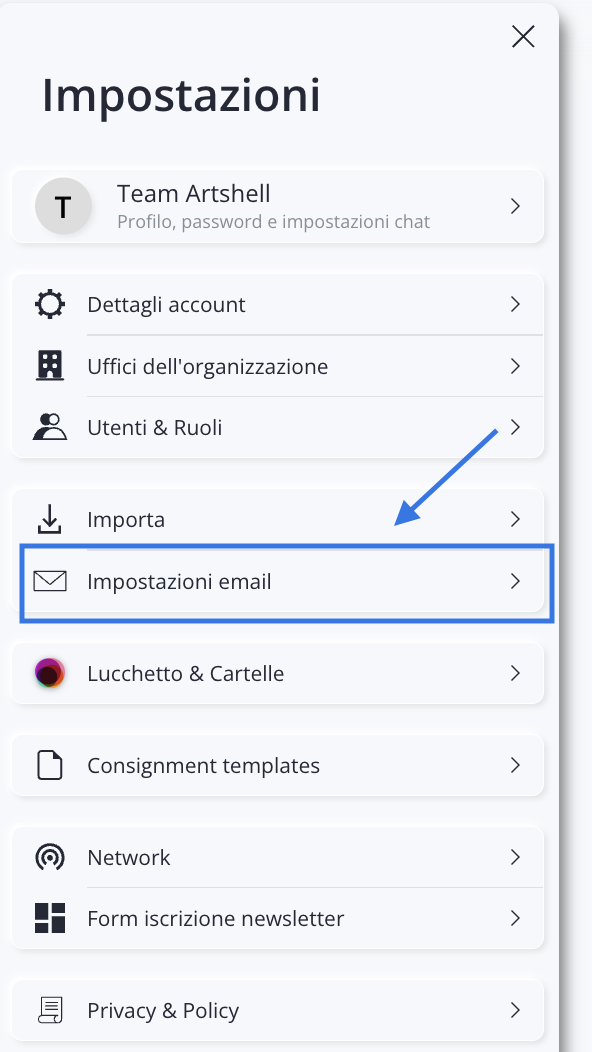
In this section, you'll find the address you used during registration.
If an orange exclamation point appears
The orange exclamation point indicates that the email address has not yet been verified and therefore cannot be used as a sender. This means that you have not yet clicked on the confirmation link included in the email sent to you at the time of registration.
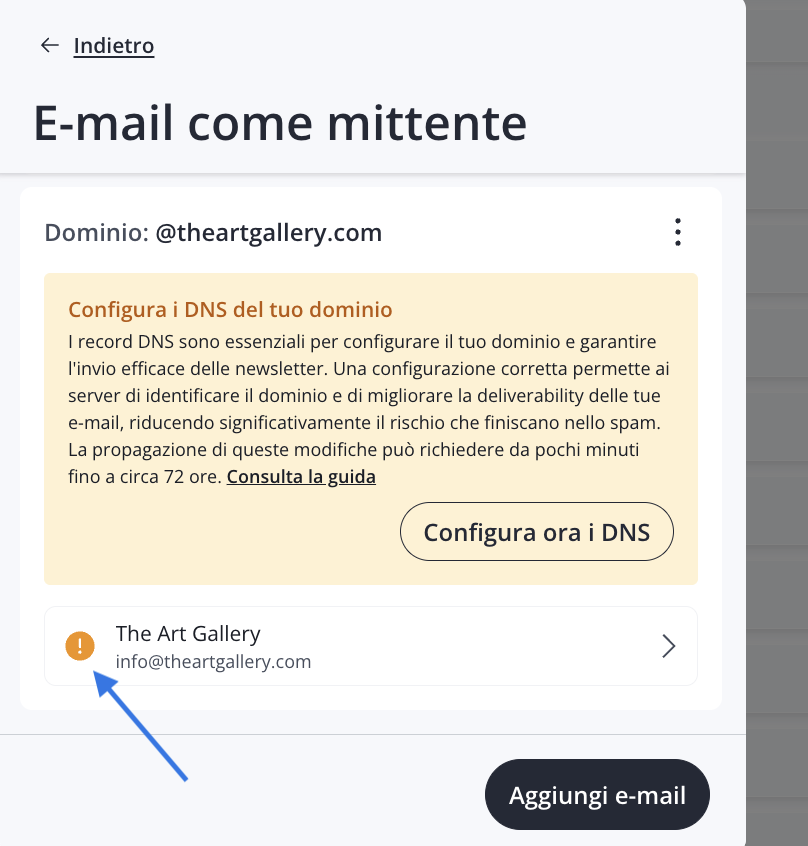
To complete the verification:
- Click the email address marked with an orange exclamation point;
- In the orange box at the bottom, select“Click here to receive it again”;
- Check your email inbox and click on the link you received to confirm your email address;
- If you don't see the email in your inbox, we recommend checking your spam or junk mail folders as well.
Important: the verification link is valid for a limited time. If it expires before you use it, you can request a new one by following the steps described above.
If you can't find the email, check your Spam or Junk folder as well.
Email addresses with generic domains and custom domains
After verifying the address, Artshell also checks the domain being used.
Email addresses with generic domains
If you use an address like:
- @gmail.com
- @outlook.com
- @hotmail.com
- @yahoo.com
No additional configuration is required.
However, these email addresses are primarily intended for personal use and are not recommended for sending newsletters or communications to a large number of recipients, as they may reduce email deliverability.
Email Addresses with Custom Domains
If you use an address like:
info@nomeazienda.it
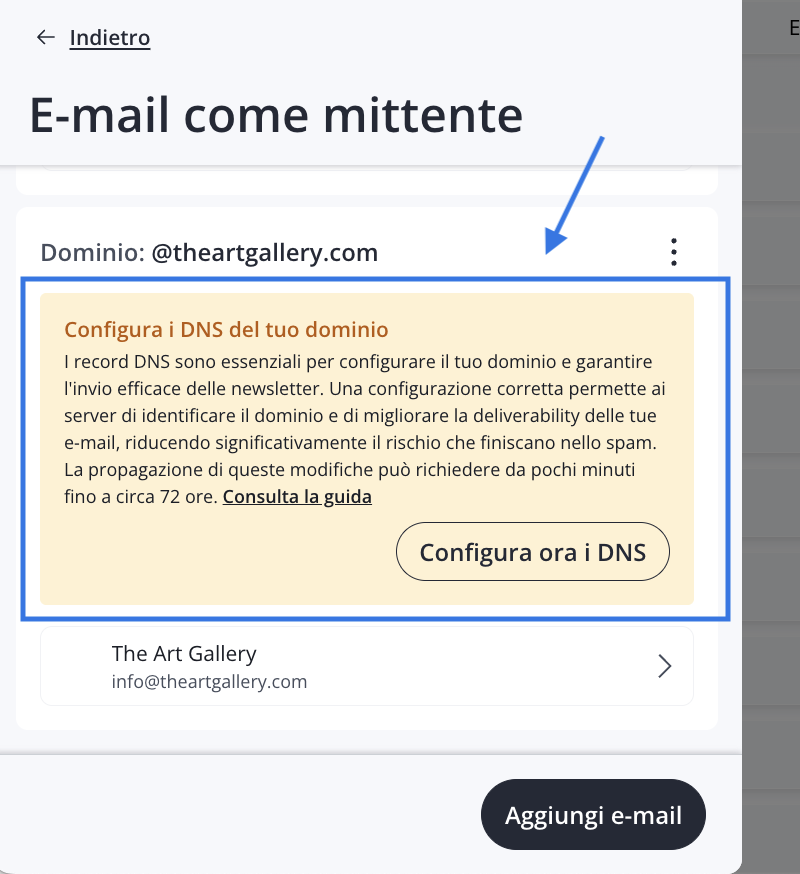
Artshell will prompt you to configure your domain's DNS settings. Configuring DNS is not required, but it is strongly recommended because it allows email providers to verify your identity as the sender and improves the likelihood that your emails will be delivered correctly, reducing the risk of them being classified as spam.
To learn how to proceed, see the article Configure the domain's DNS settings.
Conclusions
Once your email address has been verified, you'll be able to use it to send emails and newsletters through Artshell.
If you'd like to use different addresses for your communications, see the article Add a New Sender Email Address.