
Manage users and roles (Premiere accounts only)
Introduction
With an Artshell Premiere account, you can collaborate efficiently with your team using the Users and Roles feature.
This section can only be edited and accessed from the main account, and it allows you to manage your team members' access to the software by precisely defining what they can view and edit.
Note: If you don't have a Premiere account but are interested in using this feature, please contact us at sales@artshell.eu to request an upgrade to your plan. You can view the available options on the Artshell plans page.
Add a new user
Only the primary admin account can add new users.
Step 1: Go to the Users and Roles section
Select the icon at the bottom right, then click the option Users & Roles.
Step 2: Add and enter the new user's information
Click the "Add " button in the upper-right corner and enter the new user's information (First Name, Last Name, Email Address, and the language in which they will view their profile).
Step 3: Define roles and permissions
This is the most important part.
By toggling the switches, you can choose which actions your team member can perform and which content they can view. Specifically:
- Content permissions
This permission affects the main sections of Artshell listed under the following headings and @ from the vertical menu on the left. Under "Content Permissions," select what the user can do in addition to simply viewing the content.
- Artworks Details: Access to all information, images, files, and documents in the Artworks section. Create and view the history and tags for each individual artwork.
- Content Editing: Permission to upload, edit, and delete content in all sections of the database (Artists, Artworks, Contacts Events, Insights, Export, Email, and Newsletter).
- Massive actions
Enables bulk operations for duplicating, creating history, assigning tags, and creating lists.
- Export: Enables the ability to export and share the contents of Contacts, Artworks , and events in various formats.
- Publish: option to publish Artworks and events on your network profile or on a website linked to Artshell.
- Settings: Access to the account settings panel (with the exception of the "Users and Roles" section, which is reserved for the primary administrator).
Note: Before enabling permissions for bulk actions, make sure you have also enabled the content access permission. Without this permission, the user will not be able to view the content in the main sections of Artshell and, consequently, will not have any items on which to perform bulk actions.
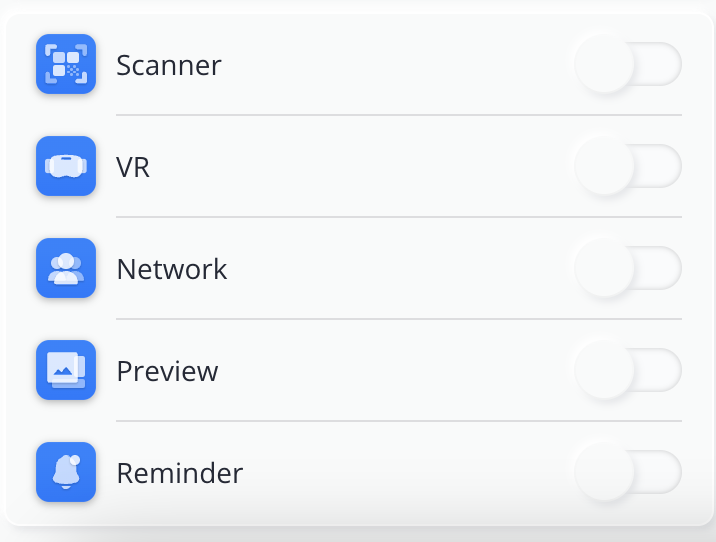
You can also enable the display of Artshell's built-in apps, such as Preview, Scanner, etc.
To learn more about Artshell's apps, go to the dedicated section: Apps.
Step 4: Confirm the addition
Once you have filled in all the fields, click Save at the top to complete the process of adding the new user.
What the user receives
New users added to the Users and Roles section automatically receive an email at the address provided, with the subject line “Join your team on Artshell”.
The email contains instructions on how to log in to Artshell using a temporary password.
To complete the sign-in process, the new user must:
- Go to Artshell at https://app.artshell.eu/login without creating a new account;
- Enter the email address added in the Users and Roles section;
- Enter the temporary password you received via email;
- Set a new personal password.
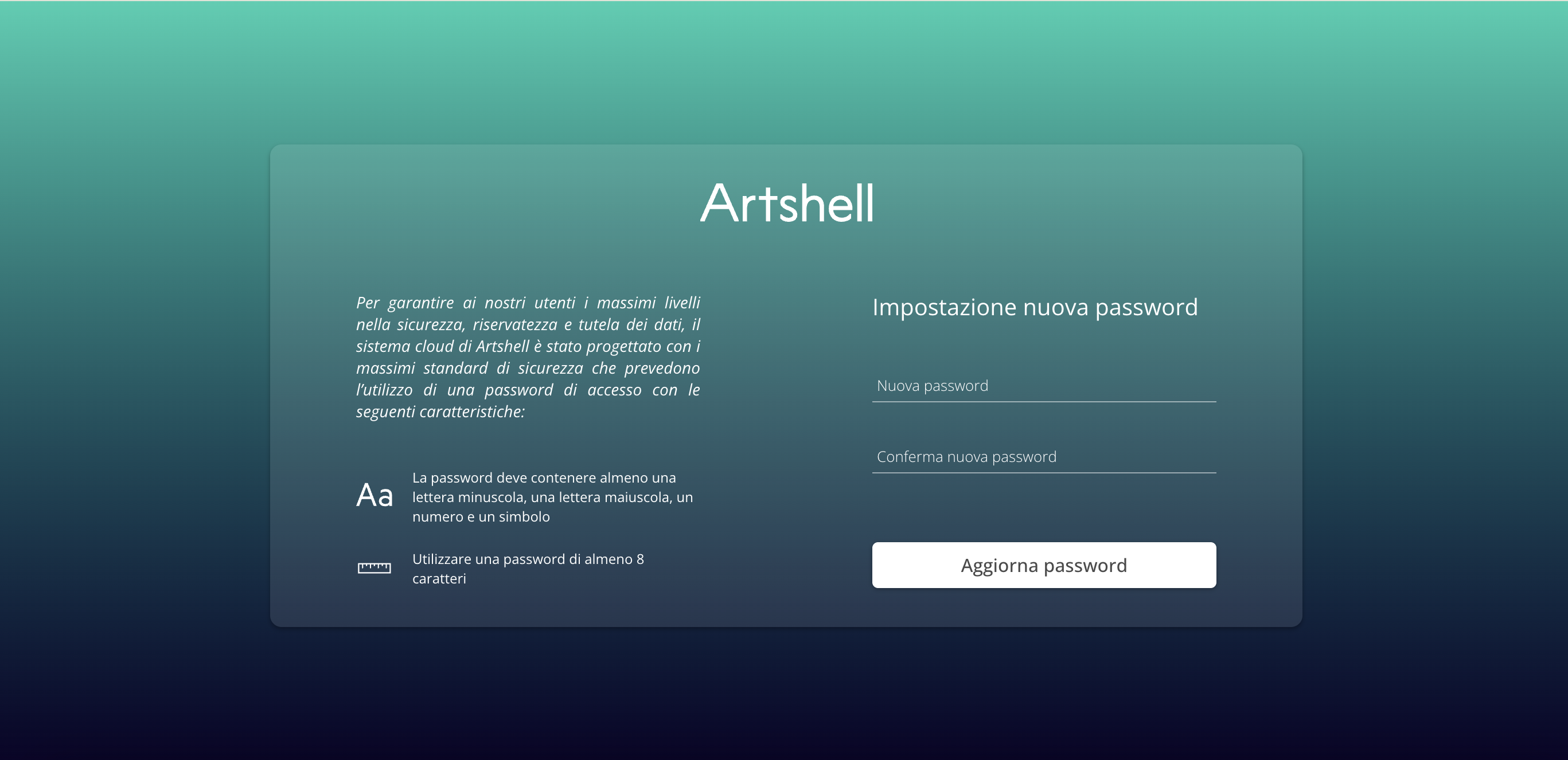
Once these steps are complete, the new user will be able to log in to your Artshell account and will only see the sections and information corresponding to the role and permissions you have configured.
Please ask the new user to also check their Spam and Junk folders to make sure the automated email hasn’t been filtered out by their email provider.
If the email address isn't listed, it probably means that the address you entered is already associated with another Artshell account. In this case, you will not receive a new invitation email, but you can log in as usual using your email address and current password.
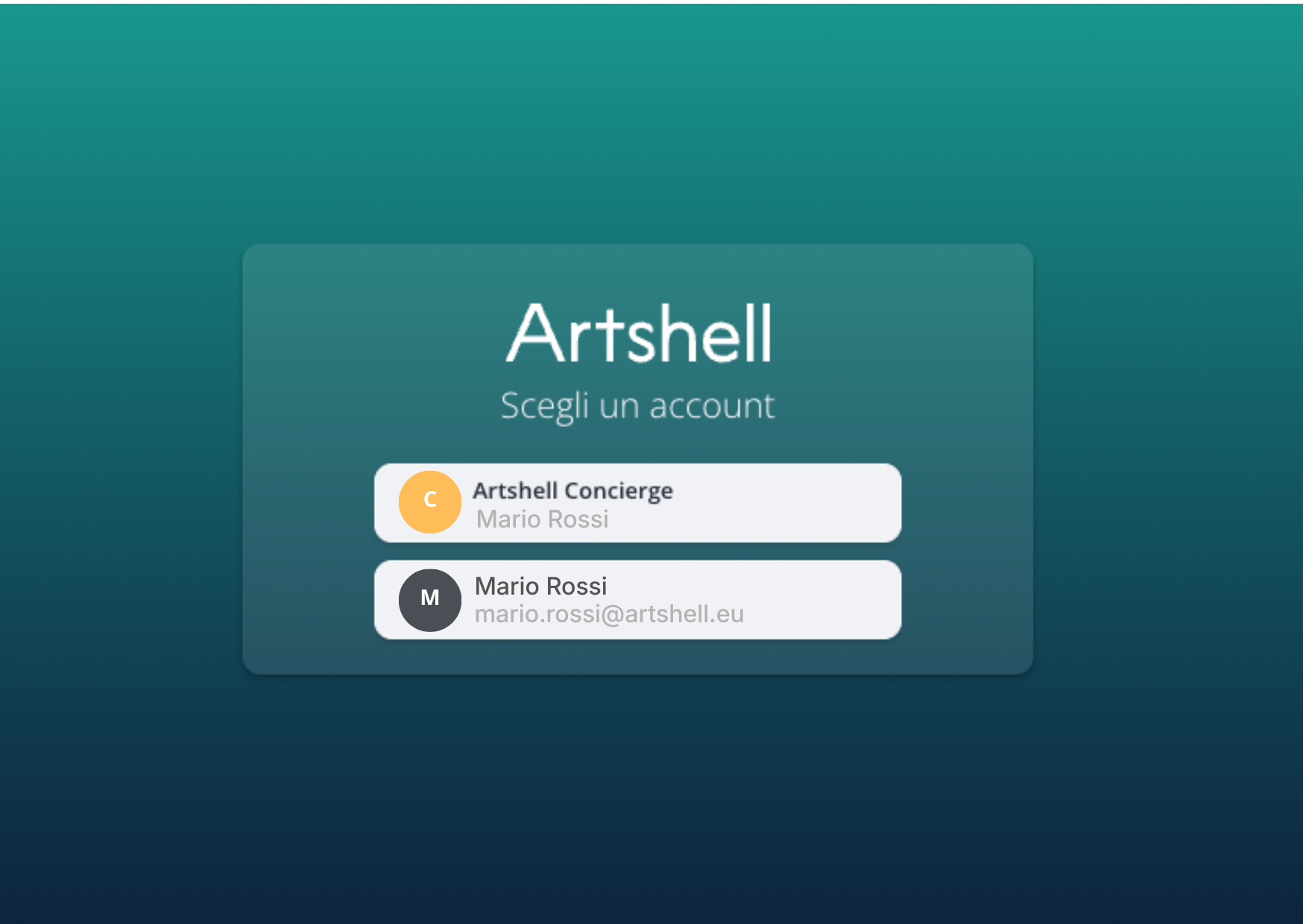
When you log in, the system will display both available accounts: the existing account of which you are the administrator, and the new account to which you have been added as a user.
Edit or delete a user
You can edit a user's information and roles at any time by selecting " Users & Roles" and then clicking on a user.
Please note that you can remove all additional users, but not the administrator who owns the account.
How to reset a user's password
If one of your team members has forgotten their password to access your account or wants to reset it, the procedure is the same for all account types. Go to the article Forgotten Password.
Conclusions
Efficient management of users and their roles is essential for optimizing workflows and ensuring data security within Artshell. With the Users and Roles feature, the Premiere account provides granular control over access, allowing you to customize permissions based on the specific needs of each team member. This not only simplifies collaboration but also ensures that sensitive information remains secure.
If you want to make only certain Artworks visible Artworks a collaborator, external agent, or team member—without granting them access to the entire Artworks section archive— Artworks further restrict visibility in the Preview app. To learn more, see the dedicated article: