
Manage users and roles
Introduction
With the Artshell Premiere account, you can collaborate efficiently with your team using the Users and roles feature.
This section can only be edited and accessed from the main account, and it allows you to manage your team members' access to the software by precisely defining what they can view and edit.
Note
If you don't have a Premiere account, but are interested in using this feature, contact us at sales@artshell.eu to request a plan upgrade. You can view the available options on the Artshell plans page.
Add a new user
Only the primary admin account can add new users.
Step 1: Go to the Users and Roles section
Select the icon at the bottom right, then click the option Users & Roles.
Step 2: Add and enter the new user's information
Click the Add button in the top right corner and fill in the new user's details (First name, Last name, Email address, and the language in which they will view the profile).
Step 3: Define roles and permissions
This is the most important part.
By toggling the switches, you can choose which actions your team member can perform and which content they can view. Specifically:
- Content permissions
This permission affects the main sections of Artshell located under and @ from the vertical menu on the left. Then, within the content permissions, choose what the user can do beyond simply viewing.
- Artwork details: access to all information, images, files, and documents in the Artworks section. Creation and viewing of history and tags for each individual artwork.
- Content editing: authorization to upload, modify, and delete content across all database sections (Artists, Artworks, Contacts, Events, Insights, Exports, Emails, and Newsletters).
- Massive actions
Enables bulk operations for duplicating, creating history, assigning tags, and creating lists.
- Export: enables the ability to export and share content for contacts, artworks, and events in various formats.
- Publish: ability to publish artworks and events on your network profile or a website connected to Artshell.
- Settings: access the account settings panel (with the exception of the "Users and Roles" section, which is reserved for the main administrator).
Note
Before enabling permissions for bulk actions, make sure you have also enabled the permission to access content. Without this permission, the user will not be able to view the content in the main sections of Artshell and, as a result, will not have any items on which to perform bulk actions.
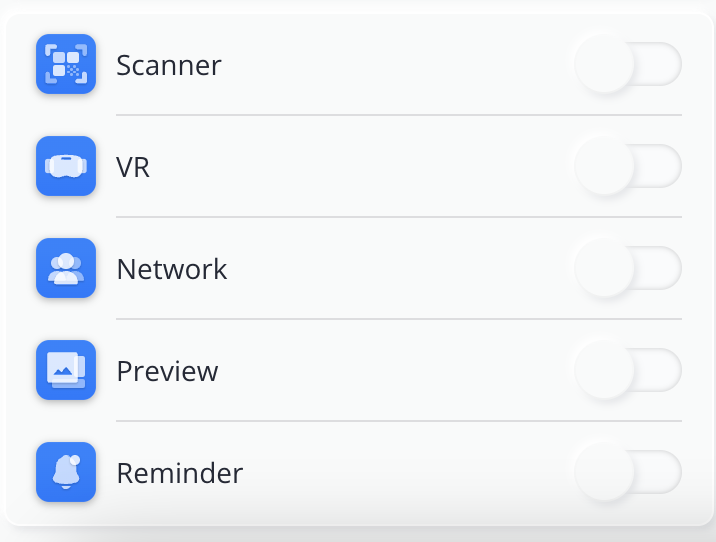
You can also enable the display of Artshell's built-in apps, such as Preview, Scanner, etc.
To learn more about Artshell's apps, go to the dedicated section: Apps.
Step 4: Confirm the addition
Once you have filled in all the fields, click Save at the top to complete the process of adding the new user.
What the user receives
New users added to the Users and Roles section automatically receive an email at the address provided, with the subject line “Join your team on Artshell”.
The email contains instructions on how to log in to Artshell using a temporary password.
To complete the sign-in process, the new user must:
- Go to Artshell at https://app.artshell.eu/login without creating a new account;
- Enter the email address added in the Users and Roles section;
- Enter the temporary password you received via email;
- Set a new personal password.
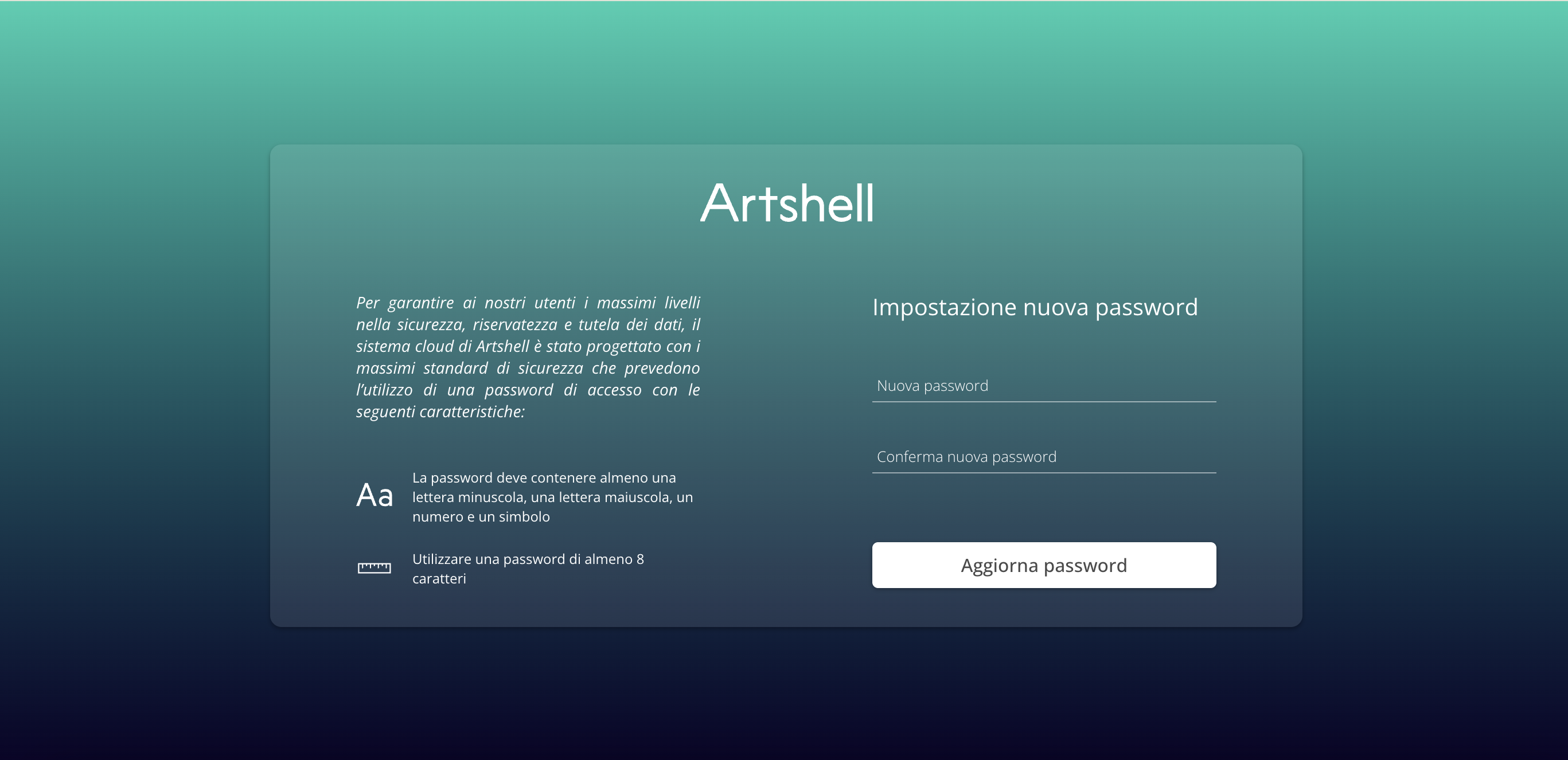
Once these steps are complete, the new user will be able to log in to your Artshell account and will only see the sections and information corresponding to the role and permissions you have configured.
Invite the new user to also check their Spam and Junk email folders, making sure that the automated email has not been filtered by the mail provider.
If the email address is not listed, it likely means that the entered address is already associated with another Artshell account. In this case, the user will not receive a new invitation email, but they can log in normally using their existing email address and password.
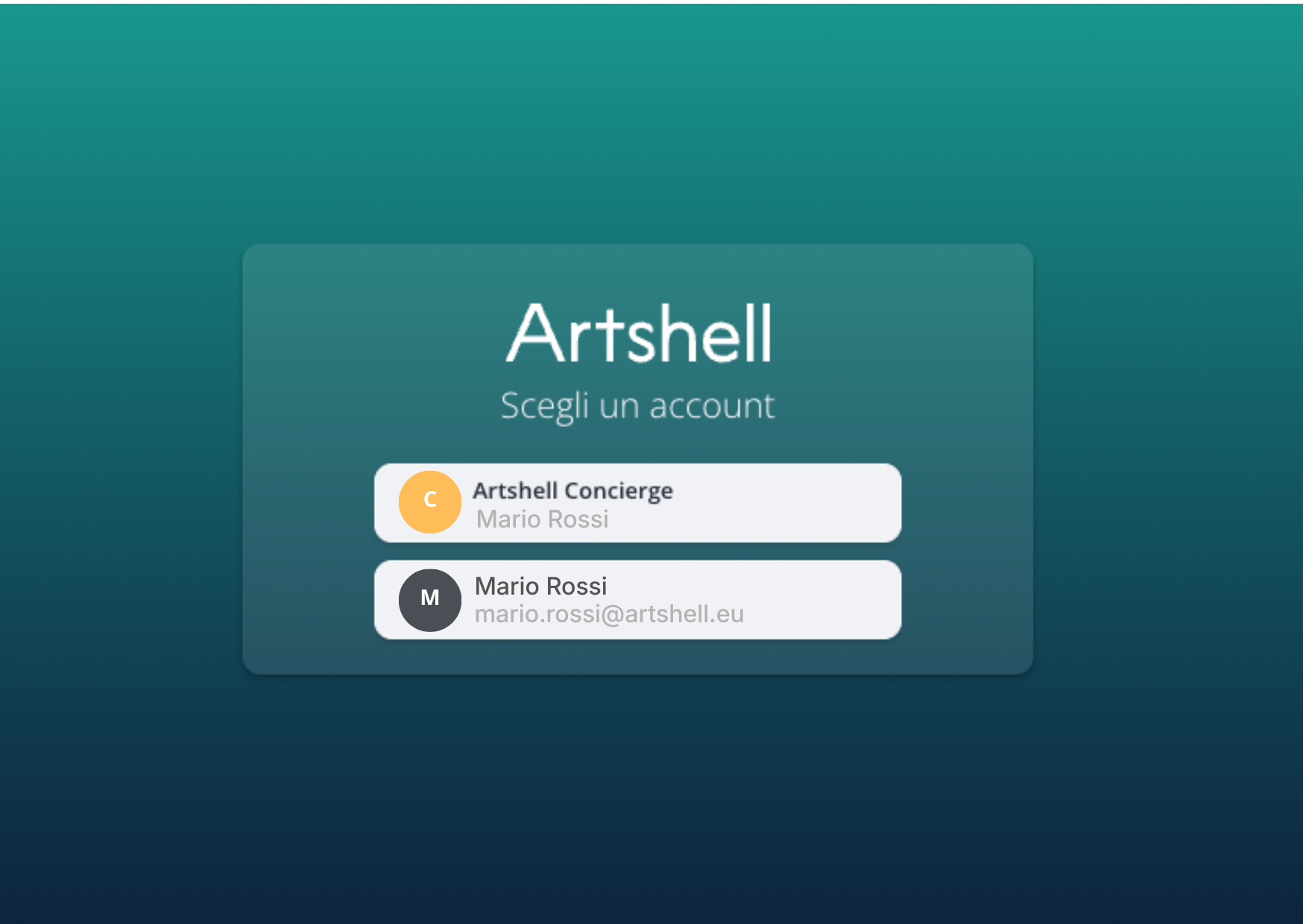
Upon logging in, the system will display both available accounts: your existing account where you are an administrator, and the new account to which you have been added as a user.
Edit or delete a user
You can edit a user's information and roles at any time by selecting Users & Roles and then clicking on a user.
Please note that you can remove all additional users, but not the administrator who owns the account.
How to reset a user's password
If one of your team members has forgotten their account password or wants to reset it, the procedure is the same for all account types. Go to the article Forgot password.
Conclusions
Efficient management of users and their roles is essential for optimizing workflows and ensuring data security within Artshell. With the Users and Roles feature, the Premiere account provides granular control over access, allowing you to customize permissions based on the specific needs of each team member. This not only simplifies collaboration but also ensures that sensitive information remains secure.
If you want to make only certain Artworks visible to a collaborator, external agent, or team member without granting them access to the entire archive of the Artworks section, you can further restrict visibility in the Preview app. To learn more, check out the dedicated article: