
Organize artists using tags and lists
Introduction
Artshell provides two essential tools for organizing and managing your records : the Tags and Lists.
In this article, we'll show you how to create, add, or remove one or more tags from your artists, and how to organize them into manual or automatic playlists for more efficient and personalized management.
Prerequisites
We recommend that you read these articles before you begin:
Create and manage artist tags
Tags allow you to label and categorize artists to make it easier to search for and organize them. Below are the actions you can perform with tags:
Click on the titles to expand them.
Create a new tag
There are two ways to create a tag:
-
From record :
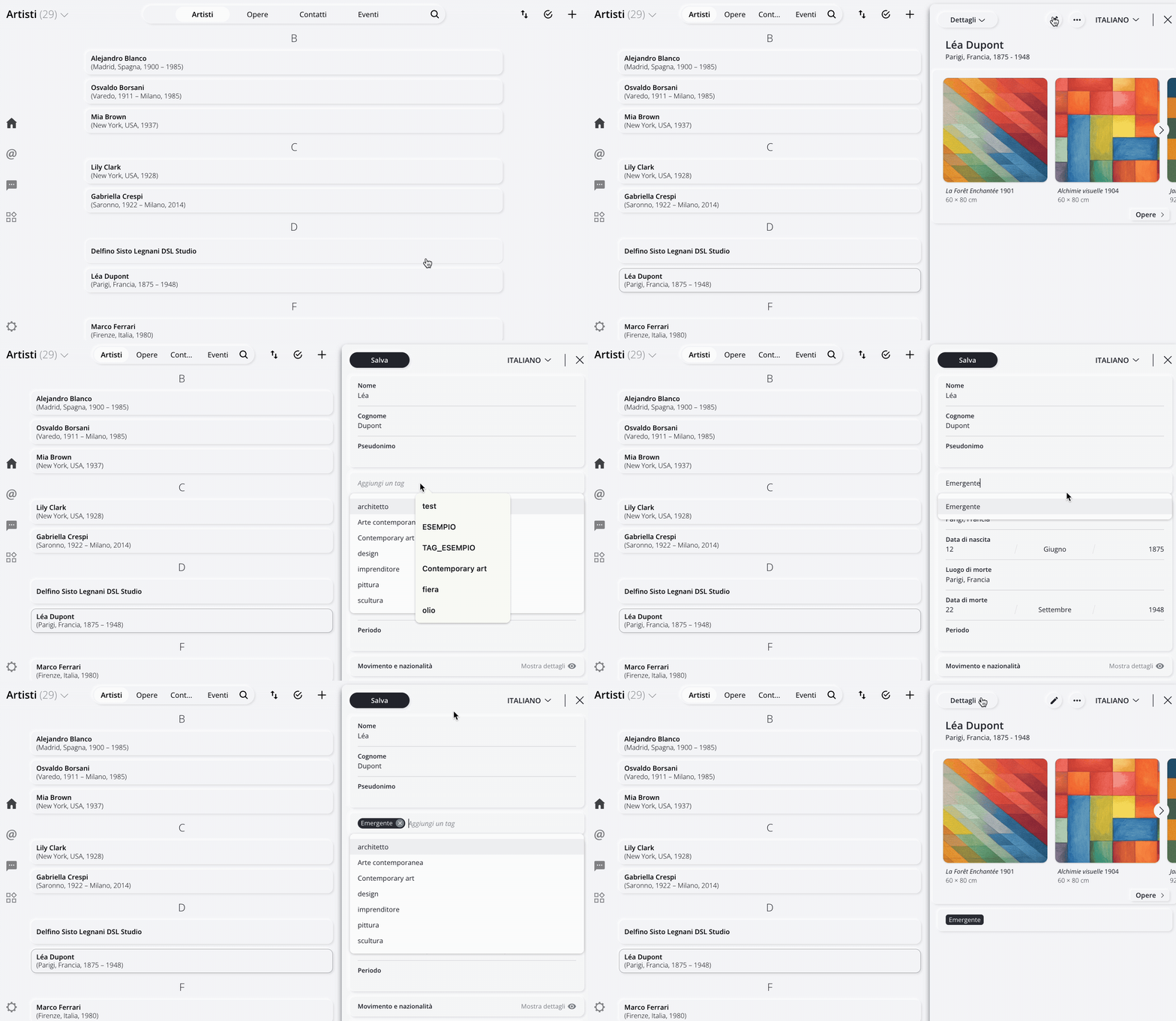
- Select an artist, then click the icon Tap here to enter mode edit.
- In the " Add a tag" field, type the name of the new tag and press ENTERon your keyboard.
- Click " Save " at the top to confirm.
-
From the Manage section (recommended if you want to add the tag to multiple artists):
Artshell lets you assign a tag to multiple artists at once:
- Select the artists using the icon .
- In the panel Manage When you see it appear on the right, click Add tag. If the panel doesn't appear (for example, because your screen is too small), click the icon top right.
- Click + Create tag.
-
Enter the tag you want to create in the space provided, then click " Create Tag." Click " Cancel " to go back.
Note: The number in parentheses next to each tag indicates how many artists are associated with that specific tag. - Click the "Add " button in the lower right corner to apply the tag you created to the selected artists.
Add an existing tag to a selection of artists
- Select the artists using the icon .
- In the panel Manage Click on the icon that appears on the right Add tag. If the panel doesn't appear (for example, because your screen is too small), click the icon top right.
- Use the search bar to find the tag you want to assign, then check the box next to the tag to select it.
- Click the "Add " button in the lower-right corner to apply the tag to the selected artists.
Remove a tag
There are two ways to remove a tag:
-
From record :
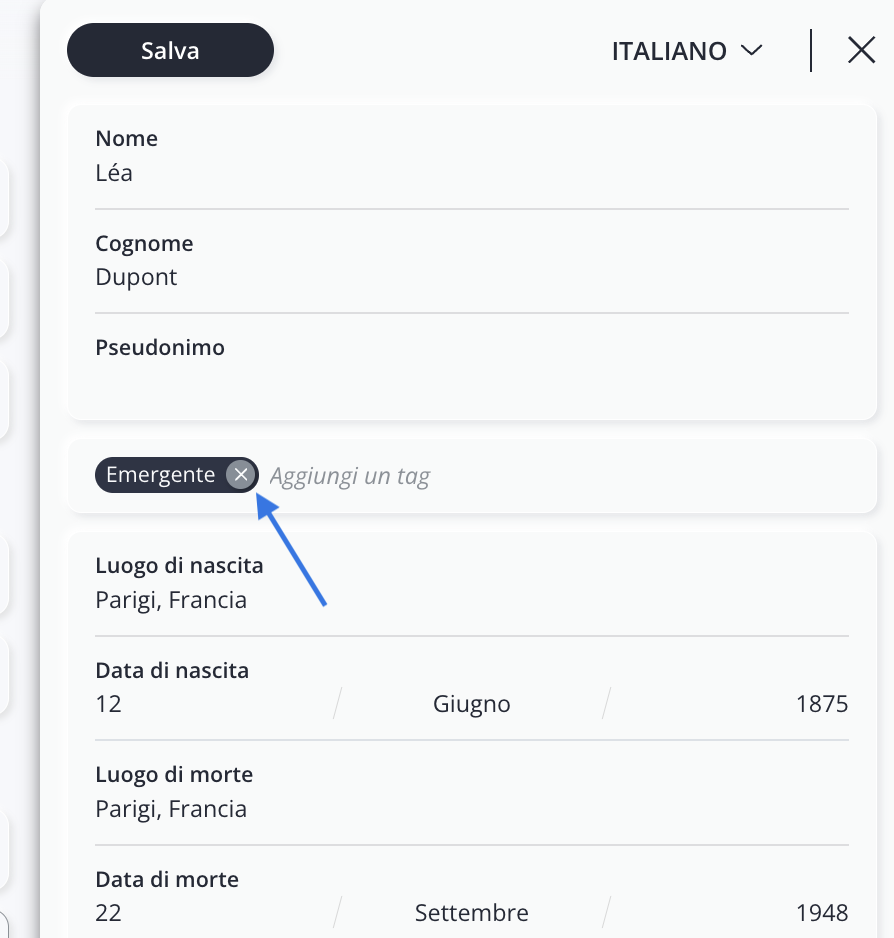
- Select an artist, then click the icon Tap here to enter mode edit.
- Click the X icon next to the tag you want to delete to remove it.
- Click " Save " at the top to confirm.
- From the Manage panel (recommended if you want to remove the tag from many artists):
- Select the artists using the icon .
- In the panel Manage Click on the icon that appears on the right Remove tag. If the panel doesn't appear (for example, because your screen is too small), click the icon top right.
-
Use the search bar to find the tag you want to remove, then check the box next to the tag to select it (you can also remove multiple tags at once).
Note: Only the tags found within the records artists you have selected appear in the " Remove Tags " area. - Click " Remove " in the bottom right corner to remove the tag.
Note: To permanently remove a tag that is no longer in use, you must delete it from all records which it has been applied. For complete instructions, see the article “How to Permanently Delete a Tag That Is No Longer in Use.”
Create and manage artist playlists
With Artshell, you can organize and group artists into an unlimited number of lists.
As explained in the introductory article "Organizing Content: Tags and Lists," there are two types of lists: manual and automatic.
You can access the list of created lists by clicking the section title in the upper-left corner.

Create lists
Click on the titles to expand them:
Create a list manually
To create a manual list—that is, a list that remains static over time:
- Select artists using theicon .
- In the panel Manage When you see it appear on the right, click Add to list. If the panel doesn't appear (for example, because your screen is too small), click the icon top right.
- Since the playlist you want to add artists to hasn't been created yet, click + Create Playlist.
- Enter the name of the list you want to create in the space provided, then click " Create List." Click " Cancel " to cancel the operation.
- Click the "Add " button in the lower-right corner to add the selected artists to the list you just created.

Create an automatic list
To create an automatic list—that is, a list that updates over time—start by using the search bar in the Artists section.
Enter one or more criteria you want to include in your list, and then click SUBMIT from the keyboard. The search results can now be saved by clicking theicon
top right.
Below is an example of a search for artists tagged with the " emerging " tag who were born in London.

After clicking theicon
, choose the name of the auto-complete list. Finally, click Save list.

Manage lists
Click on the titles to expand them:
Add items to an existing list
Add artists to a playlist (Manual):- Select artists using theicon .
- In the panel Manage Click on the icon that appears on the right Add to list. If the panel doesn't appear (for example, because your screen is too small), click the icon top right.
- Use the search bar to find the playlist you want to add the artists to, then check the box next to the playlist to select it.
Note: The number in parentheses next to each list indicates how many artists are included in that specific list. - Click the button Add at the bottom right to add the artists to the selected list.
Add artists to an Auto Playlist:
To include an artist in an automatic playlist, make sure they meet the criteria you set when creating the playlist. The artist will be added automatically as soon as they meet those requirements.Remove items from a list
Remove artists from a list (Manual):
- Select artists using theicon .
- In the panel Manage Click on the icon that appears on the right Remove from list. If the panel doesn't appear (for example, because your screen is too small), click the icon top right.
- Use the search bar to find the list from which you want to remove the artists, then check the box next to the list to select it.
Note: The number in parentheses next to each list indicates how many artists are included in that specific list. - Click the button Remove Click the bottom-right corner to remove artists from the selected list.
Remove artists from an automatic playlist:
Artists are automatically removed from automatic playlists when they no longer meet the defined criteria. To remove an artist, simply make sure they no longer meet the requirements of the desired playlist.
Customize the order of the lists
- Click the " Artists " section at the top left.
- Hover your cursor over a list to see the hand icon appear.
- Drag each list up or down to arrange them in the order you prefer.
Conclusions
Knowing how to make the best use of tags and lists is essential for maintaining a structured, efficient, and personalized management of records .