
Organizing content: tags and lists
Introduction
One of the most important aspects of database management is being able to organize information so that it is easy to find and use over time. In Artshell, this is possible thanks to two complementary tools: Tags and Lists.
Although they are often used together, they serve different purposes. Tags are used to categorize items using custom keywords; Lists, on the other hand, allow you to group them based on criteria you define.
Understanding the difference between these two tools will help you organize your database more effectively and get the most out of Artshell's search bar.
If you're not yet familiar with advanced search, we recommend that you first read the article on the Search Bar, which explains the basics of how Tags and Lists work:
Tags or lists?
Although they may seem similar, tags and lists serve different purposes.
| If you want... | Use |
|---|---|
| Classify a work as, for example, "Important" | Tags |
| Identify all VIP collectors | Tags |
| Preparing artworks to exhibit at a fair | List |
| Create a recipient group for a newsletter | List |
| Create a list that automatically collects all Contacts | Tags + List |
What are tags?
Tags are labels consisting of one or more terms that you can associate with artists, artworks, contacts, events, and insights to organize them efficiently.
They are used to add information that allows you to categorize and quickly find content in the database.
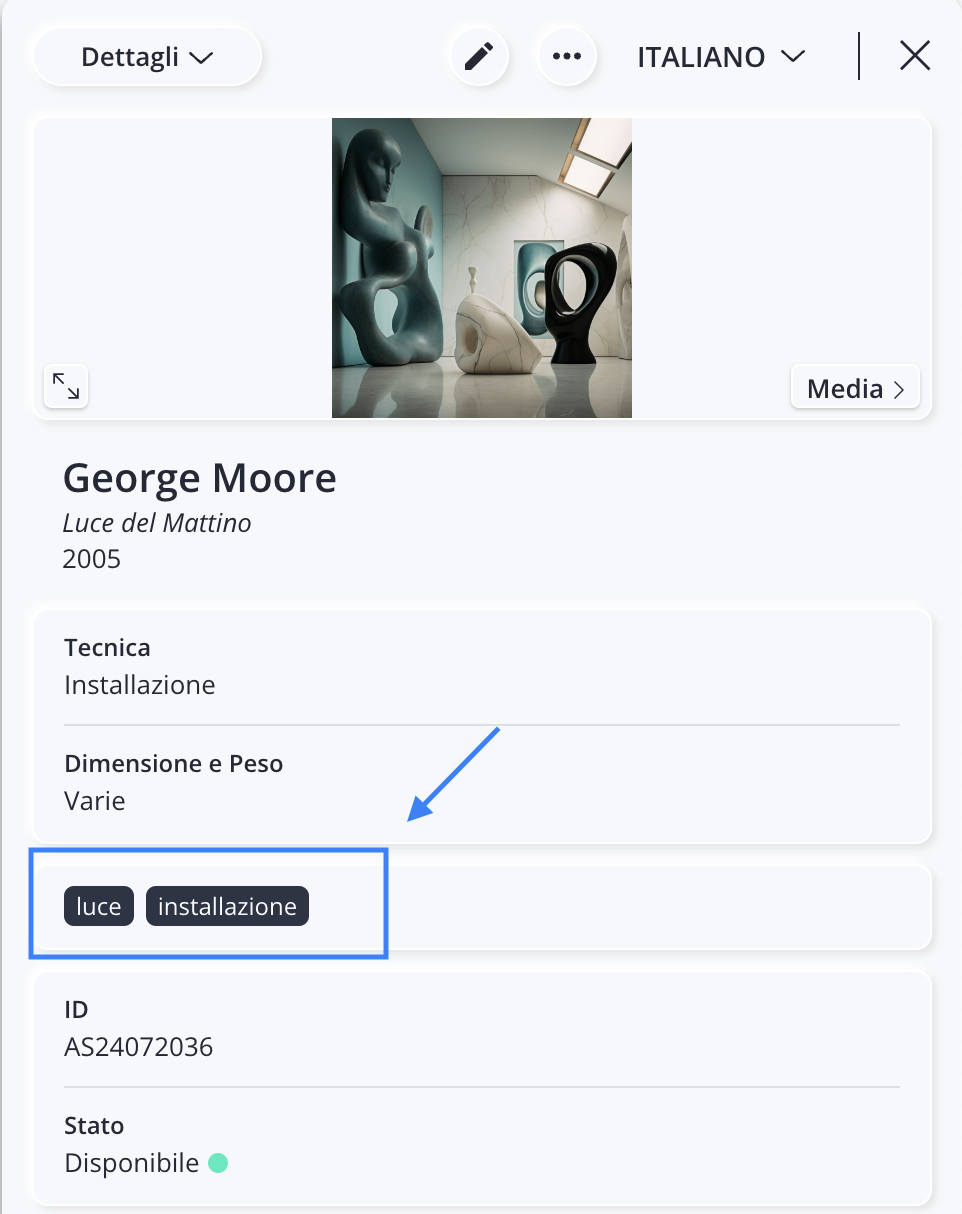
Below is an example of a tag within an record :
How to use tags correctly
To ensure your database is well-organized, it's important to establish a consistent structure before you start creating new tags.
Use tags only when necessary
Before creating a new tag, ask yourself if that information is already included in a specific field in Artshell.
For example, there's no need to create a tag like:
- Michelangelo
- Available
- Milan
A common mistake is to use tags for information that is already stored in specific database fields. This can lead to redundancy, inconsistency, and confusion. Tags allow you to add flexible and subjective metadata.
Tags are most useful for categorizing cross-cutting information, such as:
- topics;
- types of collectors;
- interests;
- Custom categories.
Maintain a consistent structure
Tags work best when they follow a common logic.
For example, you can organize artistic movements in a progressive manner, from the general to the specific:
Before you start organizing, take some time to think about the main categories you want to use, considering the various aspects of your database and your collection.
Watch out for typos
Even a small typo creates a new tag. Pay attention to uppercase/lowercase letters, singular/plural forms, and abbreviations. Before creating a new tag, make sure there isn't already an equivalent one.
How to insert tags
Tags can be used in the following sections:
- Artists
- Artworks
- Contacts
- Events
- Insight
For Artworks and Contacts, it is also possible to set tags from their respective import Excel files.
For insights, however, tags can only be assigned manually, one at a time.
See the related articles for more information:
What are lists?
Lists are containers that group database items based on specific criteria you define. You can create, delete, organize, and reorder lists according to your needs.
Unlike tags, they do not describe a single element but allow you to group multiple elements together for a specific purpose.
For example, you can create a list for:
- an exhibition;
- a trade show;
- a selection of Artworks;
- a newsletter;
- An event for collectors.
Artshell offers two types of lists:
Automatic lists
Automatic Lists are called that because they update in real time, based on rules and filters you define. Whenever an item meets those criteria, it is automatically added to the list; when it no longer meets them, it is removed.
Assign the #ITA tag to Contacts and the #ENG tag to international contacts.
It's like having a smart filter that selects Contacts on specific criteria. This type of organization is also very useful if you use the Artshell Newsletter, so you can have two constantly updated user groups to which you can send communications in different languages.
————
The same principle can also be applied to Artworks.
For example, you can create an automatic list that combines certain criteria:
- artworks by the artist Boldini Giovanni;
- with status " Available";
- located in Milan.
Any changes made to the artworks will also automatically update the list.
Manual lists
Manual lists are static containers, and unlike automatic lists, their content does not change unless you manually update them. They are very useful for temporary or exclusive events such as trade shows, exhibitions, or cocktail parties, or if you want to target a specific segment of users with a message.
For example, you can create a list for:
- the artworks to exhibit at the upcoming art fair;
- a selection to send to an editor;
- guests at an exclusive event;
- the recipients of a specific communication.
Managing Lists
Where can I find the lists?
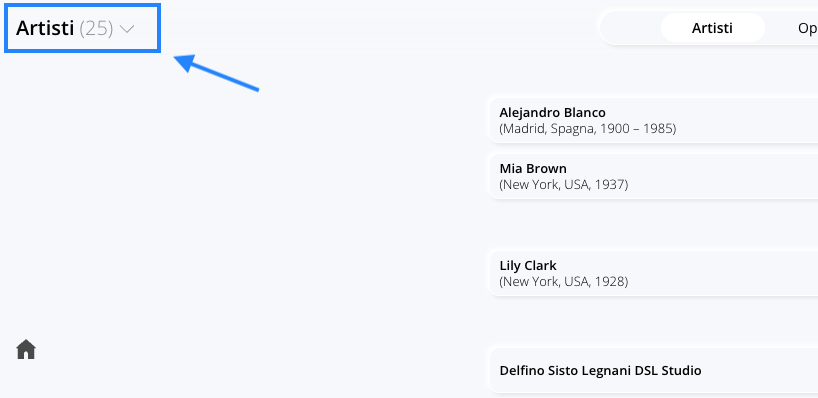
The lists are available by clicking on the section name (for example Artworks, Artists, or Contacts) in the upper-left corner of the screen.
See the related articles for more information:
How do I view the contents of a list?
In the side panel containing the lists, each list displays the number of items it contains. When you click on a list name, the section's content updates to show only the items in that list. The name of the selected list will appear in the upper-left corner in place of the general label.
To return to the full view, simply select " All Artworks," " All Artists," " All Contacts," etc.
How can I reorder my lists?
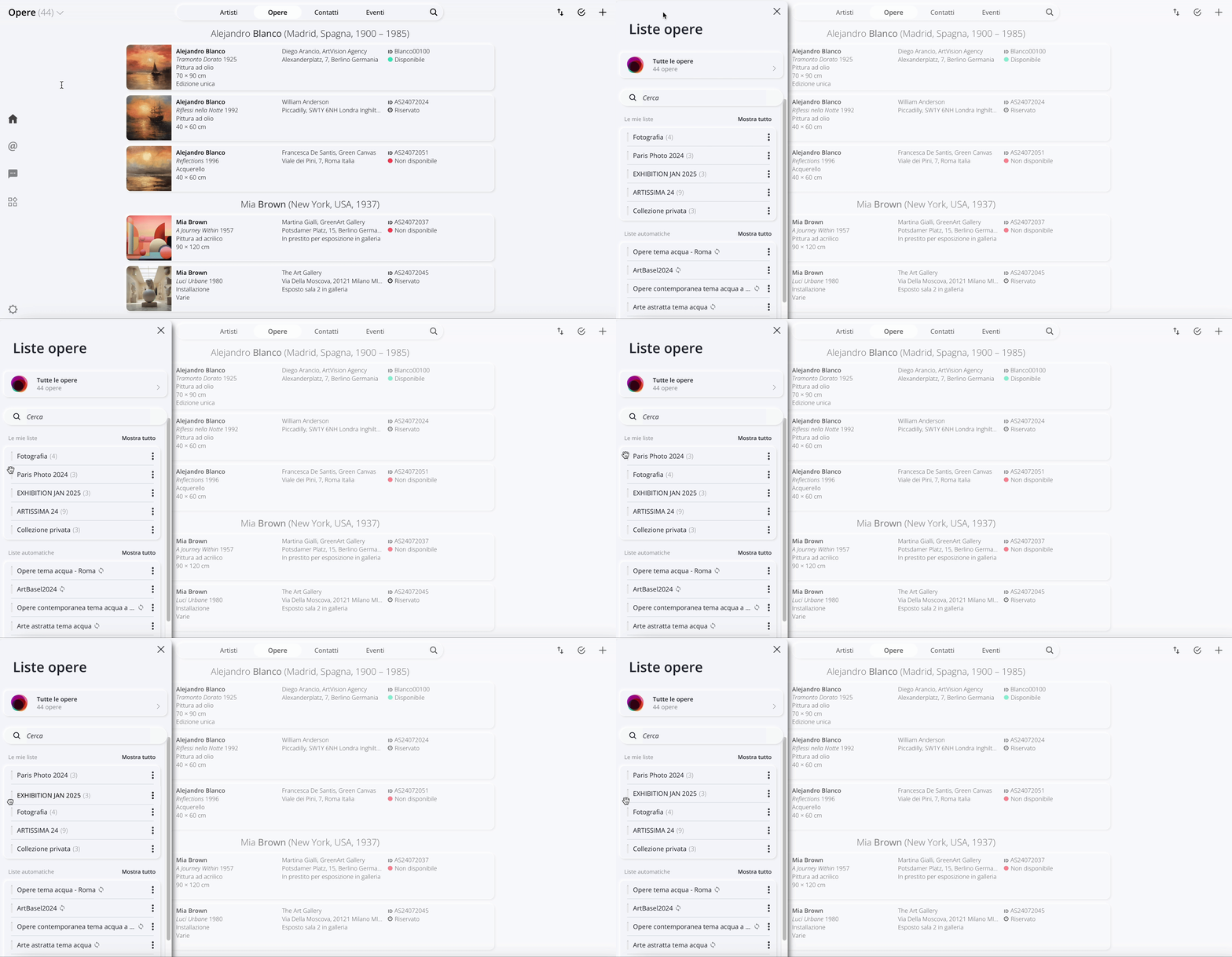
You can change the order of the lists by dragging them up or down.
Here is a brief demonstration:
How do I rename or delete a list?
Both options are available from the menu next to the list name.
Click " Rename List" to give the list a new name, then press ENTER on your keyboard to confirm.
Click the " Delete List " option to delete the list.
Warning: deleting a list does not delete the items it contains. Only the list will be removed, while artists, artworks, contacts, or events will remain unchanged in the database.
Conclusions
Tags and Lists are two complementary tools.
Tags are used to describe and classify database elements.
Lists, on the other hand, are used to organize and group them according to a specific purpose.
When used together, they allow you to build a well-organized database that is easy to search and maintain over time, speeding up searches, newsletter preparation, event management, and content selection.
To learn more about how Artshell works, we also recommend reading: