
Organize your contacts tags and lists
Introduction
I Tags and the Lists let you organize your Contacts, segment your database, and quickly find the people you're interested in.
In this article, learn how to create, assign, and remove tags, as well as organize " Contacts " into manual and automatic lists.
A well-structured tagging system allows you to:
- quickly filter Contacts;
- create targeted segments;
- plan communication and follow-up activities;
- Turn your address book into a powerful relationship management tool.
Before you begin
If you're not yet familiar with how Tags and Lists work, check out these articles:
Before creating your tags
Avoid creating tags that duplicate information already included in the contact's master data (such as City, Country, Position, or Contact Type).
Use tags to add information that is useful for database segmentation and for organizing Contacts.
Tags should add a strategic layer of classification, not duplicate structured data.
Below are some useful categories to get you started. Of course, you can adapt them to your organization and your way of working.
| Strategic groups |
Team, Family, Friends, Inner Circle, VIP, Customer (Current), Customer (Prospective), Former Customer, Partner, Supplier, Collaborator, Former Colleague. You can also distinguish between regular contact and occasional contact. |
| Demographics | For example, by generation: Silent Generation (1928–1945), Baby Boomers (1946–1964), Gen X (1965–1980), Millennials / Gen Y (1981–1996), Gen Z (1997–2012), Gen Alpha (2013–2025) |
| Professional interests | Fintech, Finance, Law, Marketing, Fashion, Architecture, AI, etc. |
| Personal interests / hobbies | Sports (golf, tennis, sailing) and hobbies (food and wine, music, volunteering, pet lovers, etc.). |
| Artistic interests | Artist, Medium, Technique, Period, Formats, Price range, Purchase frequency (high, medium, low). |
| Acquisition source / referral | Trade show booth, In-person event, Introduced by [Name], Social media, Website form, Travel, etc. You can use theNotessection to provide further details about the tag. |
| CRM (Customer Relationship Management) |
For example: Lead (New), contacted, in negotiations, proposal sent, acquired customer, lost customer, or not interested. Interaction status: To be contacted, follow-up on [Date], awaiting response. |
Manage tags
You can use tags to label and categorize Contacts s to make them easier to search, organize, and export.
Create a new tag
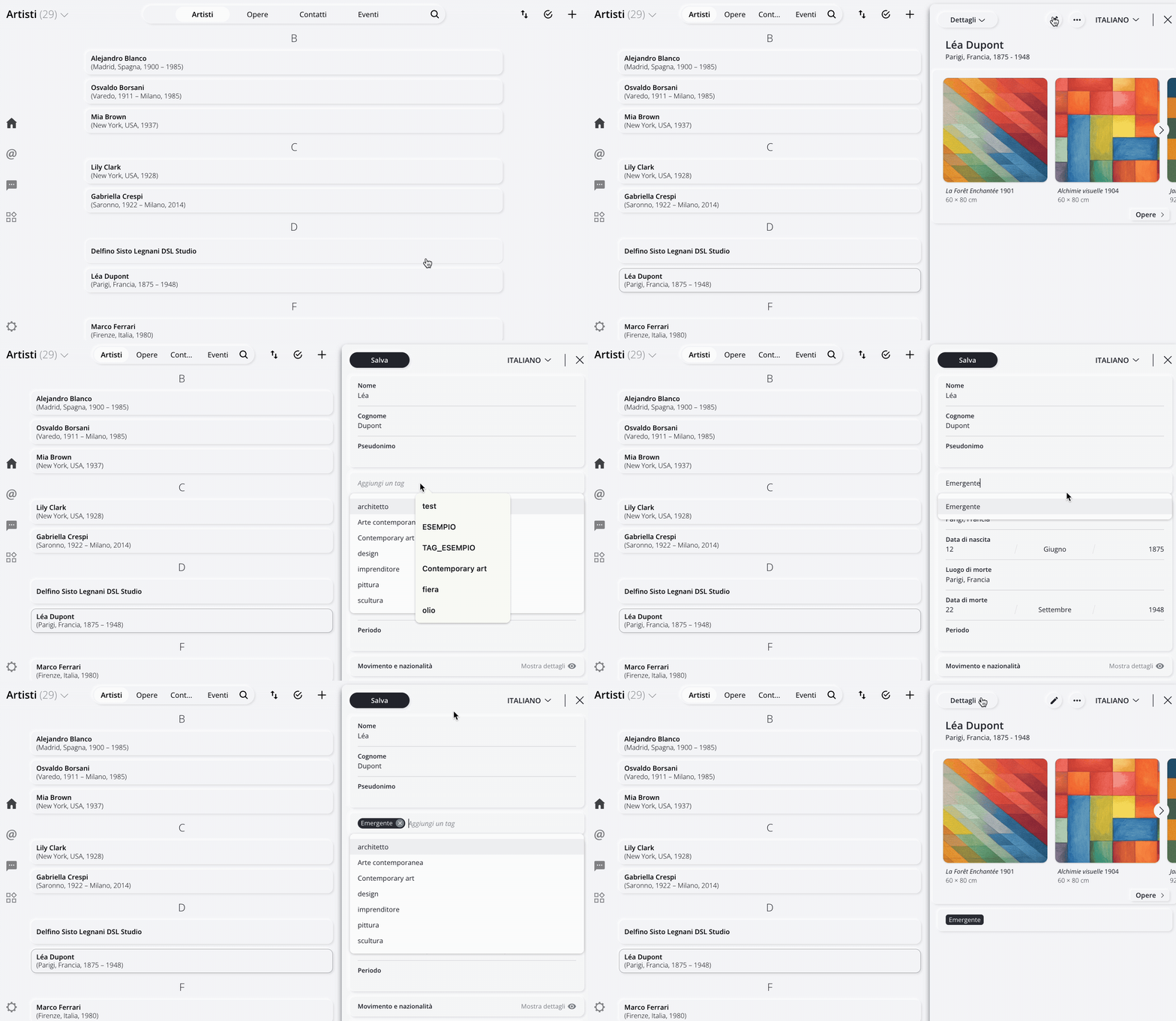
You can create a new tag from a contact record or from the Manage panel.
From record contact
- Select a contact, then click the icon Tap here to enter mode edit.
- In the Add a tag field, type the name of the new tag.
- Press ENTER on the keyboard.
- Click " Save " at the top to confirm.
From the Manage panel
This method is recommended if you want to assign the new tag to multiple Contacts at the same time.
- Select the Contacts theicon .
- In the Manage panel that appears on the right, click Add tag.
- Click + Create tag.
-
Enter the tag you want to create in the space provided, then click " Create Tag." Click " Cancel " to go back.
- Click the "Add " button in the lower-right corner to apply the tag you created to the Contacts .
Note: The number in parentheses next to each tag indicates how many contacts are assigned to it.
Tip: Before creating a new tag, use the search bar to check that one with the same or a similar name does not already exist.
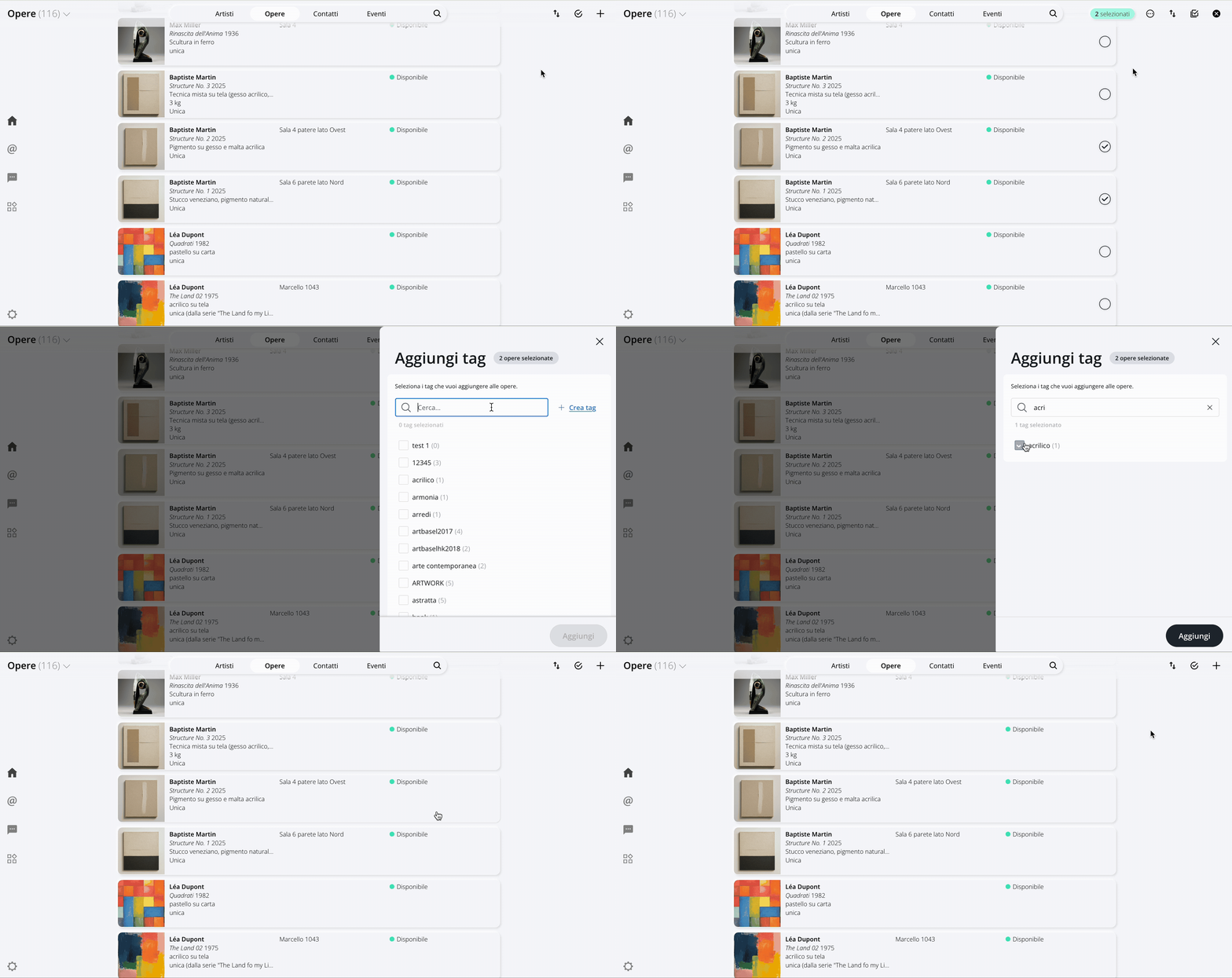
Add an existing tag
- Select the Contacts the icon .
- In the Manage panel on the right, click Add tag.
- Search for the tag using the search bar.
- Check the box next to the tag to select it.
- Click Add at the bottom right to apply the tag to the selected contacts.
Remove a tag
You can remove a tag from a single contact's record or from multiple Contacts at the same time.
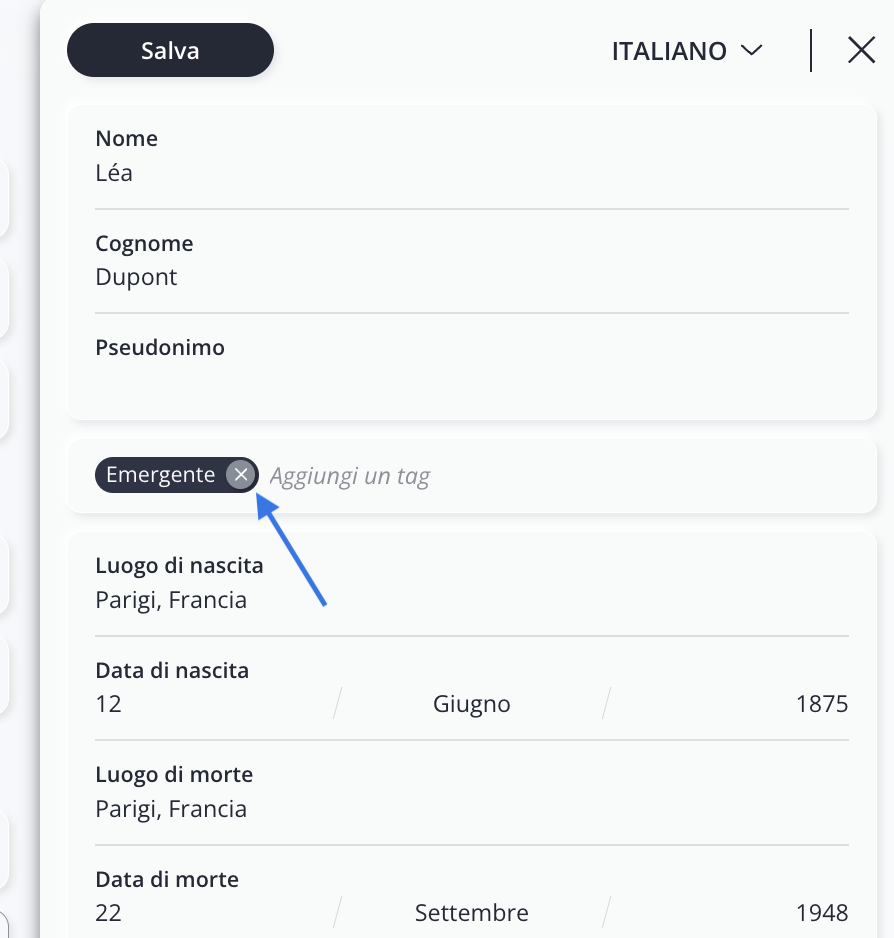
From record contact
- Select a contact, then click the icon Tap here to enter mode edit.
- Click the X icon next to the tag you want to delete to remove it.
- Click " Save " at the top to confirm.
From the Manage panel
- Select the Contacts theicon .
- In the Manage panel that appears on the right, click Remove tag.
- Use the search bar to find the tag you want to remove, then check the box next to the tag to select it (you can also remove multiple tags at once).
- Click " Remove " in the bottom right corner to remove the tag.
Note: Only tags present in the selected contacts are shown in the list.
Important: A tag is permanently deleted only when it is no longer associated with any contacts. For more information, see the article How to delete an unused tag.
Manage lists
Lists allow you to group contacts based on your preferred criteria.
There are two types of lists:
- Manuals that you update manually.
- Automatic, which update automatically based on the specified criteria.
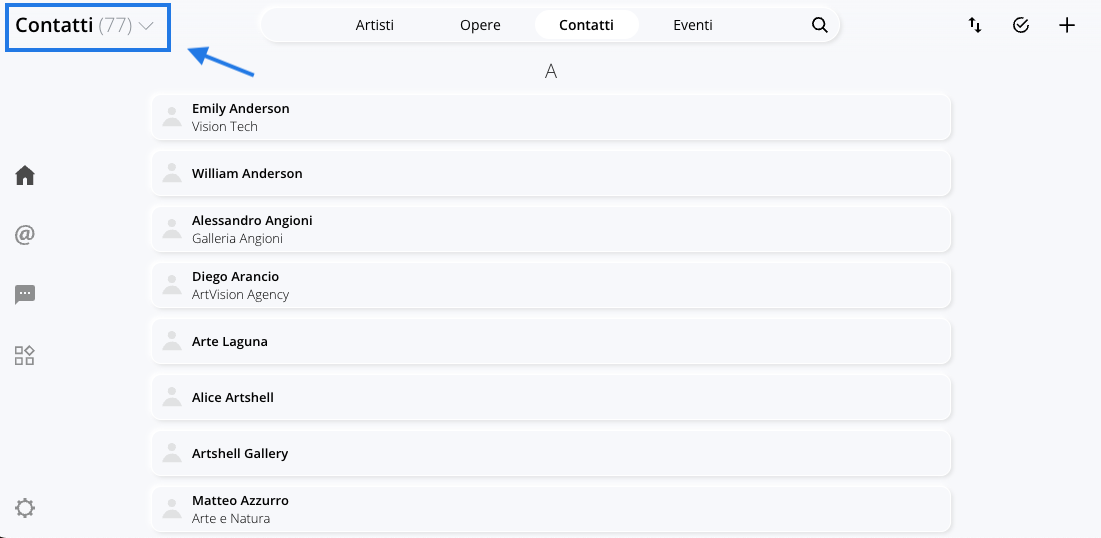
To view all the lists you've created, click the section name Contacts in the upper-left corner.
Manual lists
Manual lists remain unchanged until you edit them.
Create a manual list
- Select the Contacts theicon .
- In the Manage panel that appears on the right, click Add to list.
- Since the list you want to add the Contacts to Contacts been created yet, click + Create List.
- Enter the name of the list you want to create in the space provided, then click " Create List." Click " Cancel " to cancel the operation.
- Click the "Add " button in the lower-right corner to add the Contacts to the list you just created.

Add contacts to a manual list
- Select the Contacts theicon .
- In the Manage panel that appears on the right, click Add to list.
- Use the search bar to find the list you want to add your Contacts to, then check the box next to the list to select it.
- Click the Add button in the bottom right corner to add contacts to the selected list.
Note: The number in parentheses next to each list indicates how many contacts it contains.
Remove contacts from a manual list
- Select the Contacts theicon . If you want to remove a large number of Contacts, we recommend that you open the manual list directly to edit it.
- In the Manage panel that appears on the right, click Remove from list.
- Use the search bar to find the list from which you want to remove the Contacts, then check the box next to the list to select it.
- Click the button Remove Click the bottom-right corner to remove the Contacts selected list.
Automatic lists
Automatic lists update on their own: when a contact meets the list's criteria, it is automatically added; when it no longer meets them, it is removed.
Create an automatic list
- Use the search bar in the section Contacts to set one or more search criteria.
- Press ENTER.
- Click the icon by Save search.
- Enter the name of the list.
- Click Save list.
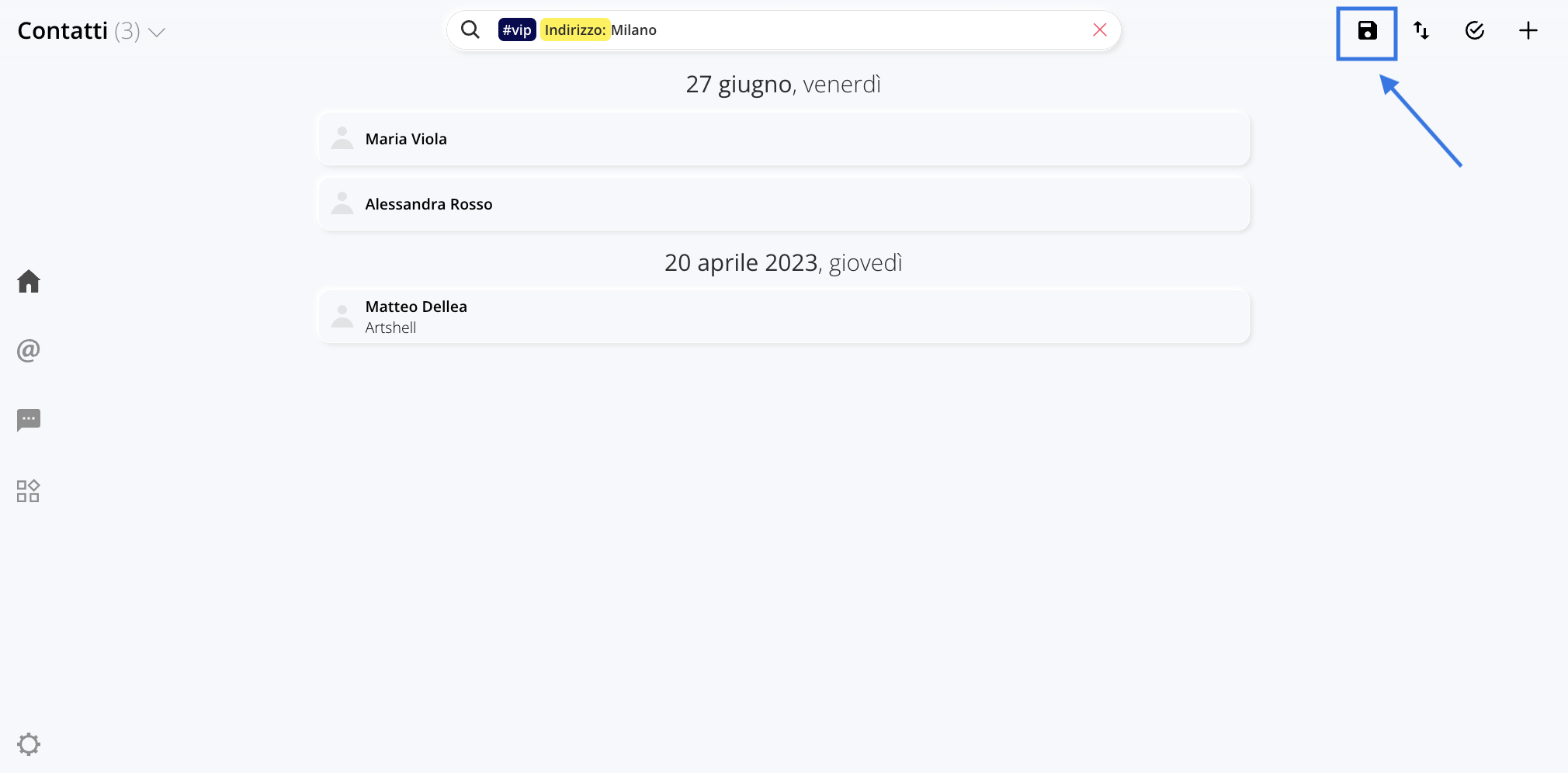
Tip: include the criteria you used to create the new smart list in its name. This will help you quickly identify it in the future. For example, a name for the list created in the previous image could be: " Milan VIP contacts - 'VIP' tag + in 'Milan'".
Add contacts to an automatic list
To add a contact to an automated list, make sure they meet the criteria you set when creating the list. The contact will be added automatically as soon as they meet those requirements.
Remove contacts from an automatic list
Similarly, you cannot manually remove a contact from an automatic list. Contacts are automatically removed from automatic lists when they no longer meet the defined criteria.
Sort the lists
You can change the order of the lists at any time.
- Click the section name Contacts in the upper left corner.
- Hover the cursor over a list until the drag icon appears.
- Drag the list up or down to place it where you want.
Conclusions
Now you know how to use tags and lists to organize your " Contacts " in Artshell.
Tags help you categorize and quickly find Contacts, while lists let you create manual or automatic collections based on the criteria you prefer.