
Folders and Attachments
Introduction
Folders allow you to add to the records Artworks, Artists, Contacts , and Events that go beyond Artshell’s standard fields.
You can use them to organize documents, texts, images, multimedia files, and other reference materials, keeping your information organized and easy to access.
Each Folder contains one or more Attachments, which represent the individual items associated with the record.
When to use Folders
Folders are designed to collect information that may require more space or a more structured organization than the standard record fields. Folders function as containers, and within them you can create one or more Attachments—that is, the documents that actually contain the information.
Below are some examples of folders for the corresponding records:
Artworks
Within the Artworks section, you can create folders to organize documents related to the artworks, such as exhibitions, bibliography, condition reports, certificates, technical files, or supplementary materials.

Artists
In the Artists section, you can create folders to organize documents such as extended biographies, critical essays, press reviews, representation contracts, administrative documents, curatorial materials, or presentation dossiers.

Contacts
In the Contacts " section, Contacts create folders to organize legal documents such as invoices, loan agreements, and powers of attorney, or other documents containing personal information.

Events
In the Events section, you can create folders to organize press releases, the event budget, reports for sponsors or public agencies, contracts with artists, speakers, or partners, the event timeline, and floor plans of the venue.

Create a Folder
There are two ways to create a folder, depending on how you prefer to organize your files.
From the Settings panel
If you want to define the structure of your database in advance, you can create folders from the Lock & Folders panel. This way, when designing your database, you can create the main folders you expect to need and have them ready when you’re ready to associate them with the various records.
To create a folder:
- Click on the icon of the Settings panel at the bottom left.
- Select the " Padlocks & Lockers" option.
- Select a section: Artworks, Artists, Contacts or Events.
- Click " Add New."
- Enter the folder name.
- Fill in the available translations, if necessary.
- Click Save.
Straight from a record
If you prefer to build your archive gradually, you can create a folder directly within the record. This approach is useful when you don't need to define an overall structure from the start, but want to add folders as needed as your work progresses.
Specifically:
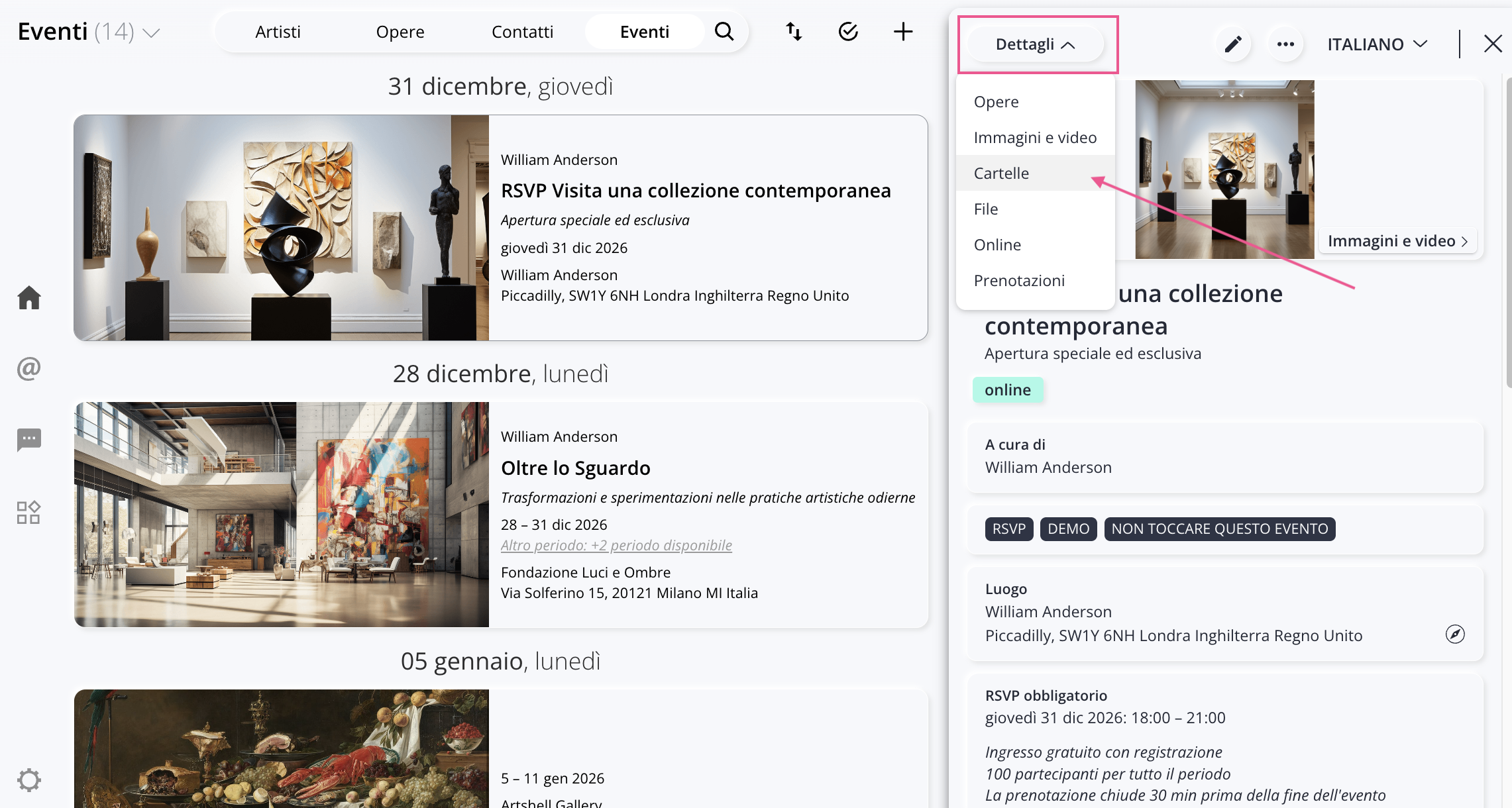
- from the Details tab — in the upper-left corner of the record;
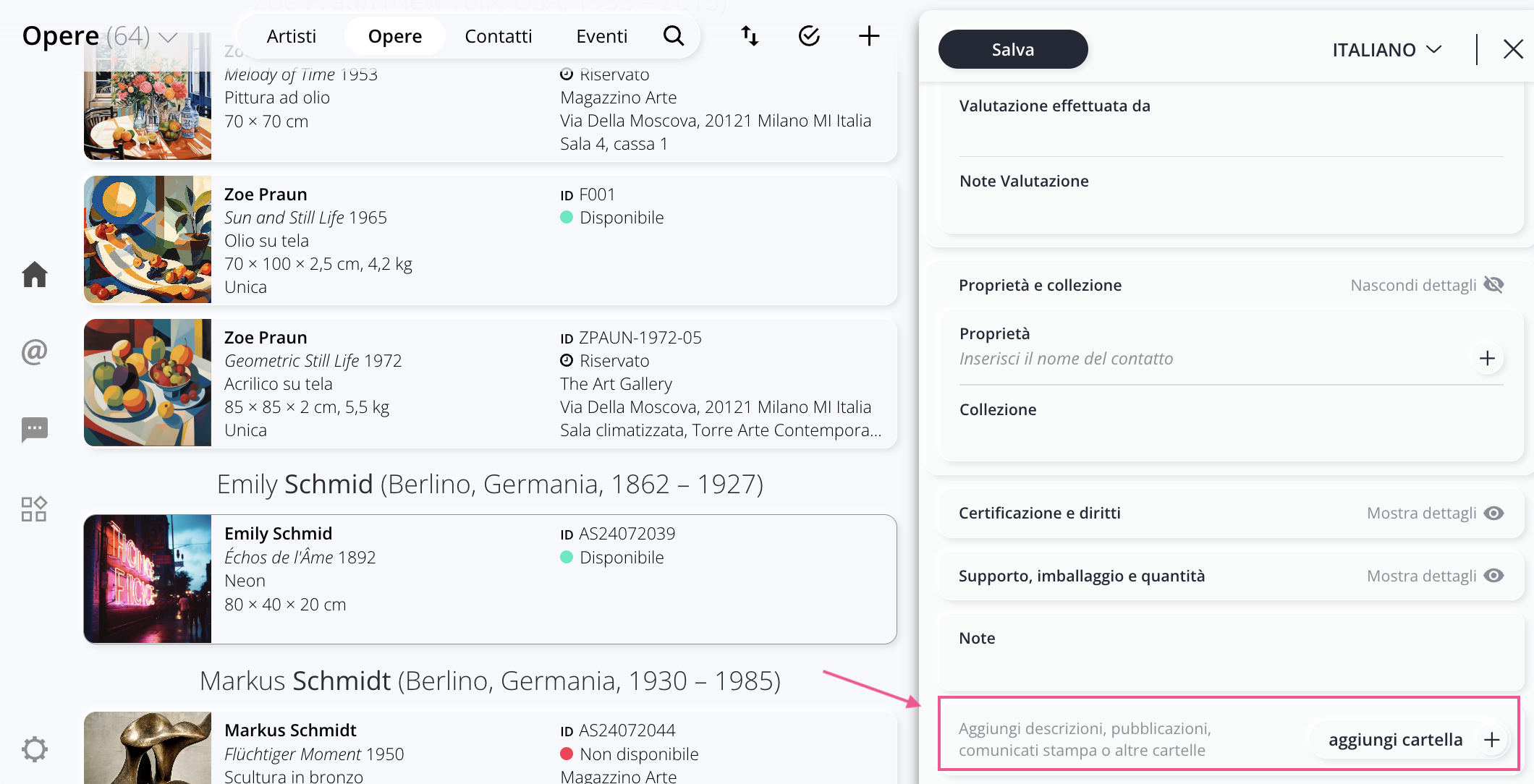
- or by clicking the " Add Folder + " button when you're in record edit mode.
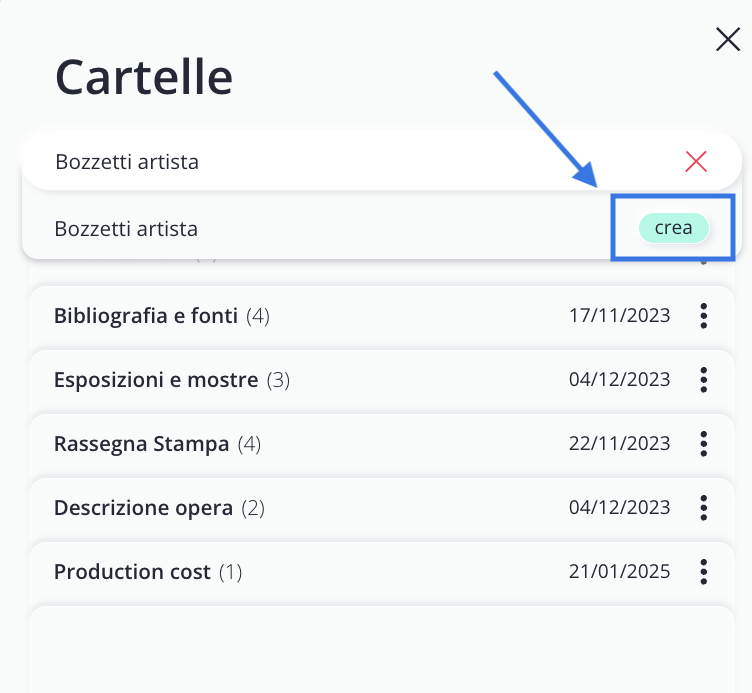
From here, to create a new folder, you must:
- Click the + button;
- Enter the name of the new folder;
- Click Create.
Add an Attachment
After creating a folder, you can start adding content to it.
To create a new attachment:
- Open the folder;
- Click the + button next to the search bar.
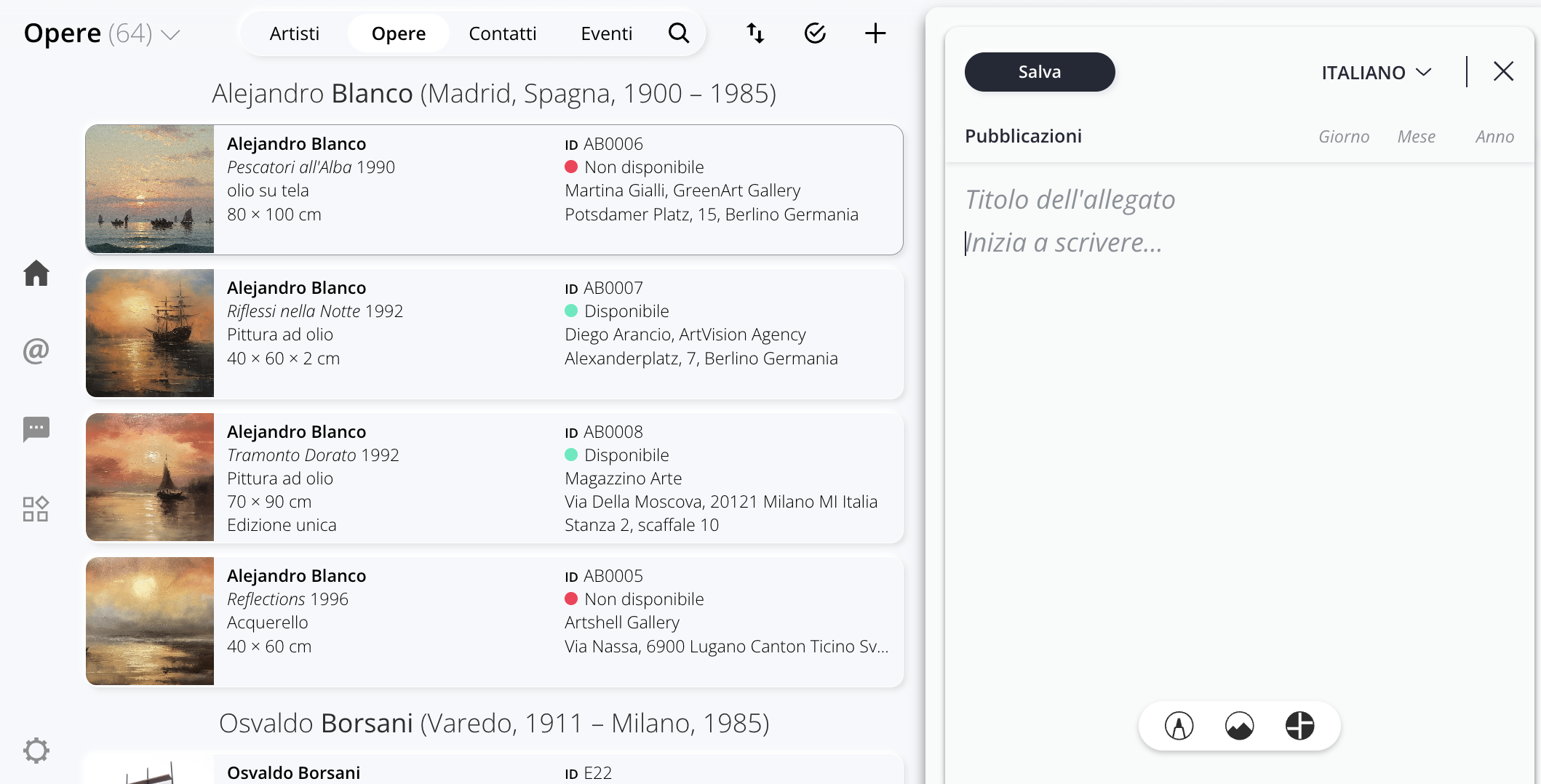
As you can see from the image above, each attachment can contain:
- a title;
- a date;
- a descriptive text;
- translations into the available languages.
Within the editor, you can also insert:
- images;
- PDF;
- documents;
- video;
- link;
- image slider;
- separators.
For more information on uploading files, see the article on the Medialibrary.
If you select a portion of text, an additional formatting menu will open, allowing you to change its color, style, and alignment, or to insert a link.
Once you have finished filling out the form, click Save.
Manage Folders and Attachments
Manage a Folder
For each folder, you can view:
- the number of attachments included;
- the creation date in the record.
From the menu You can also:
- Move all attachments to another folder;
- Delete the folder.
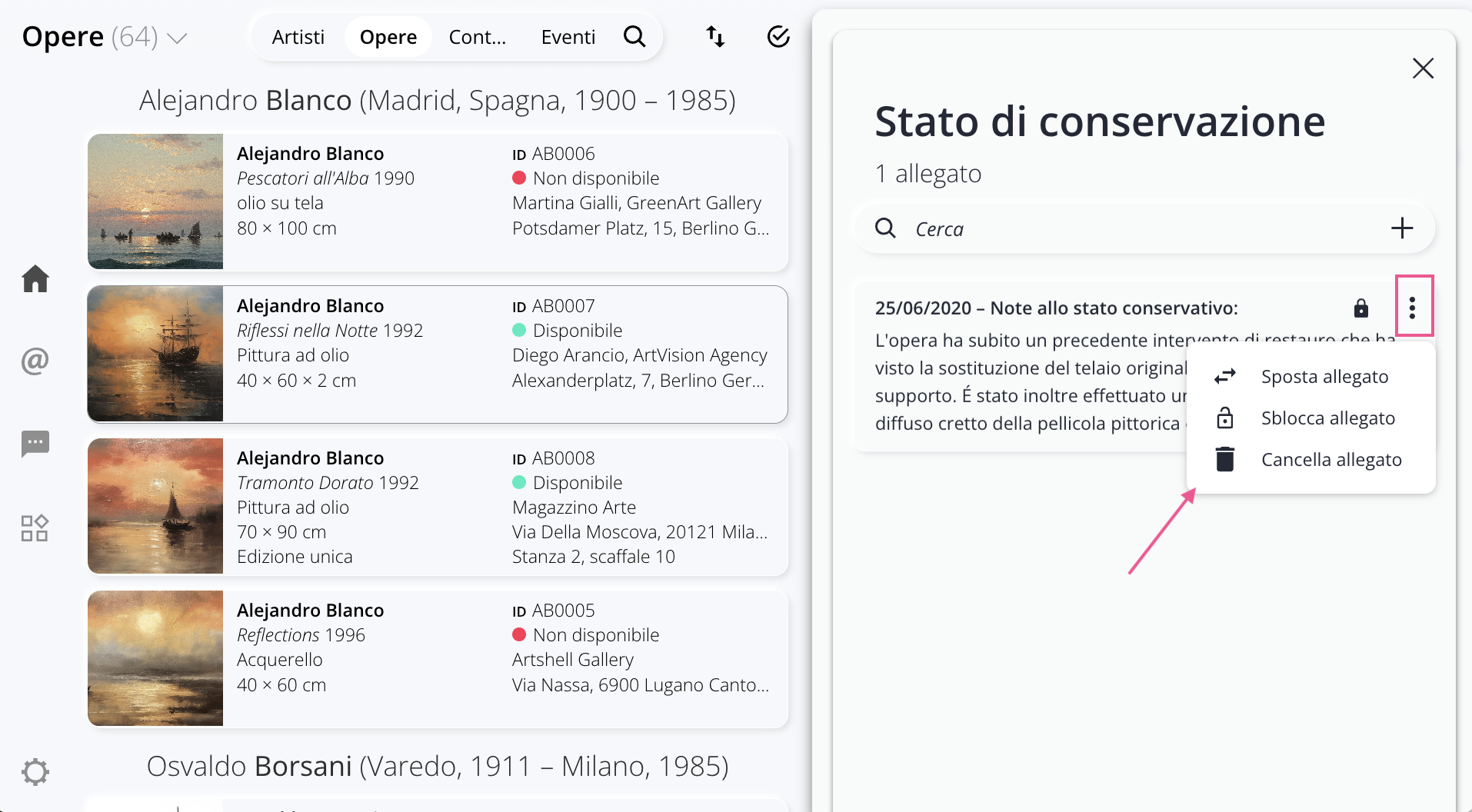
Manage an Attachment
After opening an attachment, you can:
- modify its content;
- delete it;
- Restrict sharing using the padlock icon.
Within the folder, you can also:
- quickly search for an attachment using the search bar;
- move it to another folder;
- use the icon to edit it;
- use the icon to delete it;
Restrict Sharing of an Attachment
Each attachment can be protected using the Padlock (
).
When the padlock is closed, the attachment will not be included in shares or exports from record.
This feature is useful for keeping content intended for internal use separate from content you want to share with customers, collectors, or collaborators.
To learn more about how the Padlock works, see the article on this topic.
Manage Folders from the Settings panel
The section Padlocks & Briefcases , accessible from the Settings panel - icon bottom left - allows you to manage all the folders created for a specific section of the database.
From here, you can:
- search for a folder;
- create new ones;
- change the display order;
- Move attachments between folders;
- Delete a folder.
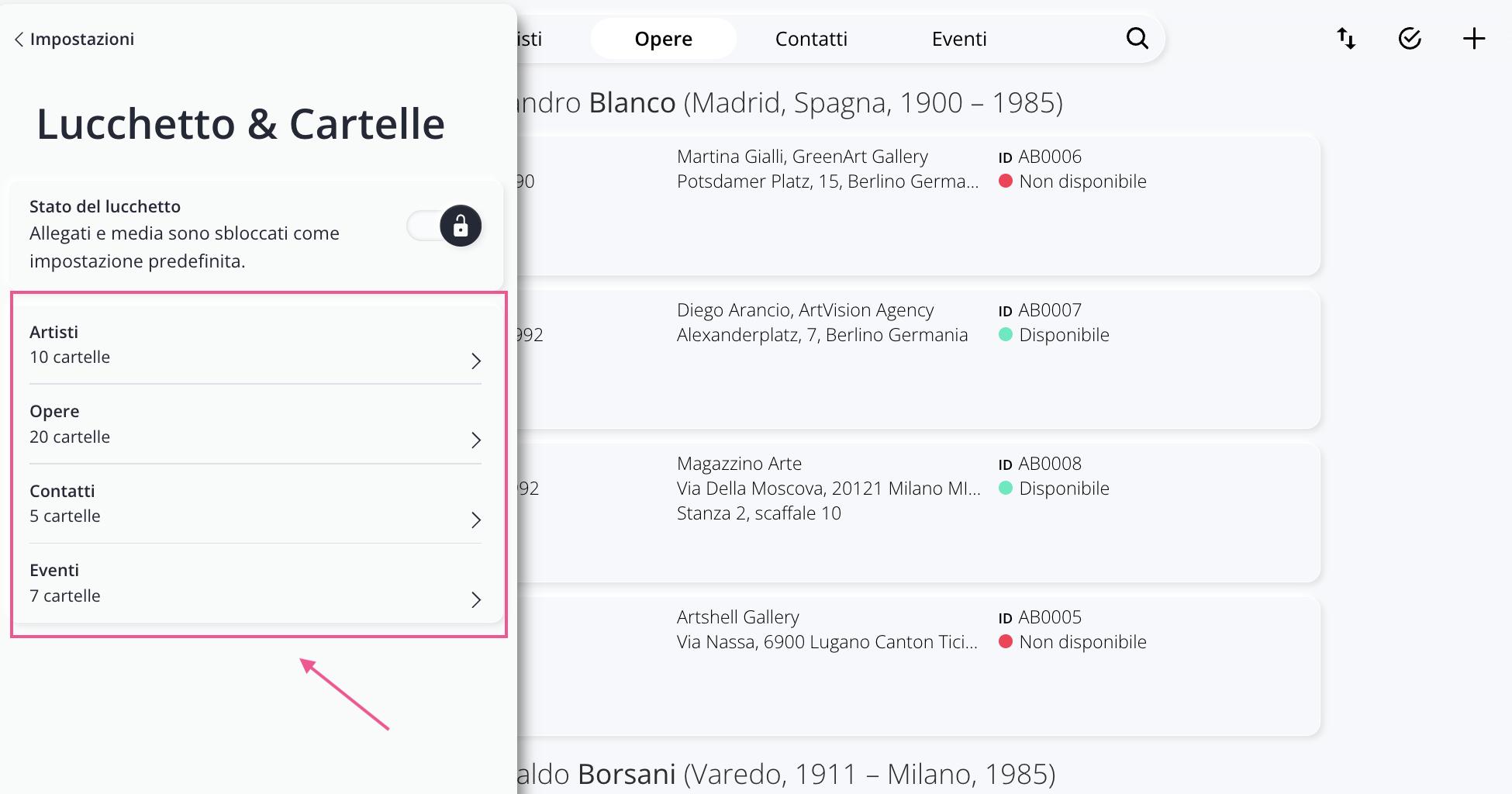
When you enter a section, you can view all the existing folders; next to each folder, the total number of attachments it contains is displayed.
You'll find the icon here, too from which you can move the attachments or delete the folder. As mentioned earlier, a folder cannot be deleted if it contains attachments, so you must move them to another folder.
Warning!When you move attachments from a folder in the "Lock & Folders" section, the action applies to all records that use that folder. If you want to modify the folder for a single record, do not make changes in this section; instead, open the relevant record and make the changes there.
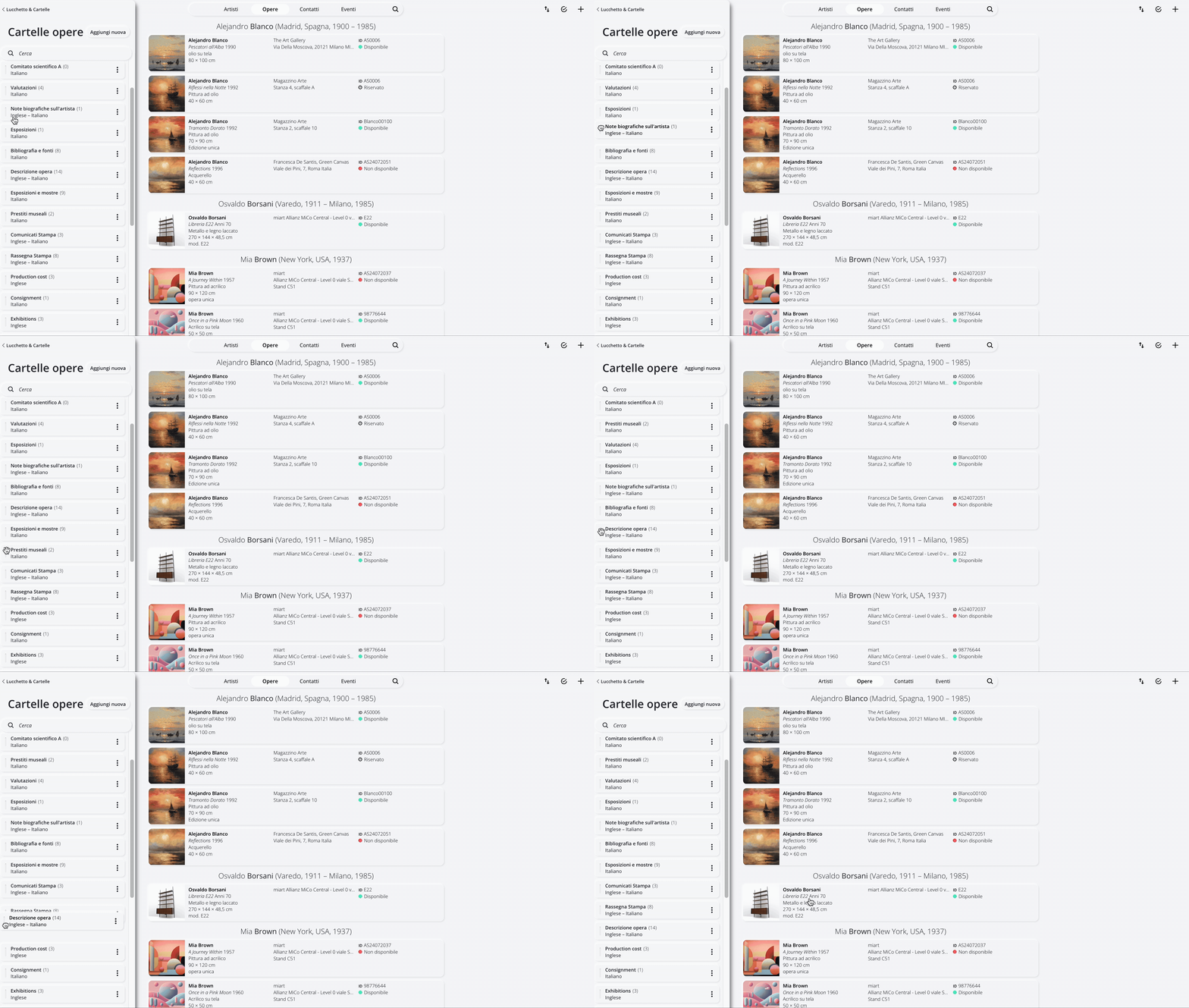
You can also drag and drop folders using the corresponding icon to set the order in which they appear within the records.
Conclusions
Folders and Attachments allow you to flexibly organize all the documentation associated with your records, keeping the main content separate from supplementary materials.
With this structure, you can create a well-organized archive, tailor it to your work style, and easily decide which information to share or keep confidential.