
Medialibrary
Introduction
Medialibrary is an important tool that allows you to centralize and organize all your multimedia materials in one place, making them easily accessible. Whether they're images, videos, or other types of files, Artshell offers you unlimited storage space to store and manage them efficiently.
With Artshell, you also don't have to worry about your images being too large for the web: the software automatically optimizes them so they're suitable for web viewing without compromising their original quality.
As you can see in the image below, the media library includes:
- Three tabs: Images, Videos, Files.
- The search bar.
- The icon for Select media.
- The icon for add new media.

Tip:For each file you upload to the media library, you’ll be asked to enter some information, such as a title, a description, and any notes. We recommend that you fill out these fields carefully—or at least the title—so that your media library stays organized.To help you and other users on your team easily find and understand the file’s content, make sure the title and description are clear and relevant.
Media requirements and supported formats
Format |
Requirements |
| Images | JPEG, animated GIFs, PNG, and single-image TIFF files |
| File | There are no size or format restrictions |
| Video | MP4 or MOV format - MAX 25 GB |
How to upload media
Do you have a lot of media files to add?Let our Concierge Service handle it for you.Click here to learn more about the Concierge Service.
Images
Below are the steps to follow for uploading images one at a time. If you prefer, you can also select multiple images and then drag them into the media library window.
- Select the Images tab.
- Click the icon To the right of the search bar, select the image you want to upload from your computer and proceed with the upload.
- You now have a preview of the Artworks will be uploaded. For each image, you can enter a name, a description and the notes. If you're uploading multiple images and have selected the wrong one, click the icon Click above to "skip" the image.
- Click " Upload" in the upper-left corner.
- Please wait for the platform to finish the conversion process so that the images are optimized for the web.
Upload time: This depends on the file size and your internet connection speed. Large files or slow connections may take longer to complete the process. If necessary, we recommend refreshing the web page.
- Once the conversion is complete, you can add images to your Artworks the image and clicking " Add"at the top.
Video
The procedure for uploading videos is the same as the one described above for images. An additional feature is the ability to link to videos hosted on external platforms such as Vimeo and YouTube, with no storage limits.
Artshell converts uploaded videos directly to the HEVC format at a maximum resolution of 1080p, ensuring smooth, high-quality playback on any device.
To upload a video via a link, you must:
- Copy the video URL from Vimeo or YouTube.
- Click the icon .
- Under " Video link," paste the video's URL.
- Click Upload.
Once the video has uploaded, you can view its details and customize the preview image using the " Set as Cover" feature.

The cover image is the preview that will be displayed in the Medialibrary whenever the video is used in records Artworks, Contacts Events records, as well as in Insights and newsletters.
To choose a new cover:
- Click " Play " on the video;
- pause at the desired point;
- The system will automatically save that frame as a preview image.
In the " Cover Frame " field, you can see the exact point in the video used for the cover.
File
Uploading files works the same way as uploading images. You can follow the steps described above under " Images," making sure to select the " Files" tab.
How to download media
You can always download the original file for the item from the media library, whether it's an image, video, or document.
- Select the item you want to download (you can download only ONE item at a time).
- Click the icon located at the top left.

The "Copy to Clipboard" feature
This feature allows you to create a link that you can share, which can be used to download the item.
- Select the item you want to share (you can share only ONE item at a time).
- Click the icon top left.
- Click " Copy to Clipboard."
- Paste the link wherever you like (chat, email, Word document, etc.).
- Click the link to automatically download the item.
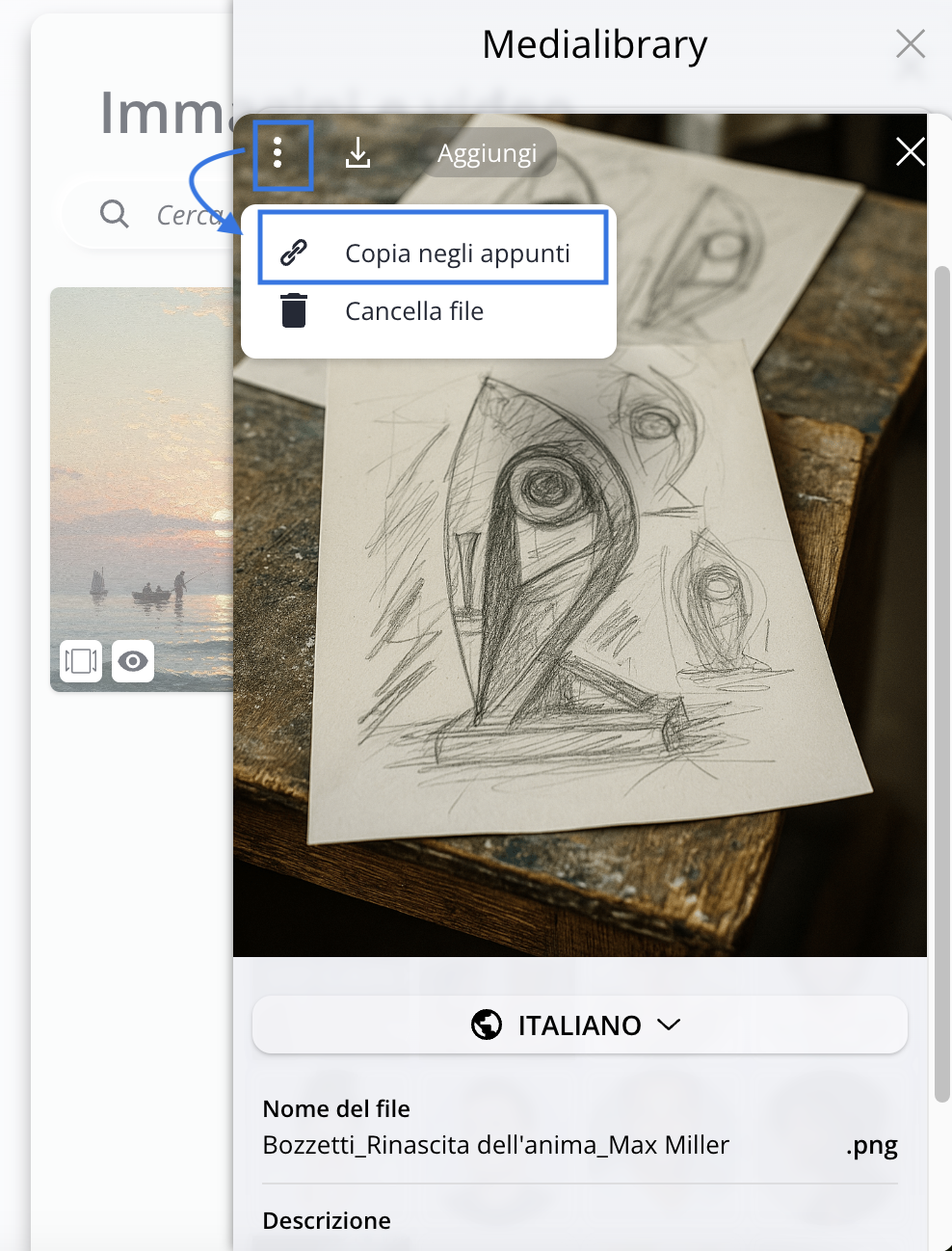
How to delete media
- Select the item you want to delete (you can only delete ONE item at a time).
- Click the icon top left.
- Click " Delete File " and confirm that you want to permanently delete the file.
Conclusions
In conclusion, the media library simplifies the storage, search, and use of multimedia files, providing you with practical support for your daily activities.
The web optimization and file-sharing features further enhance the media library’s effectiveness as a tool for managing your digital archive.
Continue your education with the other articles in this section: