
Create and manage insight themes
Introduction
In the Insight section of Artshell, you can create presentations and custom content starting from either a blank page or pre-designed templates.
Insight themes let you save layouts, graphic settings, content blocks, and custom styles so you can quickly reuse them whenever you create a new insight.
This feature is especially useful if you frequently create documents with a recurring structure, for example:
- viewing room;
- Artworks presentations;
- artist profile;
- business proposals;
- presentations for trade shows or collectors.
By using themes, you can maintain a consistent visual style and significantly speed up content creation.
Prerequisites
Before proceeding, we recommend that you read the following articles:
How to Create an Insight Theme
To create a new theme:
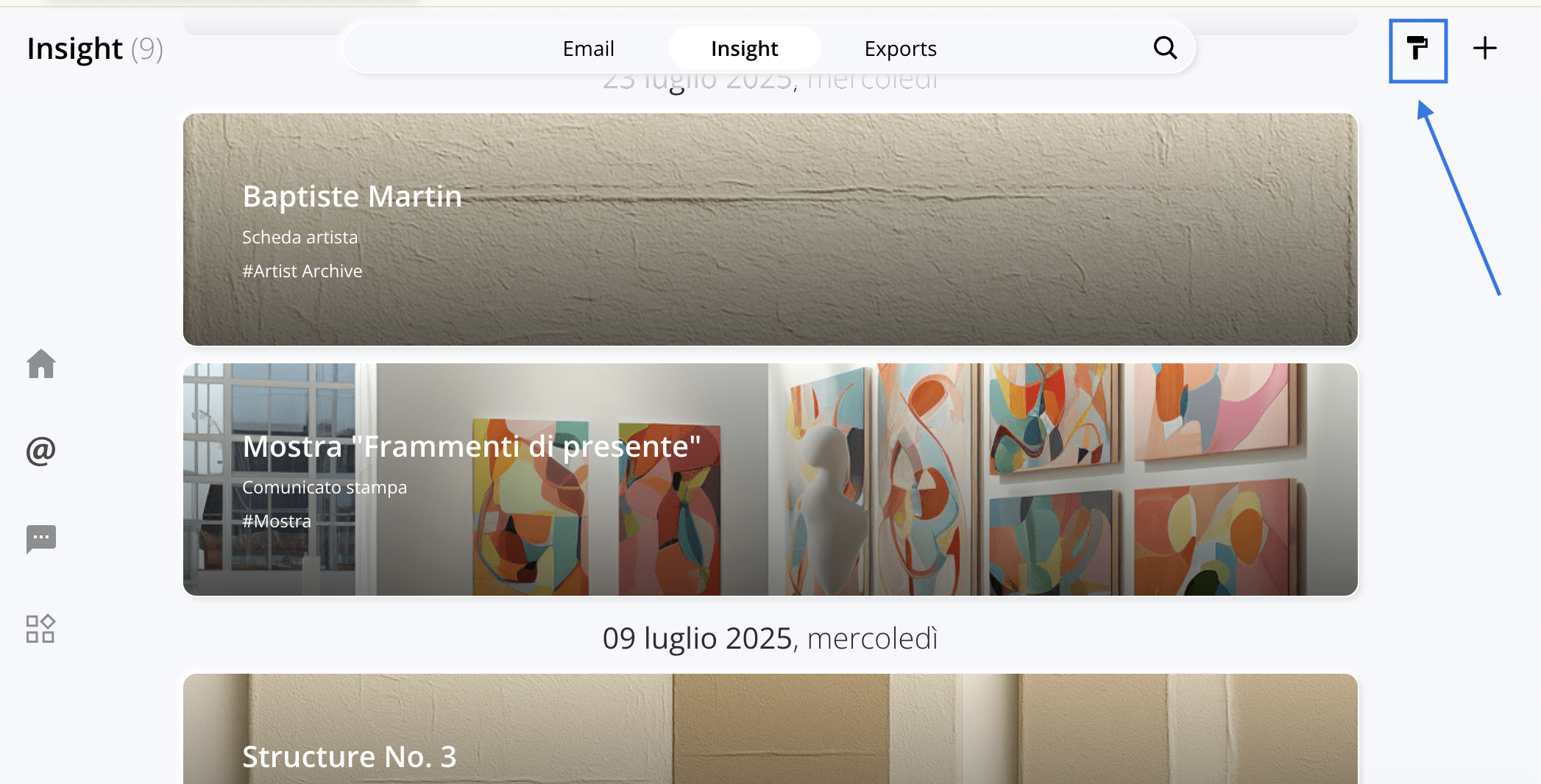
- Go to the Insights section.
- Click the reel icon top right.
- The " Create or Edit Theme" section will open.
- Click on the blank sheet to start creating a new theme.
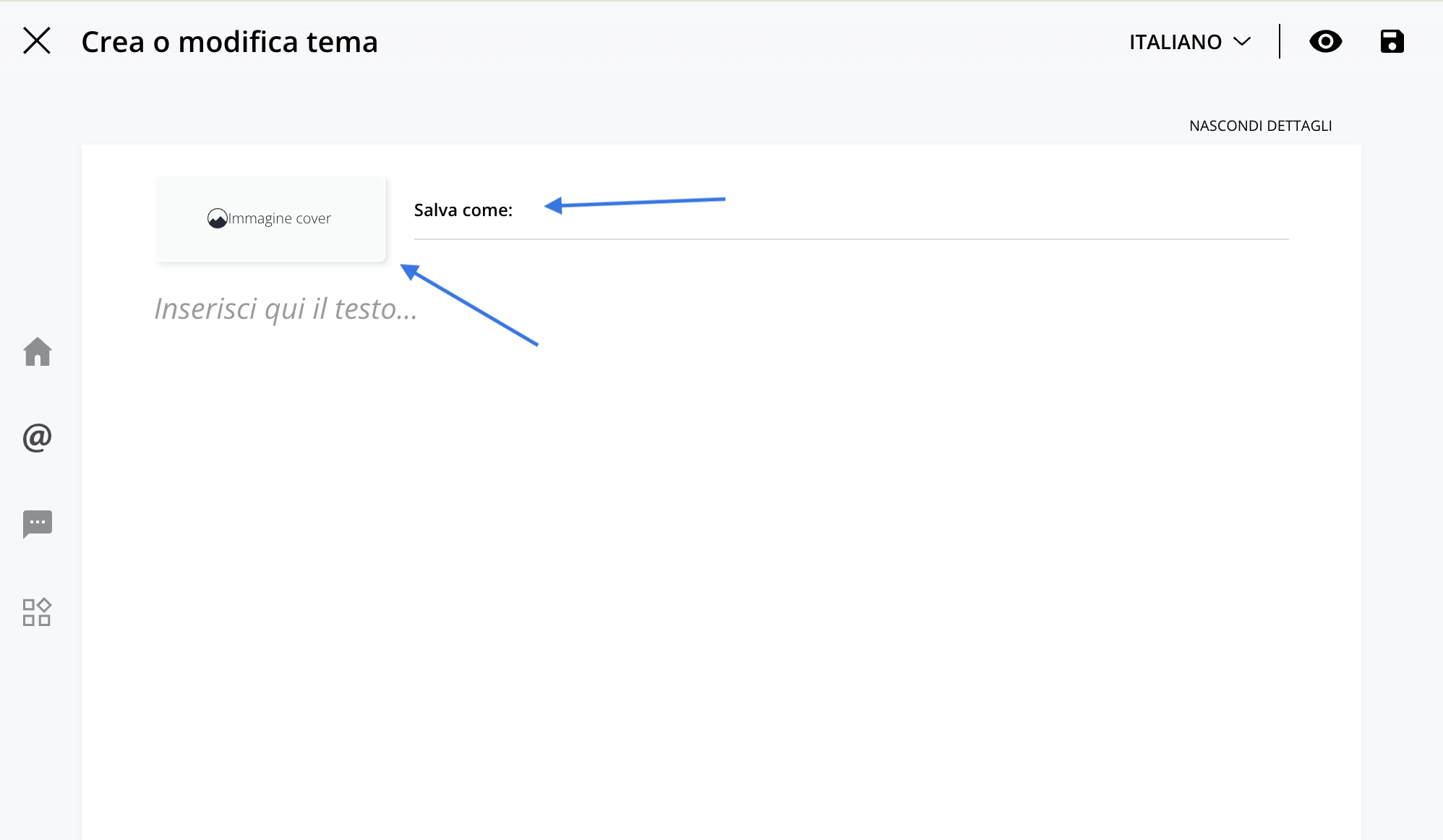
First, you need to:
- Add a cover image;
- Name the theme.
To save the theme, you must fill in the " Save as" field.
Customize the theme
Once you've entered the basic information into the spreadsheet, you can start building your theme's layout and configuring all the elements you want to see included in future insights.
For example, you can enter:
- blocks of text;
- Artworks;
- slideshow;
- view on wall;
- buttons;
- social media;
- graphic elements and multimedia content.
Elements can be added using the toolbar at the bottom. Read how to do this in the article Customize an insight: add text, Artworks media.
Save the theme
Once you have finished configuring the theme:
- Click the icon Click the button in the upper-right corner to save the theme.
- Click the X in the upper-left corner to return to the Insights section.
From now on, the theme will be available for reuse at any time. You can find your themes by clicking the camera icon , so you know which themes have already been created when you're creating a new one, either by clicking on the icon so you can choose which one to use for your next Insight.
How to use an existing theme
To create a new insight based on a theme:
- Click the icon in the Insights section;
- Select one of the previously saved themes.
Once you open the theme, you'll find all the elements already set up:
- formatted blocks of text;
- Artworks box;
- slideshow;
- graphic elements;
- layout settings.
Simply replace the placeholder content with your final materials.
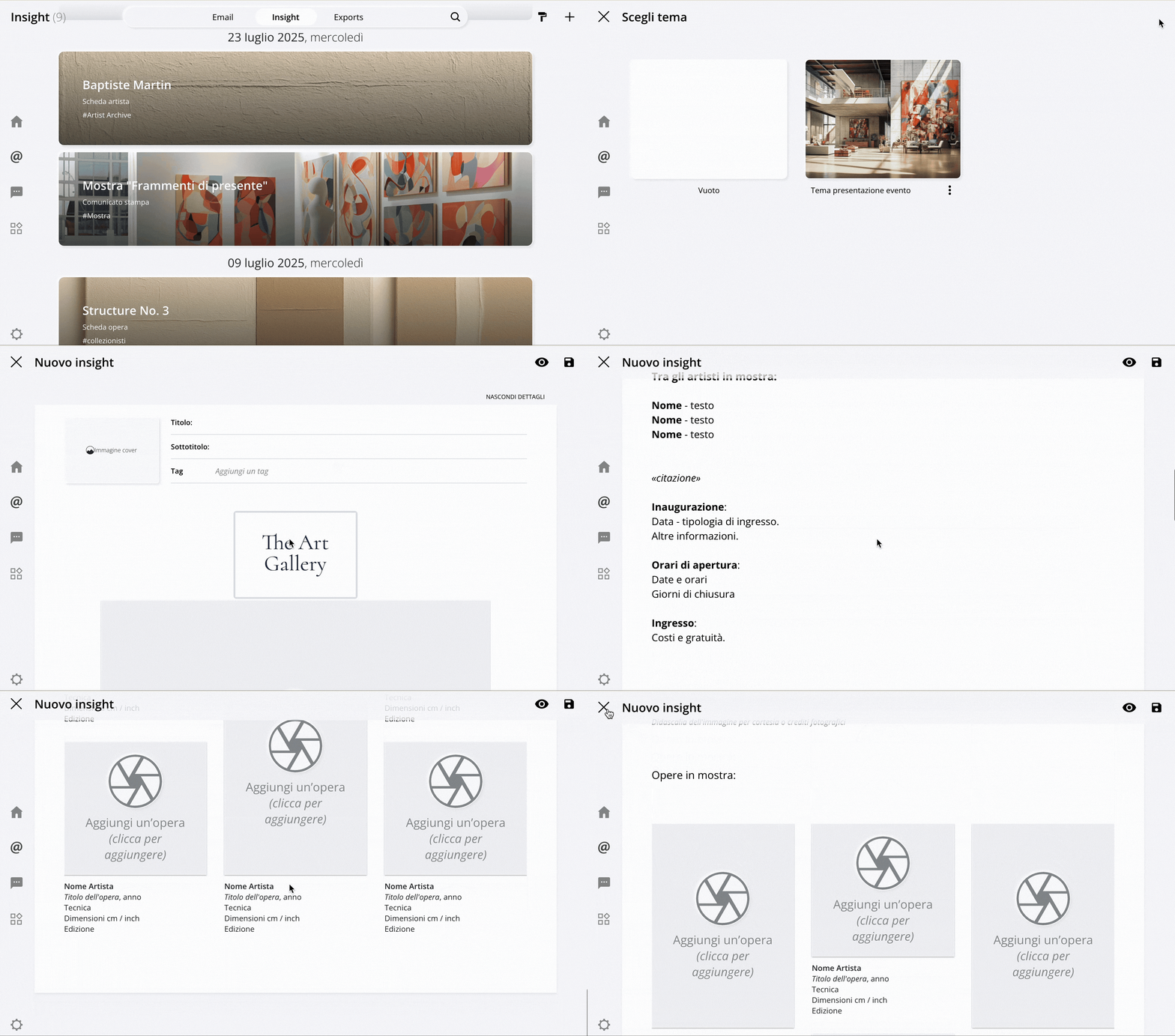
After adding content to your insight, click the icon in the upper right corner and enter Title and Subtitle.
You must fill in the Title and Subtitle fields to save the insight.
Once saved, the new Insight will appear in the corresponding section.
How to update a theme
To update an existing theme:
- Click the reel icon in the section Insight.
- Select the theme you want to update.
- Edit the content and click top right.
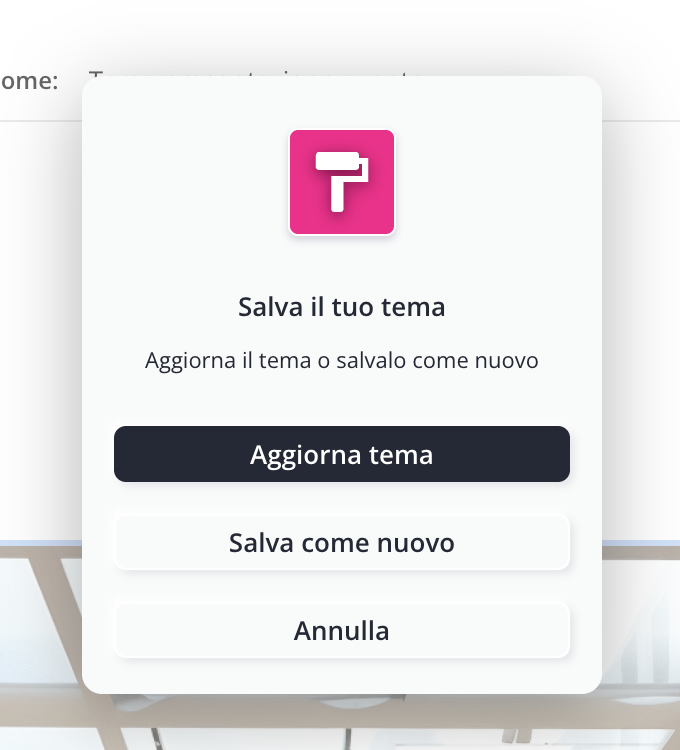
The system will ask you if you want to update the existing theme or save it as a new one.
How to delete a theme
To delete an existing theme:
- Click the reel icon in the section Insight.
- Select the theme you want to delete.
- Click the icon next to the theme's name.
- Select " Delete Theme."
The theme will be permanently removed from the list of available themes.
Conclusions
Insight templates allow you to standardize the layout, visual style, and structure of your content, making it much faster to create new insights.
By preparing graphics, text, and recurring layouts in advance, you can create consistent, professional presentations without having to start from scratch every time.