
Introduction to the Events section
Introduction
With Artshell's Events section, you have unlimited space to upload and organize every detail of your events.
Enhance your events with content (images, files, videos) and attachments, organize them clearly using lists and tags, and share them easily via email, links, or Excel exports.
In this article, you'll find an overview of the elements in the Events section, along with a detailed guide to the icons, an example of record , and links to useful resources.
Items in the Events section

|
|
The " Events " tab in the upper-left corner shows you the number of events created. |
|
|
You can search for keywords within records using the search icon, or perform more advanced searches using the operators. |
|
|
The sorting feature lets you sort your events by criteria such as Title, Start Date, etc. See the next section of this article for more details. |
|
|
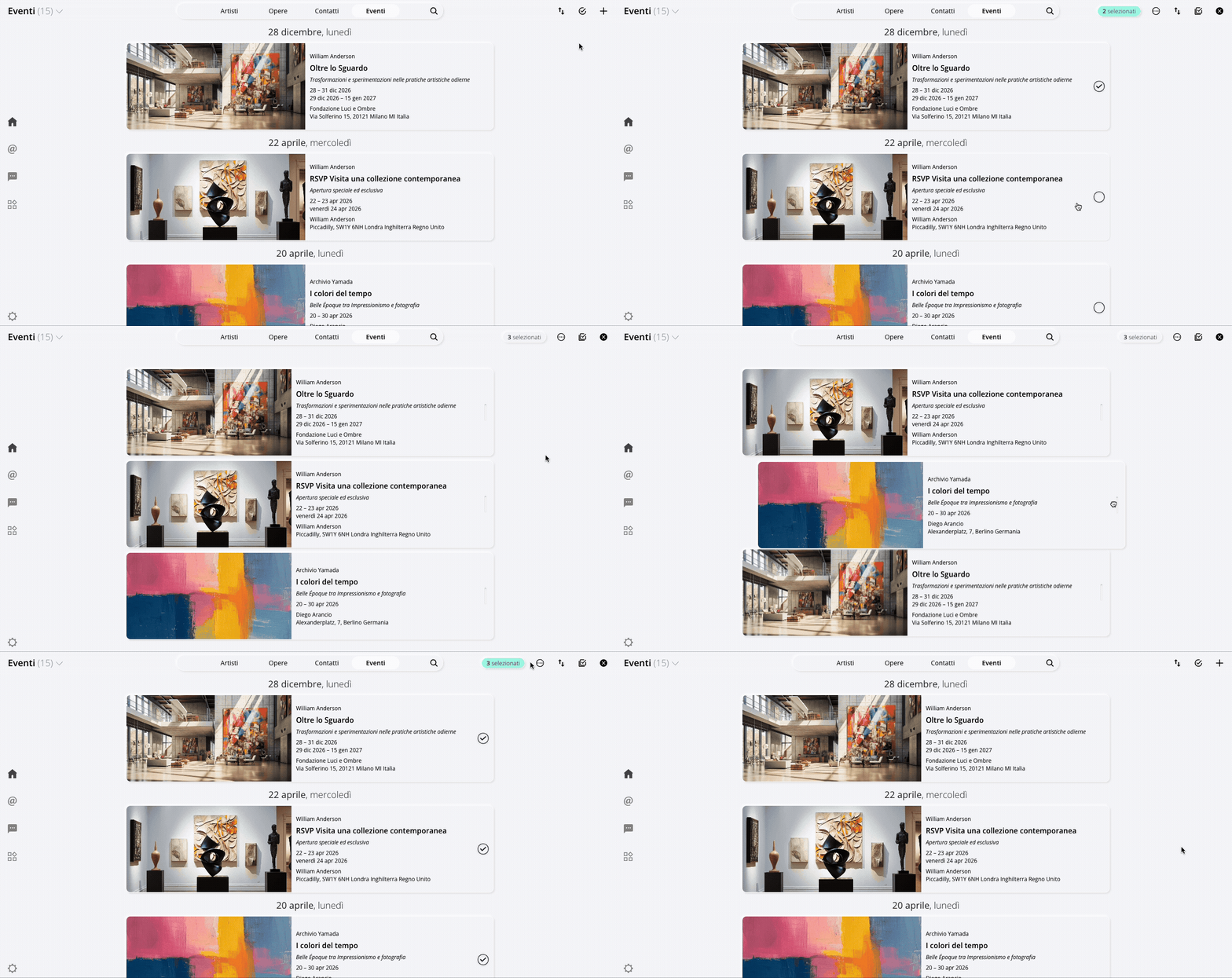
The " Select " function allows you to select events.See the next section of this article for more information. |
|
|
The ➕ lets you create new events. |



The Sort and Select functions
System
By default, the events section is sorted start date of the event, starting with the most recent one. You can change the order in which events are displayed by clicking the icon and choosing from the options provided:
- Title
- Start date
- End date
- Date created
- Date modified
Each of these criteria can be sorted in ascending (A–Z) or descending ( Z–A) order, depending on your preference.
Select
Understanding the "Select " function is very important, especially if you want to export and share your events or organize them into tags and lists.
With Artshell, you can choose to select specific events using the icon or select them all using the icon that appears immediately after you click the icon
At this point, you can choose to view only the selected events, reorder them, or deselect them.
The record
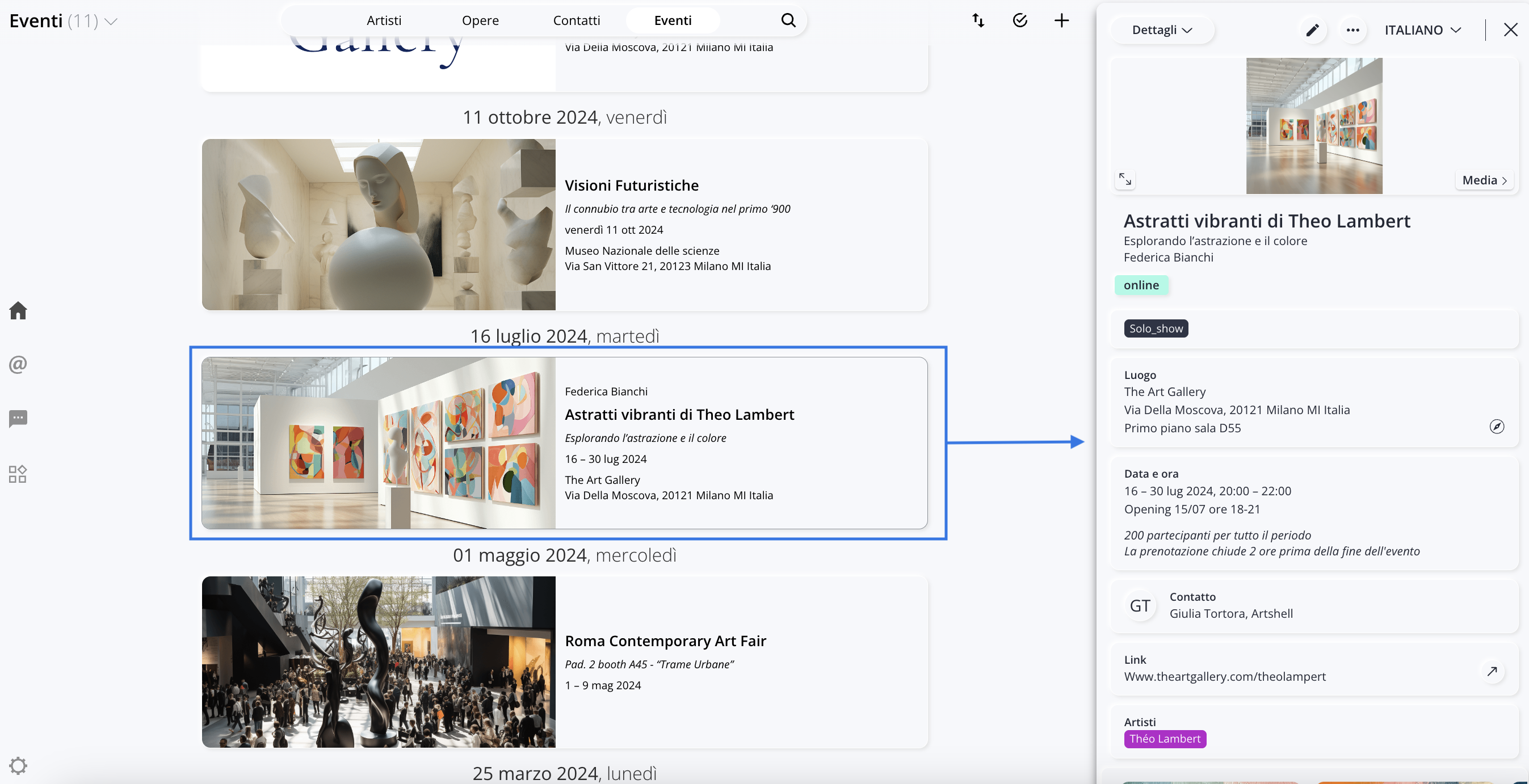
Below is an example of record with some information filled in. To see all the fields in the record , see the article " Add, Edit, or Delete an Event."
|
|
The " Details " drop-down menu includes additional information associated with your record , such as:
|
|
|
This icon allows you to enter edit mode and record . |
|
|
Click this icon to delete the record . |
|
|
Use the drop-down menu to view the record in other languages. Currently, automatic translation of content is not enabled, so be sure to enter the information in each desired language. |
|
|
Use this icon to close the record . |
|
|
This icon allows you to view the larger cover image within the record. |
|
|
Here, you have quick access to the images and videos associated with the selected record . |






What can I do with my events?
- Sort and organize them: Using tags and lists, Artshell lets you organize your events however you like.
- Share and export them: Share your events via link or email with anyone you want. If necessary, you can also export one or more events to Excel.
- Scanner App: If your event requires registration via QR codes, the Artshell Scanner app is the ideal solution for speeding up your guests' entry.
Conclusions
Now that you know the basics of the Events section, check out the following articles: