
Duplicate an event
Introduction
Artshell's " Duplicate " feature lets you quickly create a copy of one or more events, keeping only the content you want.
This tool is particularly useful for streamlining the management of similar events, eliminating the need to re-enter information manually.
During the duplication process, you'll see several toggles—buttons that you can turn on or off to choose which elements to include in the copy.
Watch the explanatory video below:

Duplicate one or more events
- Select one or more events using the icon .
- From the panel Manage that appears on the right, select the second option Duplicate. If the panel doesn't appear Manage, for example, if your screen is small, click the icon top right.
- Choose which information to include in the copy using the available sections.
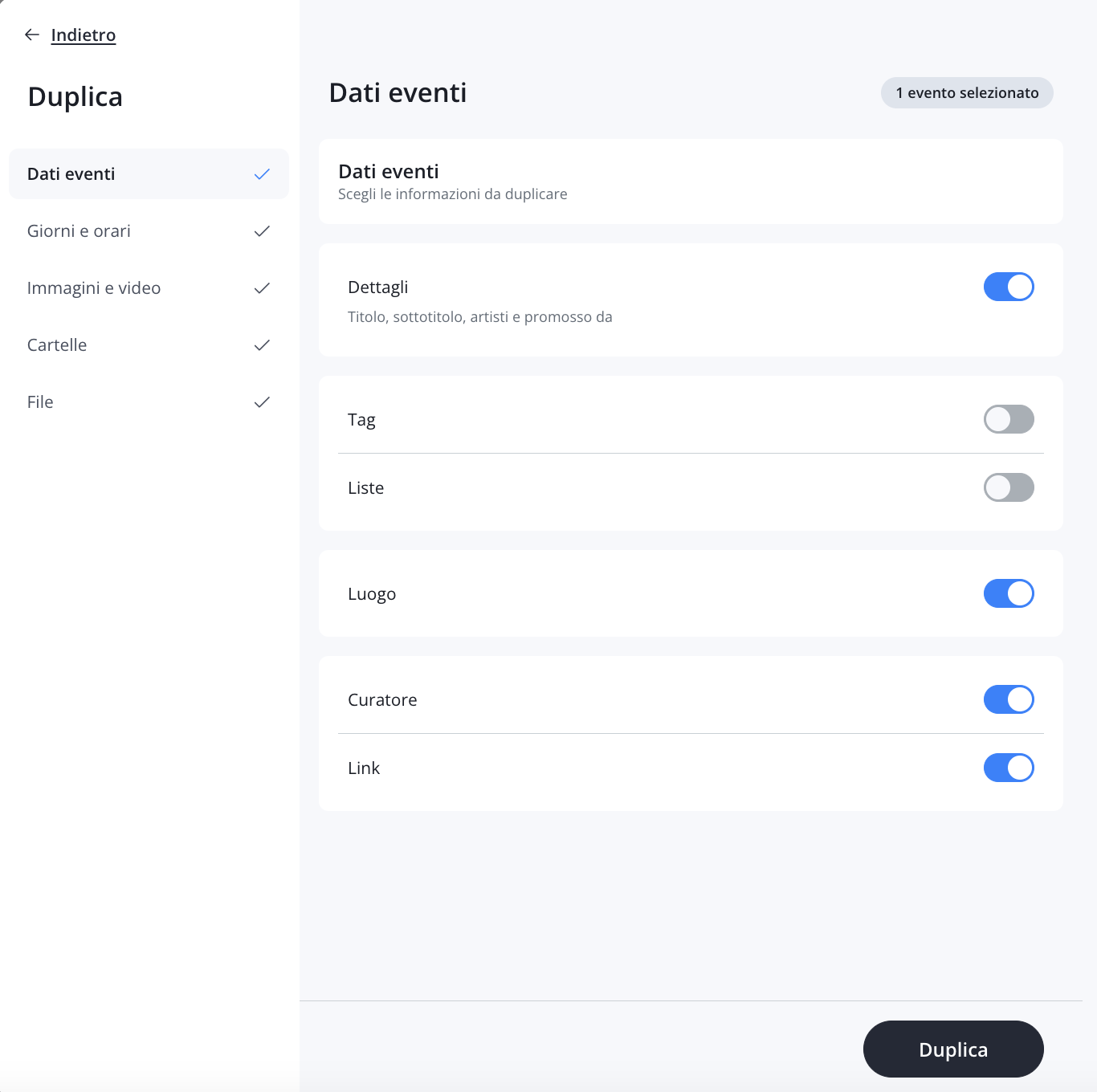
-
Event details
Choose which fields from record to include in the copy as well, such as Details, Tags, Lists, Links, etc.
Among the available fields, see also the "Lists" field. If enabled, the duplicated event is added:
- always in the manual lists;
- in the automatic lists only if it meets the criteria specified for that list.
Example
You have an automatic list that collects all events tagged with " Exhibition." If, when duplicating an event, you copy the lists but not the tags, the new event will not be added to the automatic list because it does not have the required tag.
-
Days and times
Choose whether to include all activities in the duplicated event or just some of them.
-
Images and videos
Select which media files to include.
-
Folders
Select the folders and attachments you want to include in the duplicated event as well.
-
File
Select the files you want to include in the duplicate event as well.
Once you've configured the options, click " Duplicate " in the lower-right corner.
The system will create a copy of record that includes the selected content. To distinguish it from the original, the title is automatically followed by the word (Duplicate), which you can edit or remove at any time.
Conclusions
The Duplicate feature is a handy tool for streamlining event management. It allows you to create customized copies of records, reducing data entry time and ensuring greater consistency in content.
Learn how to duplicate artworks as well by reading the following article:
If, on the other hand, you'd like to read more articles about events, we recommend the following: