
Event types and registration management
Introduction
With Artshell, you can create different types of events, tailoring them to your organizational needs and the kind of experience you want to offer your guests. This guide walks you through the main available configurations and how they work, so you can understand not only how to set up an event correctly, but also what happens from the end user’s perspective: how they register, what communications they receive, and what their journey will be leading up to the event.
Event management methods are primarily distinguished by the presence or absence of a logging system and the level of access control. Specifically, you can configure:
- events with no registration required (free admission)
- events with off-site registration at Artshell
- events with in-house recording at Artshell
For internal recording, you can also choose from several options:
- one-time event
- Slot-based event with date and time selection
- or an invitation-only event.
Events with no restrictions —whether they require no registration or have open registration—are accessible to anyone who has the link.
Invitation-only events, on the other hand, have restricted access: participation is limited to users who meet certain criteria, such as possessing a coupon shared by the organizer or being associated with a specific tag linked to their email address (for example, "VIP"). This feature is discussed in more detail in the dedicated section below.
Prerequisites
This is an advanced article. Before proceeding, we recommend that you read:
It is also important to have correctly configured the basic settings of your account, particularly the Privacy Policy, which is required for data collection during registration.
Event with no registration required
This is the simplest and most straightforward option. It does not involve using the Booking Options section and requires no action on the user’s part to participate. It is ideal for open-access events with no capacity limits or need to track attendees—such as an exhibition open to the public or an opening without admission checks.
In this case, the record serves a purely informational purpose: it provides the date, times, location, and details of the activity, without handling registrations.
Event with external registration at Artshell
This method is similar to the previous one, but registration takes place on a platform outside of Artshell. In this case as well , the booking options are not used . However, within the event description fields (such as "Activity Details " or "Link"), you can specify how to register, for example by including an RSVP link or directing users to an external website.
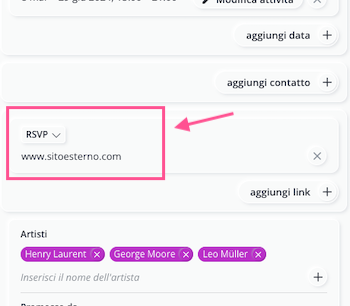
This is a useful solution when using existing registration tools or when registration management is handled by third parties.
Event with registration via Artshell
This option allows you to manage the entire registration process directly on Artshell. Users can sign up on their own by filling out a form with their first name, last name, and email address. Once registration is complete, users:
- receive a confirmation email
- will automatically receive a reminder email the day before the event
This workflow allows you to centrally manage participants and track registrations in real time. Artshell provides default text for these two emails, but you can always customize them as you like; read more in the dedicated section.
QR codes and access control
The confirmation email may or may not include a QR code for event access. The decision depends on the type of event and the level of entry control you wish to implement: for a private dinner or an informal gathering, a QR code is generally not necessary, whereas it is particularly useful for events with a large number of attendees, such as performances or public events.
To enable the QR code, turn on the "QR Code Settings " option in record . For more details on configuration and customization, see the dedicated section.
If you use QR codes, it’s important to organize access control by assigning staff members to scan them at the entrance. No special devices are required: all you need is a smartphone with an internet connection and the Artshell Scanner app.
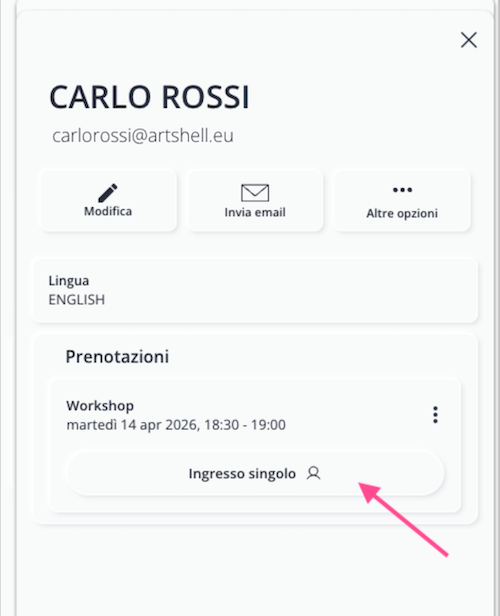
If you prefer not to use the QR code, you can manually record attendance in the Reservations section, which you can access from the Details tab in record . In the Participants section, select a participant to view their details, and use the Single Entry button to record their attendance.
Newsletter Subscription
Events that require registration also allow you to collect sign-ups for your newsletter. The registration form always includes an opt-in option for the newsletter. Contacts sign up for the newsletter through the event are automatically assigned the "Newsletter" tag.
Please note that this tag is not visible until the contact is moved from the Event section to the Contacts section.
Event types with internal registration
For events with internal registration, you can choose from three options, depending on how you want to manage access:
- One-time event - fixed date and time
- Slot-Based Event - with date and time selection
- Invitation-only event - controlled access via coupon or tag
Single event
This setup is ideal for events that take place ona single date and at a specific time. Users do not have to choose between different options; they simply confirm their attendance by entering the required information. Typical examples include a dinner, a conference, or an opening with a set time. The process is straightforward: users view the information, register, and receive a confirmation.
Slot-based event with date and time selection
This option is designed for events that span multiple days and/or offer multiple time slots.
A typical example is an exhibition with guided tours: for instance, from June 1 to 10, with three tours per day (2:00 PM, 3:00 PM, 4:00 PM). Visitors can choose the date and time that best suits their needs.
To configure this type of event correctly, you must:
- specify the days on which the event is available and the corresponding times
- Enable the Booking Options and specify the duration of each slot ( Frequency field) and the maximum number of participants per slot.
For example, if each guided tour lasts one hour and can accommodate up to 30 people, set the frequency to 60 minutes and the participant limit to 30.
Invitation-only event
Invitation-only events allow for controlled access: only users who meet certain criteria set by the organizer can participate.
There are two main ways to manage access by invitation:
- Via coupon: The organizer shares a coupon code with the recipients. Only those who enter the correct code during registration can complete the sign-up process.
- By tag: Access is restricted to Contacts Artshell database who have been assigned a specific tag (for example, "VIP"). The system automatically identifies authorized recipients based on their email address.
This feature is particularly useful for private events, previews, private dinners, or any situation where you want to limit attendance to a predefined guest list.
Share this event
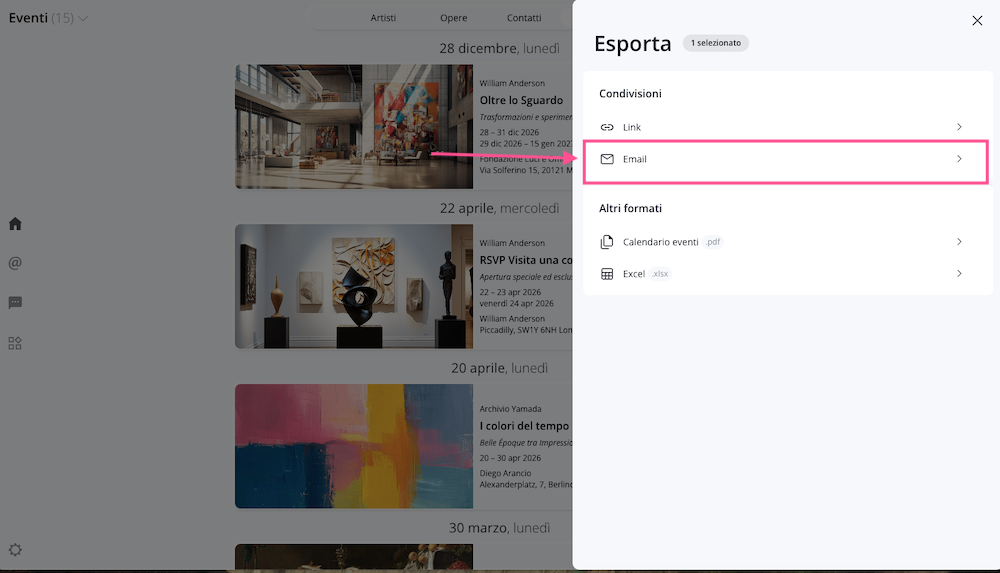
Once the setup is complete, the event is ready to be shared with your audience. To read the full article on sharing and exporting events, see the dedicated article. You can turn it into a link and share it via email, social media, or messaging apps. To do this, select the event and, from the Manage panel, click the first option, Link.
Direct sharing via email
If you use Artshell to send communications and have an Contacts " section, you can promote the event directly via email, reaching your audience in a targeted way. Select the event and, from the " Manage " panel, click the second option, " Email."
Add the event to a newsletter
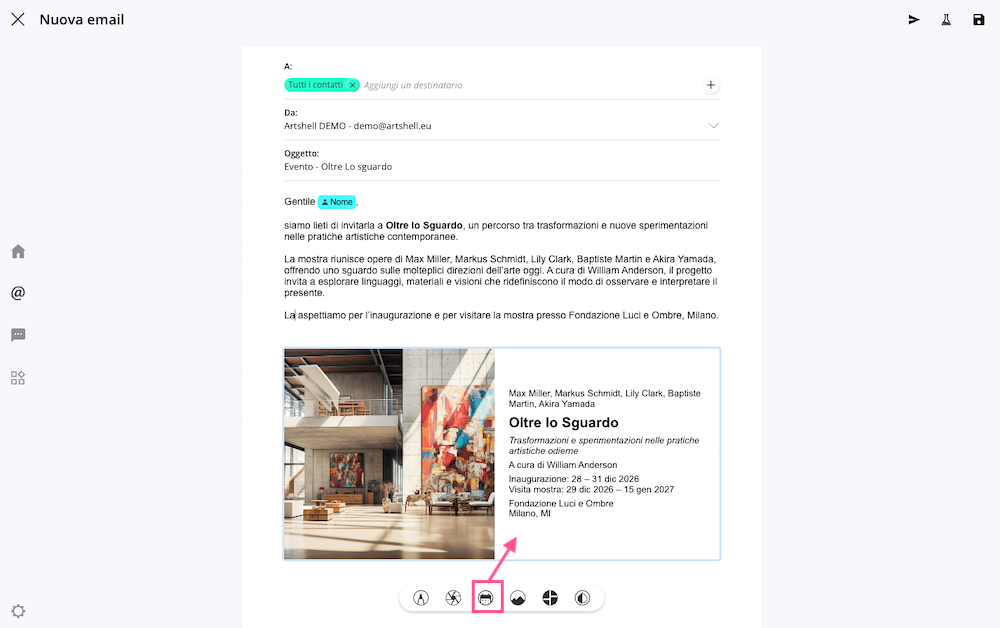
Another way to share the event—one that often fits more naturally into your workflow—is to include it directly in a newsletter.
You can do this in the Email section of Artshell, where you can embed an event as a content block within your regular newsletter. This approach is particularly useful when the event is part of a broader update that you want to send to your Contacts list.
Conclusions
Artshell’s Events section allows you to manage various participation options, ranging from simple informational events to more structured registrations with time slots, invitations, QR codes, and access control. The configuration you choose depends on the type of event you want to organize, the level of control required, and the experience you wish to offer participants. By properly setting up registration, communications, any restrictions, and sharing options, you can centralize event management, track registrations, and guide users through a clear process, from registration to participation.
Read about how to further configure your events and how to export them in the following articles: