
Best practices for cataloging an artwork with Artshell
Introduction
record 's work can contain a wealth of information: from essential details—such as title, artist, medium, and dimensions—to more comprehensive documentation, such as a bibliography, exhibition history, condition reports, press clippings, certificates, or archival materials.
Artshell allows you to organize this content using two main tools: the fields in the " record " section and the folders with their associated attachments.
In this guide, we'll look at when to use one or the other and how to organize your information in a consistent way, so you can keep your archive tidy and make it easier to search, export, and share.
Before you begin
This guide focuses onorganizing content, not on creating the record website or on how Folders and Attachments work.
If you're not yet familiar with these features, please see the following first:
record 's Fields or Folders: Which Should You Use?
When you add information to a work, first check whether Artshell already has a dedicated field for it. Information such as title, artist, year, medium, dimensions, price, acquisition, insurance, valuation, ownership, and certifications can be entered directly into the fields on the work’s record page. Go to the article Add a Work to view the complete list of available fields.
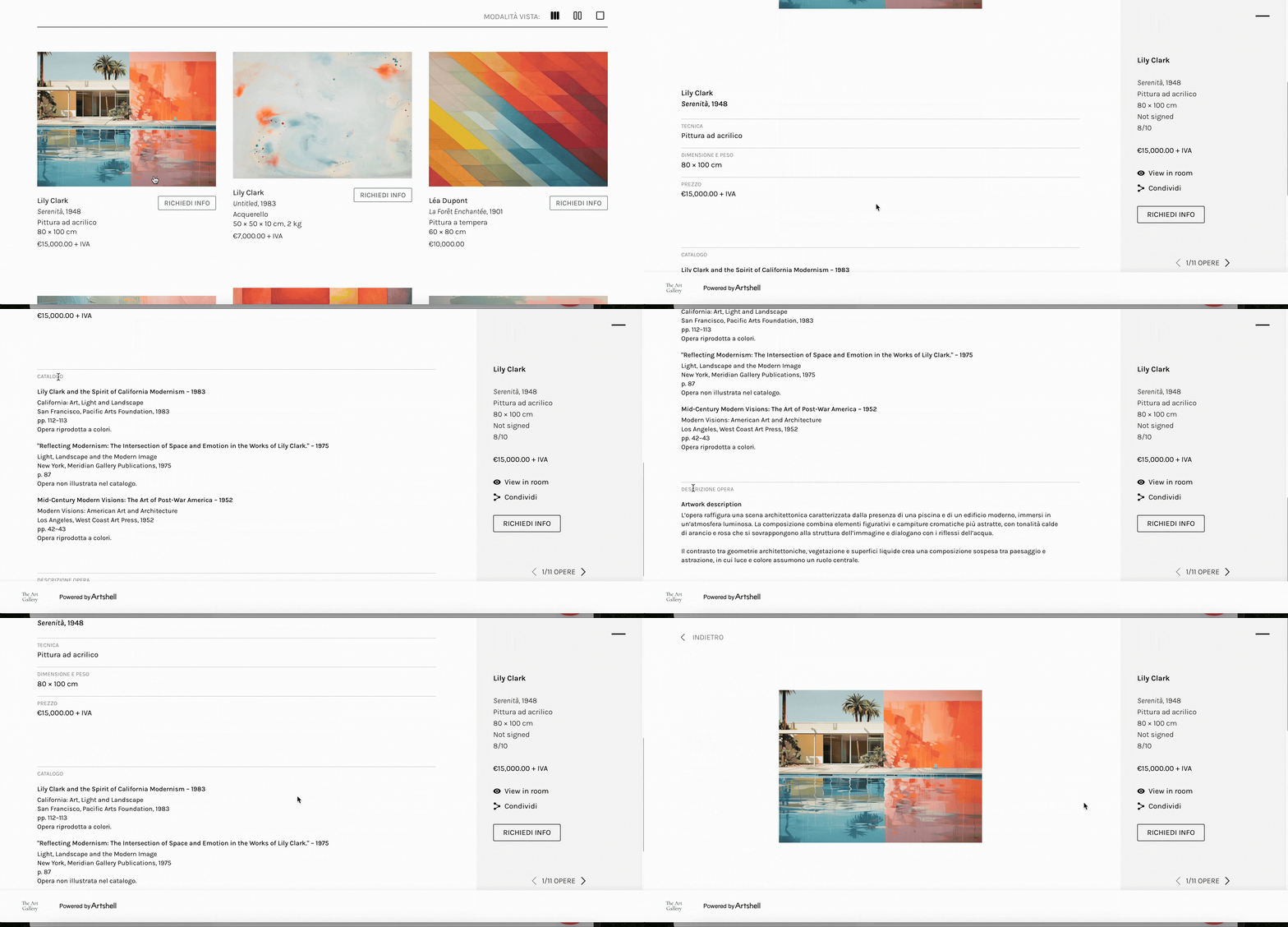
Folders instead used to extend the record with additional information and materials, such as artwork descriptions, exhibitions, bibliography, condition reports, press reviews, catalogs, images, PDFs, videos, or other documentation.
In short:
| Type of Information | Where to insert it | Examples |
|---|---|---|
| Descriptive and administrative information | record | Title, artist, year, medium, dimensions, edition, price, acquisition, insurance, appraisal, ownership, certifications |
| In-depth documentation | Folders and Attachments | Exhibitions, bibliography, condition reports, press reviews, catalogs, PDFs, and other descriptive materials |
So you can follow a simple rule:
If a dedicated field exists, use the field in the record. If you need to add information or documentation for which no specific field is provided, use folders and attachments.
Why use record fields when available
record 's fields aren't just for keeping the database organized: they are structured data that Artshell can organize and display correctly even when the artwork is exported or shared.
The order and hierarchy of the information are preserved in PDFs, labels, records shared via links, and other available formats.
Tip: Before creating a new folder, always check to see if there is already a field for the information you want to enter.
How to use Folders and Attachments
When you need to add more detailed information or materials that don't fit in the fields at record, you can create a folder dedicated to that topic and organize one or more attachments within it.
Within each Attachment, you can include text, images, PDFs, videos, links, and other materials. To learn how to create Folders and Attachments and add different types of content, see the guide Folders and Attachments.
For example, you can create folders such as:
- Description
- Exhibitions
- Bibliography
- Condition Report
- Press Review
- Photo documentation
- Archival material
Within each folder, you can then create the necessary attachments and add text, images, PDFs, videos, links, and other materials.
In this way, the Folder identifies the topic, while the Attachments allow you to organize the individual items related to that topic.
Please note: If a single attachment contains content with different confidentiality levels, we recommend separating it into different attachments. The padlock applies to the entire attachment: when it is locked, all content within the attachment is excluded from sharing and exporting. It is not possible to make only a single piece of content within the attachment private.
For more information, see the article on the "Lock" feature.
Below are some examples of how to organize different types of content:
- Organize exhibitions
- Organize the bibliography
- Add a more detailed description of the work
- Organize other documents
Example: Organize exhibitions
If you want to keep a record of a work's exhibition history, you can create an Exhibition Folder.
Depending on the level of detail you need, you can organize the information in different ways. For example, you can create a single Attachment with the complete list of exhibitions, or one Attachment for each exhibition if you want to keep specific information and materials for each one.
Choose the structure that best suits your archive's needs and try to keep it consistent across the various Artworks.
Example: Organize the bibliography
To compile the bibliography for an artwork, you can create a Bibliography Folder and add an Attachment for each publication.
In each attachment, you can include, for example, the bibliographic reference, cover images, a PDF, a link to the publication, and any notes.
This way, you can expand and update the bibliography over time without changing the main information on record.
Example: Add a more detailed description of the work
If you want to add a longer description or more detailed information about the work to the " record " (Artists' Gallery), you can create a folder named "Description " and add an attachment containing the text to it.
This way, you can keep more detailed descriptions and insights separate from the main information on the record and, if necessary, enhance them with images, files, videos, or other content.
If you have multiple texts related to the same work, you can also create multiple Attachments within the same Folder, giving each one a clear title to distinguish their content.
Example: Organize other documents
The same criterion can be applied to condition reports, press clippings, photographic documentation, archival material, and any other content related to the work.
For example, you can create a " Condition Report " folder and use the Attachments feature to store various reports you've created over time.
Artshell does not impose a predefined structure: you can choose Folders and Attachments based on the needs of your archive. However, we recommend that you use the same organizational criteria for all Artworks, so that the database remains easy to navigate over time.
Organize with sharing in mind
The distinction between record fields and Folders is also useful when you need to export or share an artwork.
The main information remains organized within the record fields, while the Folder contents are presented in a dedicated section for in-depth documentation.
Organizing your information properly from the start allows you to maintain an orderly record both during your daily work and when you need to present or share it with others.
Define the folder order
If you use multiple folders, you can setthe order in which they appear by clicking “Lock & Folders” in the Settings panel. The order you set is reflected within the records and, when you export multiple folders, it also determines the order in which they appear in the export.
Please note that the order of the folders is the same for all Artworks sites; therefore, it is not possible to set a different order for a single record site.
To find out how to change the order, see the article Folders and Attachments.
Why organize the documentation this way?
Separating the supplementary documentation from the main fields of the record offers several advantages.
You can:
- Keep the record concise and easy to read;
- collect texts of any length;
- attach images, PDFs, videos, and links along with the text information;
- update the documentation without changing the project's key data;
- Decide which content to share or keep private using the padlock icon.
When the record is exported or shared, the contents of the Folders are presented in a dedicated section, separate from the main artwork data. This keeps the initial part of the record reserved for essential information, while the supplementary documentation retains all the space needed for orderly consultation.
The same method can be used for artists
The logic described in this guide can also be applied to records Artist. For example, you can create an Artist Bio Folder to collect an extended biography and any additional background materials.
Conclusion
Every archive has different needs and cataloging criteria. By using record fields for core information and Folders and Attachments for documentation and supplementary details, you can build a structure that is clear and consistent with your workflow.
Establishing common guidelines for naming conventions, organization, order, and content confidentiality from the outset will also help you keep the database organized over time and make it easier to share information.