
Add an artwork
Introduction
Every artwork in Artshell is organized within an artwork record, which gathers all the information and content associated with it.
In this guide, you'll learn how to create a new record, enter the key information, and save it to your database. You can complete or edit it at any time.
If you need to create a large number of records , you can use the Excel file import feature instead of entering them manually. See the article Import Artworks an Excel File.
Step 1: Create a new artwork record
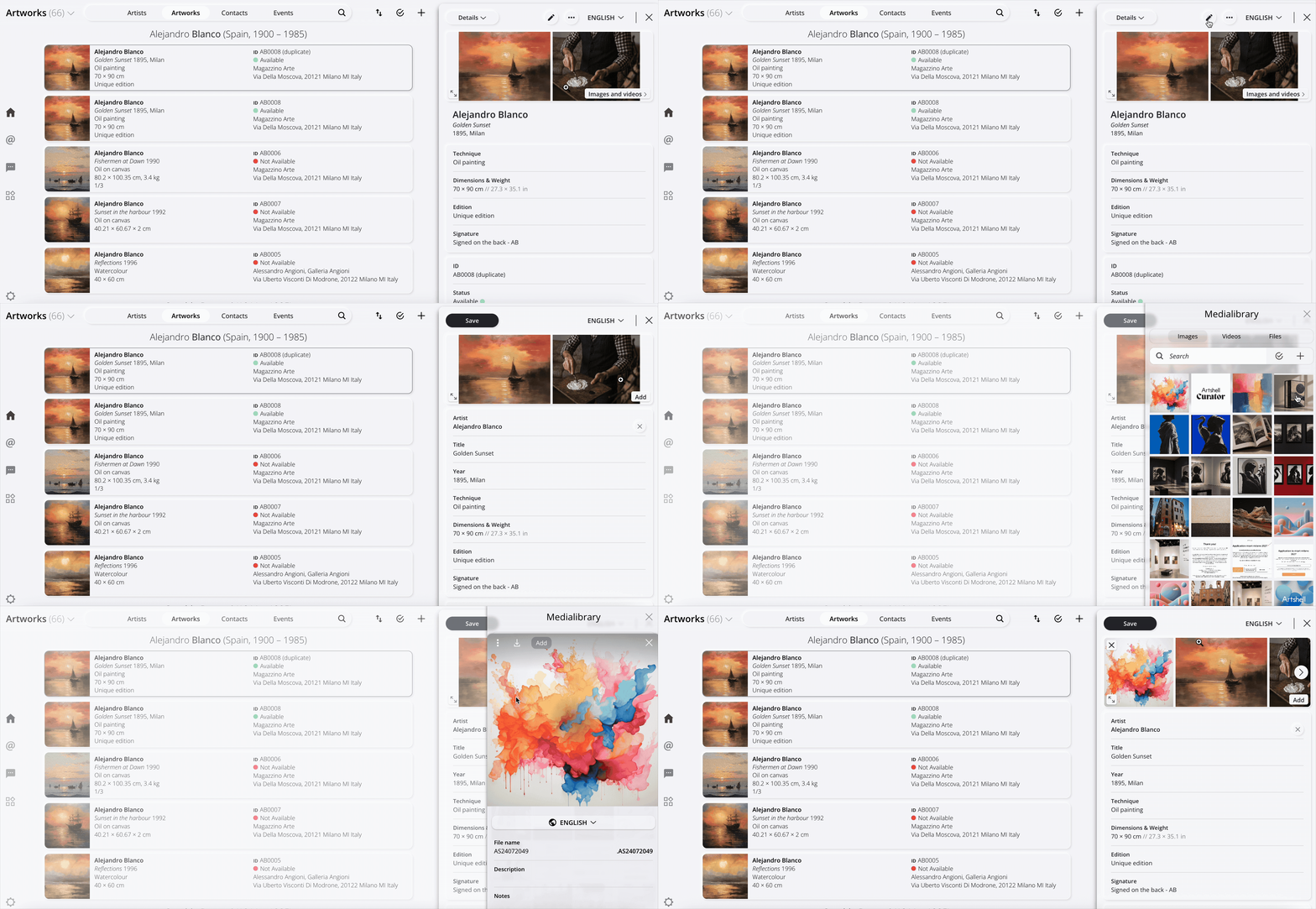
Click the top right for Open the record, which is a sidebar on the right where you can enter all the information about the artwork.

Step 2: Fill out the artwork record
Fill in the fields of record the information you want to associate with the work. You don't have to enter everything right away: you can edit or add to it at any time.
Below is a description of the main fields available.
Images
Add one or more images of the artwork. You can select them from the Medialibrary or upload new ones directly while creating the record.
For more information, see the article on the Medialibrary.
Artist
Link the artwork to an artist already in your archive. Click Choose an artist and type the initials of the artist's first or last name, then select them from the dropdown menu. If the artist has not been added to Artshell yet, click the + to create the artist record.
For more information, see the article Add an artist.
Title, year, and medium
These fields identify and describe the work.
- Title: name of the work.
- Year: year, period, century, or approximate date of creation.
- Technique: execution technique or materials used.
Dimensions and Weight
Enter the dimensions of the artwork by specifying height, width, depth, diameter, and weight.
For complex artworks, such as installations, diptychs, or triptychs, you can use the Dimensions and weight notes field to add additional information about the dimensions.
Artshell automatically converts measurements between centimeters and inches and between kilograms and pounds.
Edition
Indicate the edition number of the work, if any.
Signature
Specify whether the work is signed and indicate the location of the signature.
Tags
Tags allow you to classify and group your artworks according to your preferred criteria, making archive search and organization easier.
To learn more, check out the article Organize artworks with Tags and Lists.
ID and Status
This section contains information useful for identifying and managing the work.
- ID: User-assigned inventory number (also known as Artwork ID). You can enter any value you prefer based on the cataloging criteria used in your archive.
Artshell also uses the ID to recognize Artworks during imports via Excel files. This allows it to identify existing records , update them, and prevent the creation of duplicates. For this reason, we recommend assigning a unique ID to each artwork.
Tip
When defining your IDs, we recommend that you avoid using hyphens (-)
For example, ID: ABC-123
In Artshell searches, the hyphen is in fact used to exclude certain values and therefore requires extra caution when it is part of an ID.
- Status: Indicates whether the work is Available, Reserved, or Unavailable.
Location
Link the work to its location by selecting one of the Contacts your address book.
Price
Enter the artwork price by specifying:
- amount;
- currency;
- application of VAT;
- Any notes.
Acquisition
Record information regarding the acquisition of the artwork, including:
- purchase price;
- currency;
- VAT;
- acquisition date;
- origin;
- descriptive notes.
Insurance
Store information regarding the project's insurance coverage, such as the insured amount, insurance company, policy number, validity period, and any notes.
Evaluation
Record the economic appraisal of the work, indicating the estimated value, the appraiser, and the date of the appraisal.
Properties and Collection
Specify the owner of the work and the collection to which it belongs.
Certifications and Rights
Store information regarding certifications, restrictions, resale rights, copyright, SIAE, or other rights related to the work.
Framing, packaging, and quantity
This section provides useful information on the handling and preservation of the artwork.
Includes:
- Maximum dimensions, to indicate the size including the frame or mount. You can enter height, width, depth, diameter, and weight;
- Condition report, a drop-down menu where you can select whether the condition of the work is Excellent, Good, Fair, or Poor;
- Packaging, including crate dimensions, number of packages, and notes;
- Quantity: if the artwork you are adding consists of multiple pieces, you can indicate the number here;
- Medium: A drop-down menu from which you can select the type of medium. You can start typing the first few letters of the medium you're interested in to make it easier to select.
Notes
Use this field to enter any additional information that does not fit in the other fields of record.
Folders and Attachments
From the Details tab, you can associate images, documents, files, folders, and other related content with the work.
For more information, see the article The Details tab.
History available
For example, you can record a change in the artwork's location, a new valuation, or update the purchase price while retaining the history of previous values.
The History feature is available for both editing individual Artworks bulk updates. Click here to learn how to use the History feature.
Step 3: Save the record
When you have finished filling out the form, click Save in the top left corner.
The artwork will be added to your archive and will be immediately available in the Artworks section.

What you can do next
Once the artwork record has been created, you can:
- add images, videos, files, and folders from the Details tab;
- organize the artwork with Tags and Lists;
- publish it;
- export or share it in various formats;
- edit that information at any time.
For more information on these features, see the related articles.
Conclusions
Creating a new work is the first step in building your archive on Artshell. You can expand the record any time by adding new information, multimedia content, and documents.
To continue, see also: