
Publish an artwork
Introduction
The "Publish " feature allows you to make the Artworks records Artworks your Artshell account visible within the digital spaces linked to the software, choosing where to publish them and, when possible, which content to display.
You can publish your artworks across different channels: on your pop-up platform profile (Network), if configured, on the website linked to your Artshell account (built with Artshell Synch Flow), or on other channels you have been invited to join.
In this article, we will see how to publish one or more artworks and how to unpublish them when you no longer want them to be visible online.
Where you can publish your artworks
After selecting the artworks to publish, you can choose the destination channel from those available for your account.
Destinations may include:
- My Profile — Your space within the Artshell Network, where you can make artworks visible according to your profile settings and your pop-up platform. (For more information about Artshell's digital suites and the connected pop-up platform, please contact our sales team at sales@arsthell.eu )
- Connected website — If you have a website connected to your Artshell account, you can publish artworks directly to the site. (For more information on how to connect your website to Artshell using Artshell Synch Flow, please contact our sales team at sales@arsthell.eu )
- Other Shared Channels — In some cases, you may have received an invitation to post content on a channel managed by another user or organization that uses Artshell for its digital ecosystem.
Select the artworks to publish
To begin, select one or more artworks using the selection icon
.
After making your selection, you'll see the "Manage" panel which includes options for publishing or exporting content. If the panel does not appear (e.g., on small screens), click the icon
in the upper-right corner to view it manually.

To proceed with publishing, click Publish.

Post a work on your Network profile
If you choose to publish a work on your Artshell Network profile, the system allows you to configure in detail the content to be included in the post.
After selecting the destination, the " Public" configuration panel opens, organized into several sections. You can navigate through the available options in the side menu and use the toggles to decide which information to make visible online.
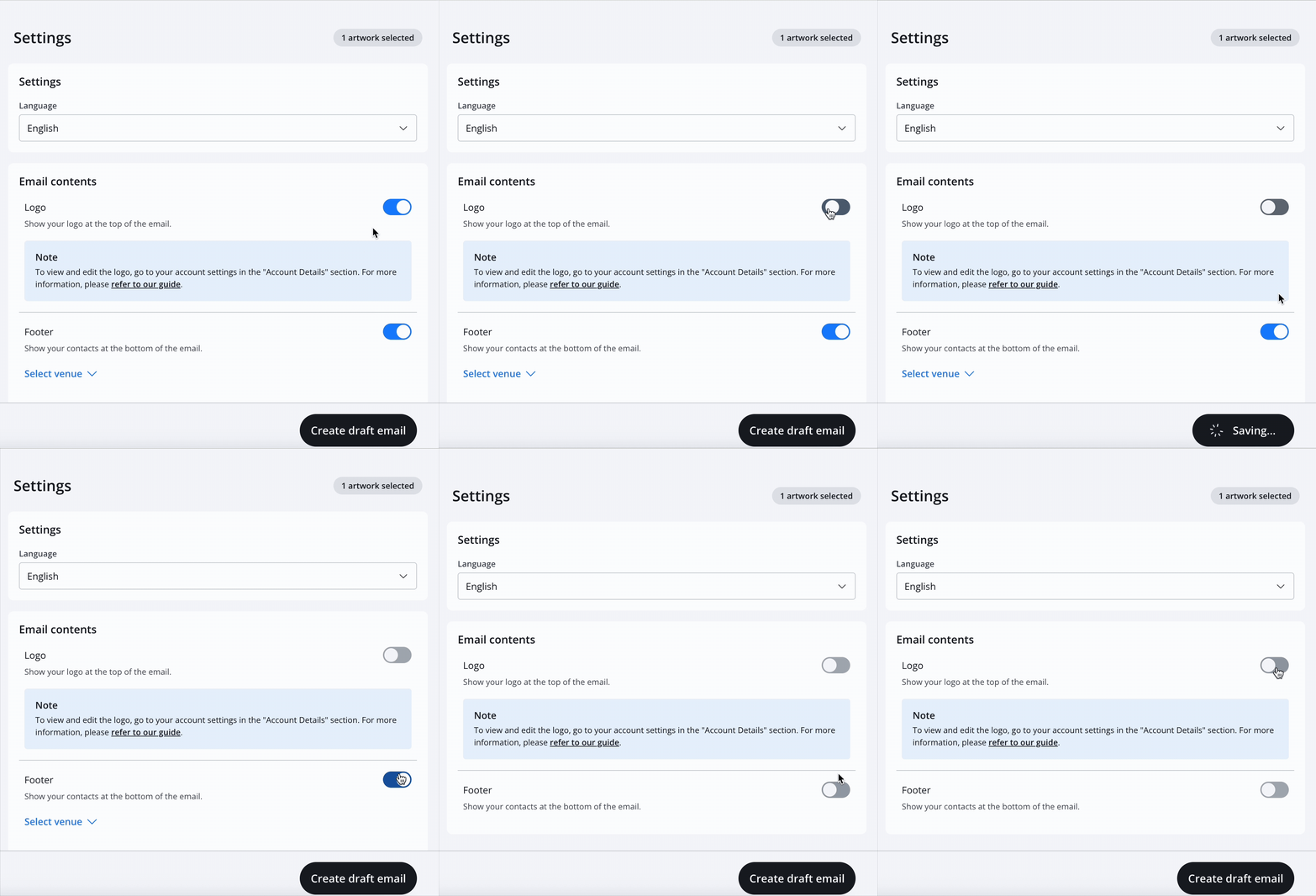
The available sections include:
- Artworks Data — Use the toggles to enable or disable specific fields in the record , such as acquisition, rights and restrictions, or other descriptive information.
- Price — Use the dedicated toggle to include the price. If necessary, you can customize the amount and currency for each work without changing the original value saved in the record. You can also enable the “+ VAT” label.
- Images and Videos — Choose whether to include the cover image and any additional multimedia content. You can use the toggles or manually select the images and videos you want to publish.
- Folders — Select which folders and attachments to make visible in the selected channel.
- Files — Choose which files to include in the publication.

Once you've configured all the settings, click " Publish " in the lower-right corner. The work will be made visible on the selected channel according to the settings you chose.
Pay attention to the lock feature: For images, videos, folders, and files, only unlocked content, indicated by the open lock, is automatically selected for publication, even when using the switches for bulk selection.
Blocked content, indicated by the closed lock icon, must be selected manually to be included.
This setting allows you to maintain full control over the content that is made visible online.
Update a shared post on your Network profile
When you publish a work on your Network profile, Artshell shares the record online record the data and content available at the time of publication.
If, after publication, you modify existing content —for example, correct text, update a description, or change a folder already included in the record you can use the Synchronize feature to update the online version.
If, on the other hand, you add new content that was not present at the time of the initial publication—for example, a new link, a new folder, or a new record element record you will need to republish the work on the same destination channel. This ensures that the newly added content is also included in the online version.
For more information on the Sync feature , see the dedicated article.

Publishing a Work on a Linked Website
If you choose to publish a work on a website developed with Artshell Sync Flow and linked to your Artshell account, the system does not open the full configuration panel, but instead displays a confirmation window directly.
The modal displays the number of selected artworks and the website where they will be published. To confirm, click Publish.
Note: To publish artworks on your website, your site must be compatible with Artshell synchronization. If you would like to enable this feature on an existing site, or if you want to build a new website connected to Artshell, please contact the Sales team at sales@artshell.eu. They will be able to check your site's compatibility and guide you through the available solutions.
Update a work on the website
To update the information for a work that has already been published on your website, click "Synchronize": the online version will be updated with the changes made to the record.
Unlike publication on the Network, when a work is published on a website, there is no need to distinguish between a new publication and synchronization. After the initial publication, any subsequent changes can be posted online using the Synchronize feature.
This applies both to changes made to existing content and to the addition of new content that was not present at the time of the initial publication.
Unpublish artworks
If a work has already been published and you no longer want it to be visible on one or more channels, you can use the " Remove from Publication" feature.

This action does not delete the artwork from your Artshell account, nor does it modify the data in the artwork record. It only removes the publication of the artwork from the selected channel.
To unpublish one or more artworks:
- Select the artworks you wish to remove;
- Open the panel Manage ;
- Click " Remove from Publication";
- Select the channel from which you want to remove the artworks;
- Confirm by clicking " Remove from publication."
If the work is published on multiple channels, you can choose which platforms to remove it from. Any other publications will remain active.
Conclusions
The Publish feature allows you to flexibly manage the online visibility of your artworks, choosing where to publish them and which content to display.
With the "Remove from Publication" feature, you can also update the availability of your online content over time, while always maintaining control over what is visible across the various channels connected to Artshell.
If you want to learn more about how to share your artworks, please also read the articles: