
The Details tab in artworks
Introduction
The " record Details" tab allows you to collect, organize, and manage all additional content associated with a work.
In this section, you can link images, videos, folders, attachments, and files, as well as check where the work has been published online and/or shared.
The Details tab is therefore useful for centralizing materials, documents, and multimedia content related to the project, keeping the record and ready for sharing, exporting, or publishing.
Prerequisites
This article provides an in-depth look at the advanced features of the Artworks section. Before proceeding, we recommend that you also consult the articles on:
- Artshell's Medialibrary
- Introduction to the artworks section
- Folders and Attachments
- Publish an artwork
Go to the Details tab
To access the Details tab, select a work from the Artworks section and click Details in the upper-left corner of the record.

The Details tab contains several sections:
Images and videos
In the " Images and Videos " section, you'll find all the multimedia content associated with your work.
You can use this section to upload close-up images, photos of the back of the artwork, the signature, photos of the installation, or videos related to the artwork or its creation.
In this section, you can:
- Search for content using the search bar.
- Add images or videos from Medialibrary by clicking the icon .
- Select multiple media items using the selection icon
- Manage individual media files or multiple selections.
Managing a single media file
By clicking on an image or video, you can open the content and view its details, such as the file name, the video link ( if the media is a video), the description, any notes, and the language set at the time of upload.
The Description and Notes fields in this section are separate from those in the Medialibrary, meaning the content will not be overwritten.

The description entered here appears alongside the image when it is shared and can be used, for example, to provide photo credits. The "Notes" and "Type" fields, on the other hand, are always private: they are visible only within your account and are never included in shared posts.
By clicking the icon You can open the options menu in the upper-right corner of the media.

At the top of record , you'll also find the lock, the multilingual , and the X icon to return to the full media view.
The management menu is also available in grid view, again via the icon .

Managing a media selection
To manage multiple images or videos at once, click the selection icon and select the media you want to edit. Once you've selected them, click the icon to open the options menu. The selected action will be applied to all selected items.

Note: Removing an image or video from the Images and Videos section does not delete it from Medialibrary.
Folders
The Folders section allows you to extend the information of the artwork record by adding content for which no dedicated field is provided.
You can use it, for example, to add a description of the artwork, a bibliography, publications, invoices, condition reports, supporting documents, images, files, or videos to record .
To organize this content, you can then create a dedicated folder, such as Description or Bibliography, and add one or more attachments containing the desired information inside it.
Below is an example of folders within a record :

If this is your first time using folders, we recommend that you first read the article titled " Folders and Attachments " so you can set up the main folders you might need in advance.
For your convenience, here is a summary of the main features, such as how to create a folder and add an attachment.
To create a new folder:
- Select the record .
- Open the Details tab and select Folders.
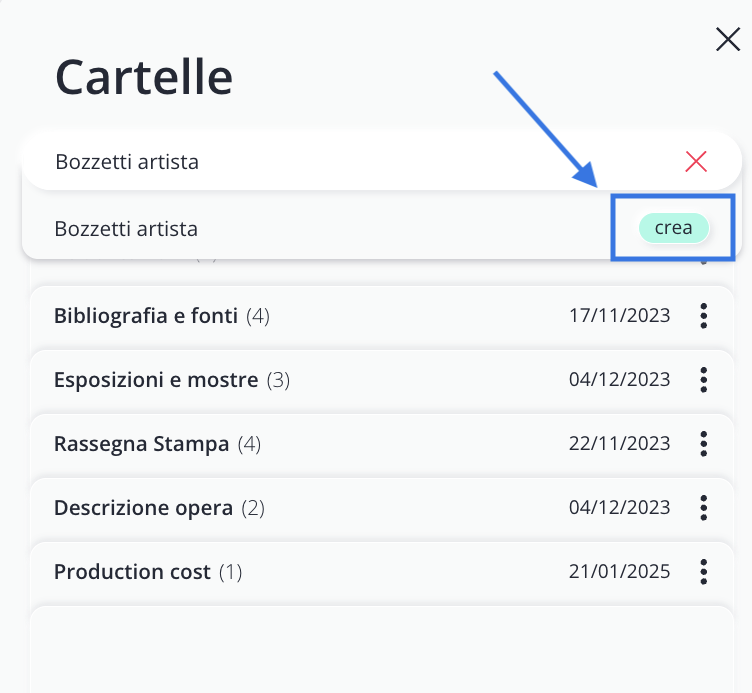
- Click ➕, type the name of the new folder into the search bar, and click Create.
- If you plan to share the content with an international audience, include the folder name in the other available languages as well.
- Click " Create " to finish.
To add attachments:
- Open the folder and click the ➕.
- Enter a title, text, or multimedia elements (images, videos, or files) or graphics (separators or sliders), the date, and translate the content using the multilingual feature if needed.
- Click Save to update the contents of the folder.

Returning to the list of folders, you can view some useful information:
- The number next to each title indicates the number of attachments in the folder.
- The date on the right indicates when the folder was added to the record.
- The icon allows you to move attachments to another folder or delete the folder itself.
Warning! You cannot delete a folder that contains attachments. To delete the folder, first move all the attachments to another folder.
Managing attachments
Within folders, attachments can be: locked using the lock, moved to other folders, or deleted.

File
In the " Files " section, you'll find all the files associated with your work.
You can use this section to upload compressed folders for printing, graphic layouts, catalog PDFs, Word or Excel files, or other documents useful for managing and presenting the project.
Within the Files section, you can:
- Search for a file using the search bar.
- Click the ➕ icon to add new files. You can upload any type of file (e.g., .zip, .mp4, .docx, etc.) with no restrictions on format or size. You can also attach documents generated using Artshell’s export features.
If the file you want isn't already in the Medialibrary, click the ➕ icon again to upload it directly from your computer.

Before you begin uploading files, the system will display a record each file, where you can add a description and notes in three languages (Italian, English, and French). The file name, however, remains the same in all three languages.

You can further manage your files using the icon , specifically, you can:
- Lock a file using the " lock " function;
- copy the link, download it, or remove it from record .
If you remove a file from record file will still remain saved in Medialibrary. You can also perform these same actions by opening the file.

Online
The Online section lists the channels and links where the work has been published or shared, respectively.
From here, you can see where the artwork appears online, such as on your pop-up platform profile (Network), on websites linked to your Artshell account, or in exported sharing links.
For more information on how to publish Artworks, see the article The Publish Feature for Artworks. If you’d like to know how to generate a shareable link, see the article Exporting and Sharing Artworks.
For each item, some useful information is provided to help you identify it and check when it was last updated.
Channels
For content published on the Channels, the following are displayed:
- Image - the image associated with the channel, as set under Network >> Network Profile.
- Channel name - the name of the channel where the content was published.
- Date - the day, month, year, and time of the last publication or the last synchronization.
Websites
For content published onthe Websites, the following are displayed:
- Image- The image associated with the website that was set when you configured the site with the Artshell team.
- Website Name- the name of the website where the content was published.
- Date- the day, month, year, and time of the last publication or the last synchronization.
Link
For content shared via an exported link, the following are displayed:
- Image - the image specified in the Metadata section during link setup.
- Link name - the name entered in the " Link Title" field in the " General Settings " section of the link configuration.
- Date - The day, month, year, and time of the last publication or the last synchronization.
By clicking the icon you can open, copy, or delete a link. If you've edited the record after publishing or sharing it, you can use the button Sync to update the online version.
In the following paragraphs, you’ll find detailed information on how the “Sync” button works for links and shares on your Network profile.
In fact, when a work is published on a website, there’s no need to distinguish between a new publication and a sync. After the initial publication, any subsequent changes can be posted online using the “Sync” feature.
Synchronize a work that has already been published or shared
After generating a link, you may need to correct a typo or update information that is already included in the shared version of the link.
In these cases, you can use the " Synchronize" feature, which allows you to update the existing version without creating a new link or a new post.
Synchronization works only for content that was already included in the initial configuration. For example, if you included the title, description, price, images, or other data from record in the link, you can only correct or update this information in record then synchronize the content.
To synchronize from record :
- Open the record in edit mode;
- Update the necessary information and click Save;
- Go to the " Online " section of the " Details" tab;
- Click " Sync " to update the online version.
Edit the configuration of a shared project
If you want to add content that wasn't included in the initial configuration, simply synchronizing from record isn't enough.
For example, if you didn't select any images, videos, folders, files, or other sections on the Details tab when you created the link, you won't be able to add this content to the link through simple synchronization.
In this case, go to the Export section and edit the link settings.

To do this:
- Open the Export section ;
- Search for the link using the search bar or use the available filters;
- Click the icon ;
- Select Edit Configuration;
- Include the missing content by selecting it manually or using the toggles;
- Click " Synchronize " to update the link with the new configuration.
When to create a new link
If you want to create a different version of the same work—for example, with a different selection of content or tailored for a different audience—we recommend creating a new link.
This way, you can keep the link you've already shared active and create a new version with a different configuration, without changing the previous one.
Conclusions
The " record Details" tab allows you to manage, all in one place, all additional content associated with the work: images, videos, folders, attachments, files, and online publications.
Using it correctly helps you keep your record complete, organized, and ready to be shared, exported, or published on channels linked to Artshell.