
Introduction to the artworks section
Introduction
The Artworks section is the core of your Artshell account. From here, you can create, organize, and view all the artworks in your archive, bringing together images, technical details, documents, and other related content in a single record.
If this is your first time logging in, it's normal for this section to be empty at first.
In this guide, you'll find an overview of the interface and the main available features, as well as an example of record .
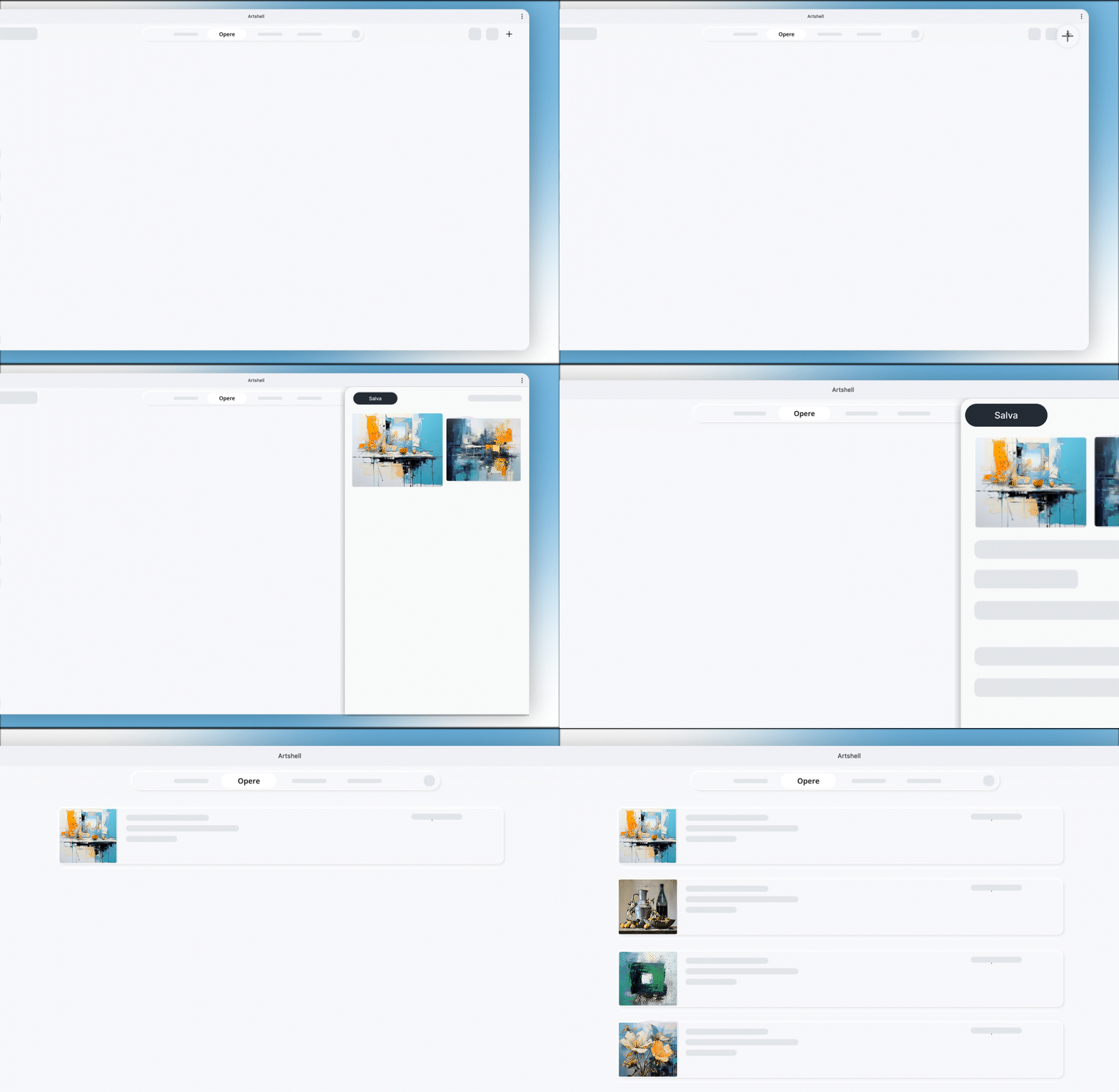
Items in the Artworks section

|
|
The Artworks menu item in the top left corner shows you the number of artworks uploaded to Artshell. |
|
|
Using the search bar, you can search for keywords within the records or perform a more complex search using the operators. |
|
|
The sorting feature allows you to sort your Artworks on criteria such as artwork ID, modification date, price, etc. For more details, see the following section. |
|
|
The " Select " feature allows you to select Artworks.See the next section of this article for more information. |
|
|
The ➕ lets you add new Artworks. |



Sort and select the artworks
System
The sorting of the artworks section is set by default in alphabetical order by the artist's last name (or pseudonym, if applicable). You can change the order of the artworks by clicking the icon and choosing from the options provided:
- Artist (Last Name or Stage Name)
- Work ID
- record Modification Date
- record Creation Date
- Status
- Title
- Year
- Price
Each of these criteria can be sorted in ascending (A–Z) or descending ( Z–A) order, depending on your preference.
Select
The Select feature allows you to choose one or more artworks to perform actions simultaneously.
For example, you can select multiple artworks to:
- export them;
- share them;
- Organize them using tags and lists.
Once you've made your selection, you can view only the artworks, change their order, or deselect them.
The record
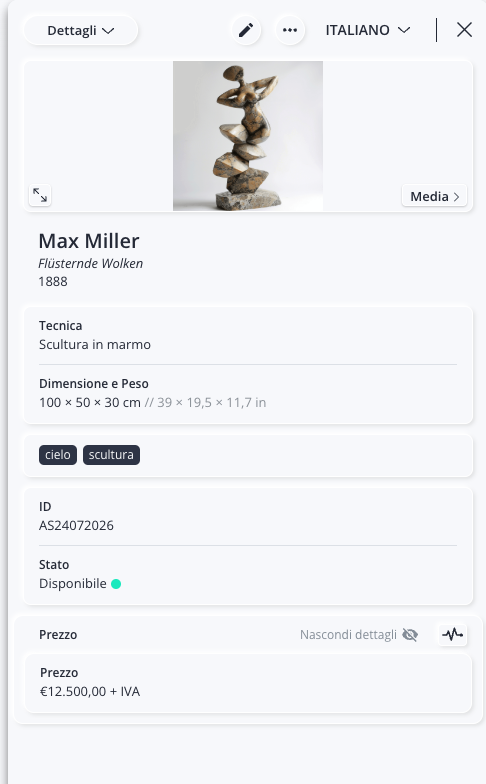
Each work is organized within a record contains all the information associated with it.
|
|
The drop-down menu Details includes additional content associated with your record , such as:
|
|
|
This icon allows you to enter edit mode and edit the record . |
|
|
Click this icon to open additional actions in record as: |
|
|
Multilingual: Use the drop-down menu to view the record other languages. Currently, automatic translation of content is not enabled, so be sure to enter the information in each desired language. |
|
|
Use this icon to close the record . |
|
|
This icon allows you to view a larger image of the artwork directly in the record. |
|
|
Use this icon to quickly access the images and videos associated with record selected record . |
|
|
This feature allows you to track the history of changes made to the data for a project you have recorded over time. |








Start building your archive
You can add the artworks or import them from an Excel file.
If your archive has already been digitized or if you’d like to have the Artshell team handle the import, dedicated services such as the Concierge Service or Data Migration are also available ( contact us to learn more).
For more information on how to populate your archive on your own, see:
Conclusions
Now that you know the structure of the section Artworkssection, you can start creating and organizing your archive.
For more information, see the related articles: