
Introduction to the Contacts section
Introduction
The Contacts section Contacts your central hub for efficiently managing all your Contacts.
You can add an unlimited number of Contacts, organize them intuitively using tags and lists, and enrich their records details, photos, documents, and files, so you always have a complete and up-to-date overview.
In this article, you'll find an overview of the elements in the Contacts section, Contacts a detailed guide to the icons, an example of record , and links to useful resources.

Items in the Contacts section

|
|
The Contacts entry at the top left shows you the number of contacts added in Artshell. |
|
|
Using the search bar, you can search for keywords within theContacts records Contacts perform a more complex search using search operators. |
|
|
The sorting feature lets you sort your Contacts criteria such as name, last modified date, creation date, and more. See the next section of this article for more details. |
|
|
The " Select " feature allows you to select your Contacts. See the next section of this article for more details. |
|
|
The ➕ button lets you add new Contacts. |


The Sort and Select functions
System
By default, Contacts sorted alphabetically by last name. If no last name is provided, they are sorted by the " Company" field.
You can change the view of your Contacts list Contacts the icon and choosing from the options provided:
- Last Name (or Company)
- Date modified
- Date created
Each criterion can be sorted in ascending order (A–Z) or descending order (Z–A).
Select
The Select feature is especially useful if you want to export Contacts an Excel file or assign tags and lists to multiple Contacts .
With Artshell, you can choose to select specific Contacts using the icon or select them all using the icon that appears immediately after you click the icon .
At this point, you can choose to view only the Contacts , reorder them, or deselect them.
Here is a brief summary:

Import or add Contacts
With Artshell, you can choose from several ways to populate your address book, depending on the number of Contacts upload.
If your address book contains only a few Contacts, you can read the article Create, edit, or delete a contact and start adding your Contacts .
If, on the other hand, you have a lot of addresses to add, we recommend choosing one of these options:
- Request the Concierge Service: if you have a large archive that hasn’t been digitized, you can rely on our team of experts to handle the import. Click here to learn more about the Concierge Service.
- Request our Data Migration service: if you already have a digitized archive (e.g., in a newsletter or CRM service), contact our Sales team to learn more.
- Use the advanced import feature: a tool that lets you import Contacts your own by uploading an Excel file. Click here to read the article on advanced import.
Important!
No matter how you import your Contacts, remember that a well-organized and professional address book is one of the key elements to your organization’s success. So take this opportunity tocarefully review the Contacts want Contacts keep in the Contacts section Contacts Artshell:
- deletethe ones you know are no longer active;
- Carefully checkthat there are no typos in the email addresses (which would otherwise be invalid);
- Makesure that your first name, last name, and company name are entered correctly and consistently.
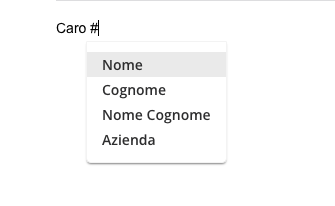
The Contacts section Contacts Artshell is closely linked totheEmail and Newslettersection, which allows you to send messages to your recipients within the same interface. This is extremely convenient, but it also requires special attention: for example, if you use personalized greetings such as Hello #name or Hello #company, you must ensure that the relevant fields have been filled in correctly. Otherwise, you risk producing unprofessional results, such as a Hello [empty field] (if the data is missing) or a Hello Tina instead of Hi Antonia, if the contact was saved incorrectly or in a hurry.
The record
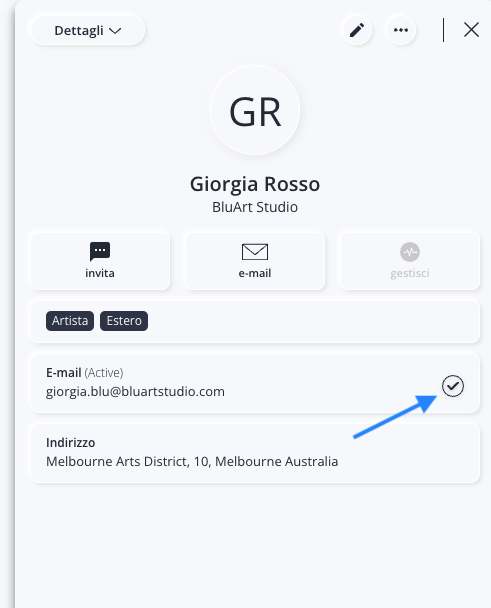
Below is an example of a record with some fields filled in.
For a complete description of all available fields, see the article: Create, edit, or delete a contact.

|
|
The " Details " drop-down menu includes additional information associated with your record, such as:
|
|
|
This icon allows you to enter edit mode and edit the record . |
|
|
Click this icon to delete the record . |
|
|
Use this icon to close the record . |
|
|
Send an email to the selected contact. |


Relationships Between records and Other Sections of Artshell
The record in Artshell is designed as a dynamic tool, capable of updating in real time based on the contact’s interactions and connections with other sections of the software.
The updates mainly concern:
-
Email address status: The status displayed next to each email address changes based on the recipient's interaction with communications sent through the Email and Newsletter section.
When you add a new address, Artshell automatically sets it to " active," as it considers the contact ready to receive communications. Click here to learn more about Contacts statuses.
- Purple indicator: a purple dot next to the contact's initials indicates that they are linked to other sections of Artshell, such as Artworks (for example, if they performed a restoration on a specific artwork) or Events (for example, if they acted as a promoter). Further details about the connections are always visible within the contact record.

Conclusions
Now that you know the basics of the Contacts section, Contacts the following articles to start filling out your inventory: