
Set up the newsletter sign-up form
Introduction
The sign-up form is the main tool you use to attract new subscribers to your newsletter.
Artshell lets you create a customizable registration form and share it via a simple link or embed it directly into your website. Everyone who completes the registration is automatically added to the Contactssection, ready to receive your communications.
In this guide, you'll learn how to set up the form, customize it, and choose the integration method that best suits your website.
Before you begin
Before configuring the form, make sure you have completed the following steps:
- verify the email address you will use as the sender;
- have added the link to the Privacy Policy in your account settings;
- to have configured the email disclaimer.
In addition, we recommend that you check out these related articles so you'll have everything ready to send your communications:
Configure the registration form
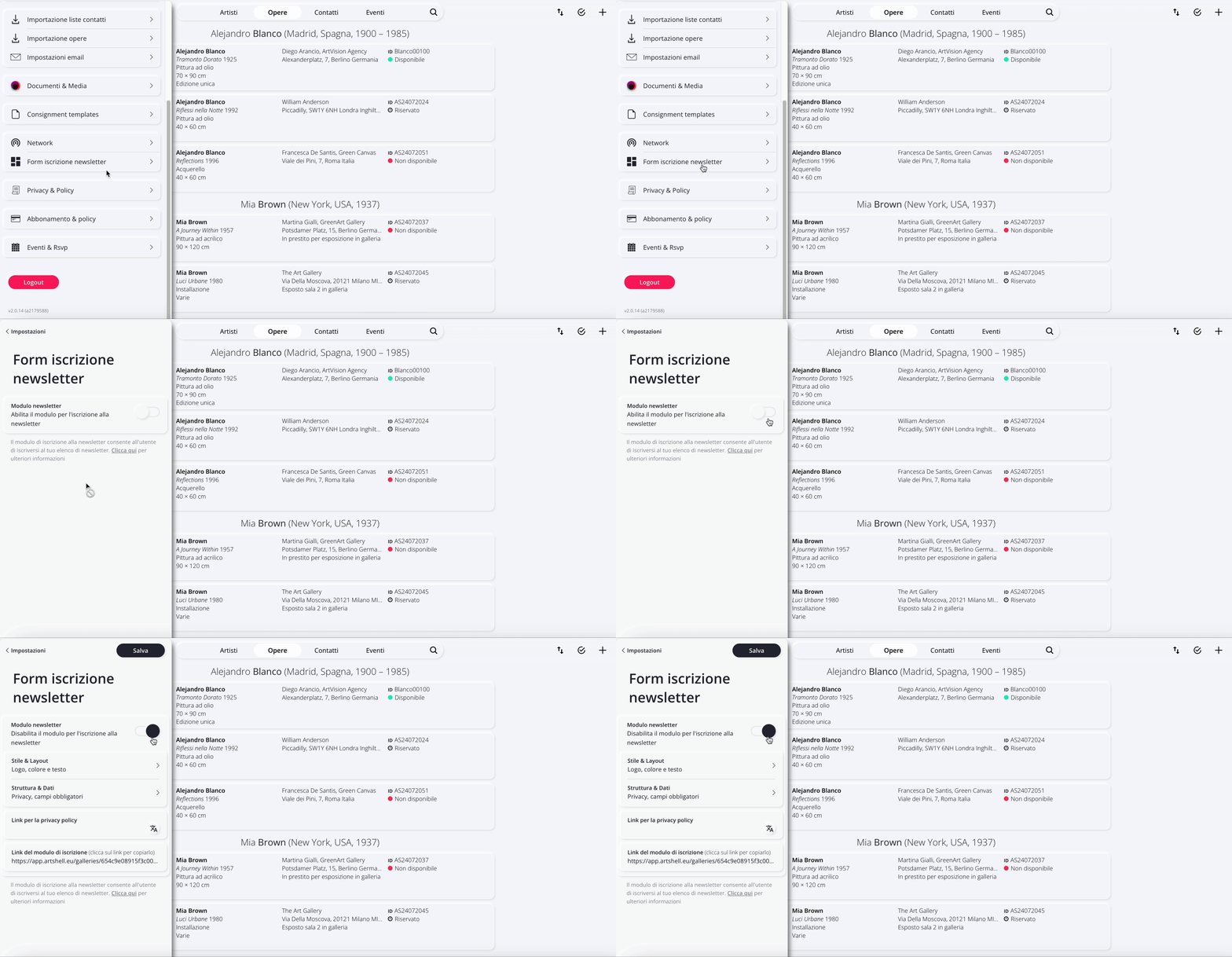
1. Activate the form
Open the Settings panel and select " Newsletter Sign-up Form."
Flip the switch to begin setup.
2. Customize the appearance
In the " Style and Layout " section, you can customize the form.
You can edit:
- logo;
- page title—that is, the text that will appear at the top of the registration link;
- font;
- colors;
You can also customize what users see after they sign up, specifically:
- the thank-you message;
- the text on the final button;
- the page to which the user should be redirected after signing up—for example, you can redirect them to your website or to another specific page.
This will ensure that the form is consistent with your organization's visual identity.
3. Choose the tag for new members
In the " Structure and Data " section, you can define the tag that will be automatically assigned to new subscribers.
By default, Artshell uses the Websubscription tag, but you can replace it with one or more custom tags, for example:
- Newsletter
- Website Registration
- Newsletter_Subscription
Note: Tags are assigned only to new contacts. If you change the tag in the future, Contacts will retain the tag that was previously assigned to them. To update Contacts , you’ll need to manually correct the previous tag. Here’s an article on how to do this: Correcting an Incorrect Tag.
4. Enter the link to the Privacy Policy
A link to the Privacy Policy is required to use the form. Failure to include the link to the Privacy Policy will prevent the registration form link from working.
Important! If the form is available in multiple languages, be sure to include a link to the Privacy Policy for each configured language.
If you've already filled out the " Privacy & Policy " field in your account settings, the link will be added automatically. Otherwise, you'll need to add it manually.
Why is it mandatory to have a privacy policy?You can find more information inthis article from Iubenda.
How to get the link to your privacy policy:
To paste the link to your privacy policy, you can upload the document to Google Drive or use the Medialibrary . If you want to use the Medialibrary, follow these steps:
- In the section Contactssection, create a record with the name of your organization, such as "Gallery XYZ. "
- Open the Details tab and select File.
- Click the to select the privacy policy document you want to include in the File.
- If the document is not yet in the Medialibrary, click the to import it from your computer. Be sure to give it a clear name, for example "Privacy Policy 2025", so you can find it quickly in the future.
- Once uploaded to the Medialibrary, select it and click the Add button at the top.
- Click the icon and select the second option Copy to clipboard.
- Go back to the Settings panel, under " Newsletter Subscription Form," and paste the link into the "Privacy Policy Link" field.
5. Share the form
Once the setup is complete, you can copy the module link from the"Enrollment Module Link" entry.
You can use it:
- on your website;
- in email signatures;
- in the link in my social media bio;
- by converting it into a QR code;
- as part of communication campaigns.
Each new registration will be automatically added to the Contacts section of Artshell. If you’d like a solution that integrates more seamlessly with your website’s design, you can opt for an API-based solution. See thenext section of this article to learn more.
Example
At this link, you'll find an example of a registration form that you can create and use.
Integrate the form into your website using the API
If you’d like a newsletter sign-up form integrated into your website, with custom graphics that match your brand, you can opt for integration via the REST API, creating a direct link between the form on your site and the Contacts section Contacts Artshell.
Below is an example of a custom integration, similar to the one on the Artshell website.

Depending on your in-house technical expertise and your specific needs, integration can be carried out in two ways:
1. In-house development
If you have a developer, they can integrate the form using the Artshell API documentation.
To request it, please email: support@artshell.eu
2. Developed by Artshell
If you'd prefer to have our team handle the development, you can request a quote by emailing: sales@artshell.eu
The cost depends on the technology used by the website (e.g., WordPress, Shopify, custom PHP, Next.js, etc.), the number and type of fields to be linked, and the number of forms on the website. It is important to specify whether the forms are identical or different from one another in terms of structure.
To help us provide an accurate estimate, we ask that you provide this information when you submit your request.
What happens after I sign up?
Every user who fills out the form is automatically added to your section Contactssection.
Artshell also assigns a status to each email address, which determines whether the contact will receive newsletters and communications. For more information, see the article: Email Address Statuses.
After subscribing, users can change their preference at any time by clicking the "Unsubscribe " link included in all newsletters sent through Artshell.
Conclusions
A well-designed sign-up form is the first step toward building a well-organized, high-quality mailing list.
To further improve your communication skills, we also recommend that you read: