
Set up your basic information: User Profile, Logo, and Venues
Introduction
After creating your Artshell account, we recommend taking a few minutes to customize your profile. Setting it up correctly makes your account look more professional and ensures that exports, shares, and other content display the correct information.
From this section, you can manage three distinct aspects:
- the user profile, which identifies you within Artshell;
- the organization's name and logo, used in exports and when sharing;
- the venues your organization, if you manage one or more locations.
In the following paragraphs, we'll take a detailed look at how to configure each of these sections.
Customize your user profile
The user profile identifies the person using Artshell.
The information entered in this section is for internal use only and is not displayed in exports or to the recipients of your communications.
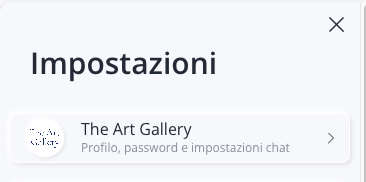
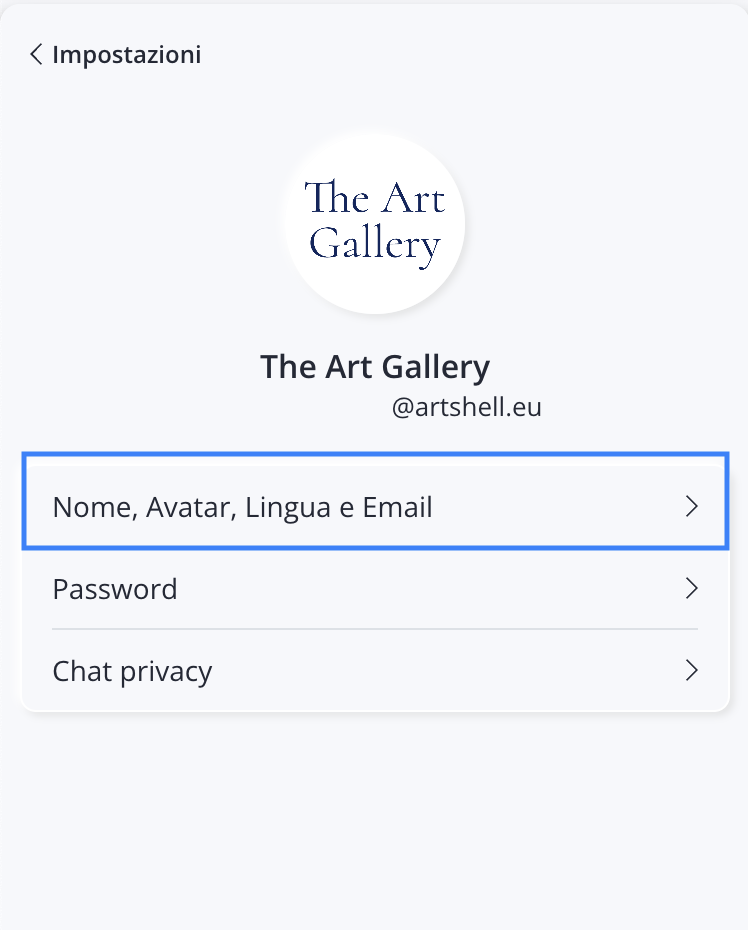
Click the icon at the bottom left, Select the first entry with your account name, and finally click the first option Name, Avatar, Language, and Email.
Important
If you want to change your organization's name or the logo that appears in exports, see the section Name and Logo.
Currently, your email address and the first letter of your email are displayed as your avatar image.
From here, you can edit:
- the profile picture;
- name;
- last name;
- interface language.
The email address associated with the account, however, cannot be changed.
Upload your profile picture
To replace the default avatar, we recommend using an image:
- in PNG or JPG format;
- with dimensions of up to 600 × 600 px;
- high-resolution.
To upload the image:
- Click the icon to open the Medialibrary.
- Click the to the right of the search bar to upload an image from your computer.
- Select the image you want to upload, choose whether to rename the file (we recommend naming it "Avatar" so you can easily find it later), and click Upload in the top left corner to proceed.
- Once you've uploaded the desired image to Artshell, select it and click " Add " in the upper-left corner.
- Click Save to confirm your changes.
Enter First Name and Last Name
Enter or edit your first and last name.
This data is used solely to identify your user account within Artshell.
Set your profile language
You can choose the language you want to use Artshell in.
The following are available:
- Italian
- English
- French
Name and Logo
This section pertains to your organization, not your user.
To customize the Name of your account and the Logo, click the icon in the lower-left corner, and then click the item Account details.
The information entered here is used in exports, shared content, and other content generated by Artshell.
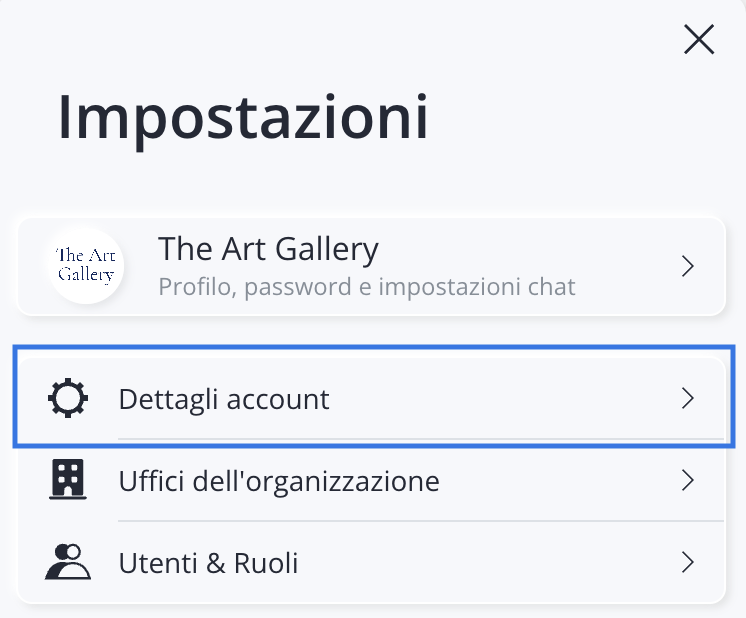
Here you'll find two fields:
- Account Name
This field is automatically filled in with the name you chose during registration.
You can change it at any time.
- Logo Image
Uploading follows the same procedure used for the profile picture:
- Click the icon to open the Medialibrary.
- Click the to the right of the search bar to upload an image from your computer.
- Select the image you want to upload, decide whether to change the file name (we recommend naming it "Logo" so you can easily find it later), and click Upload in the top-left corner to complete the upload.
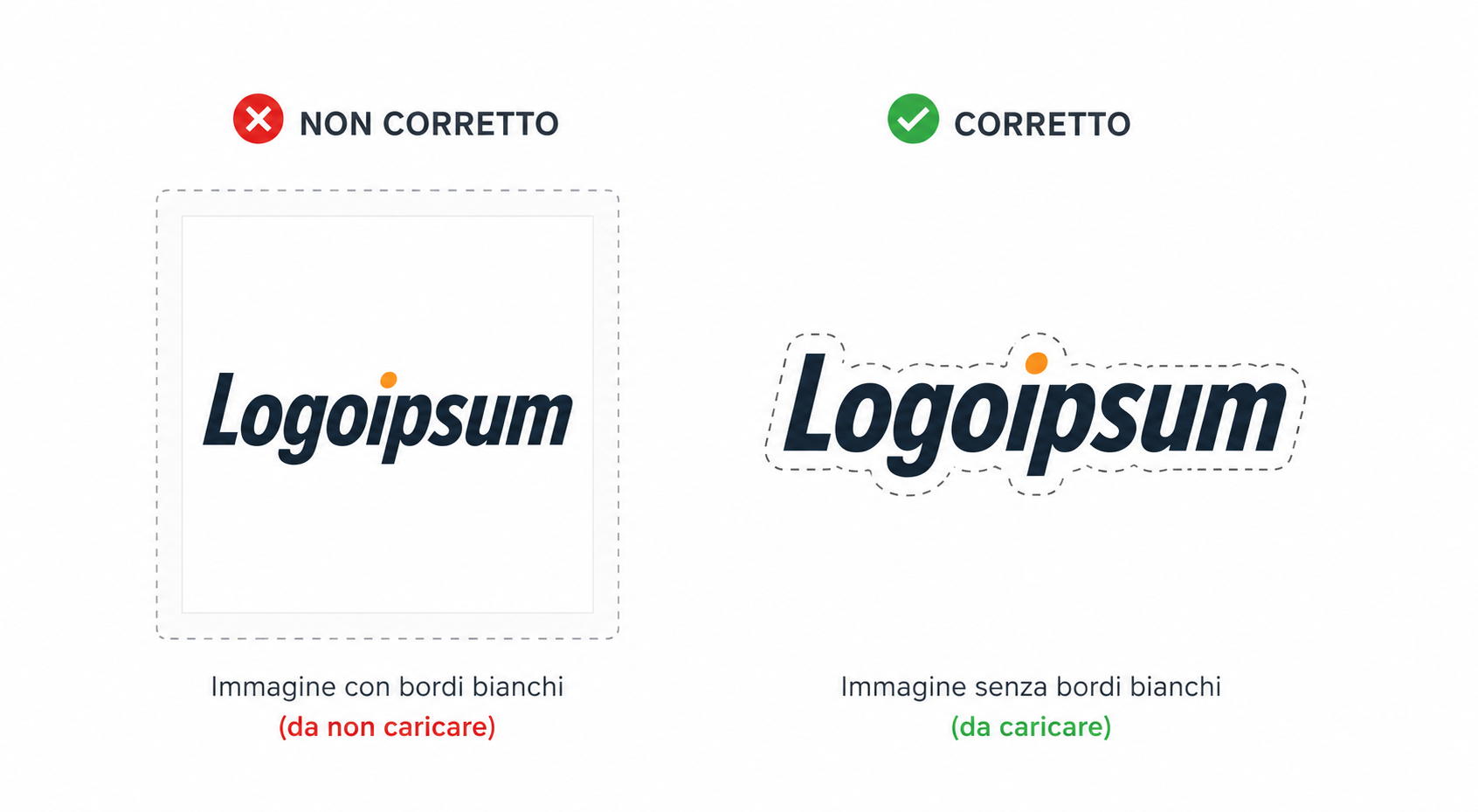
To get the best results when exporting, we recommend using an image:
- in PNG format;
- with a transparent background;
- without white margins;
- with dimensions of up to 600 × 600 px.
A logo with white borders or a white background may appear smaller or less uniform in exported documents.
- Once you've uploaded the desired image to Artshell, select it and click " Add " in the upper-left corner.
- Click Save to confirm your changes.
The organization's venues
If your organization has one or more locations, you can register them in the Offices section.
Add a new venue
To add the " venues " (i.e., locations) for your Gallery, Collection, or Archive, click the settings panel icon at the bottom left, and then The organization's venues. The information entered in this section will also be available in other areas of Artshell (e.g., Export), where you can choose whether or not to include a footer.
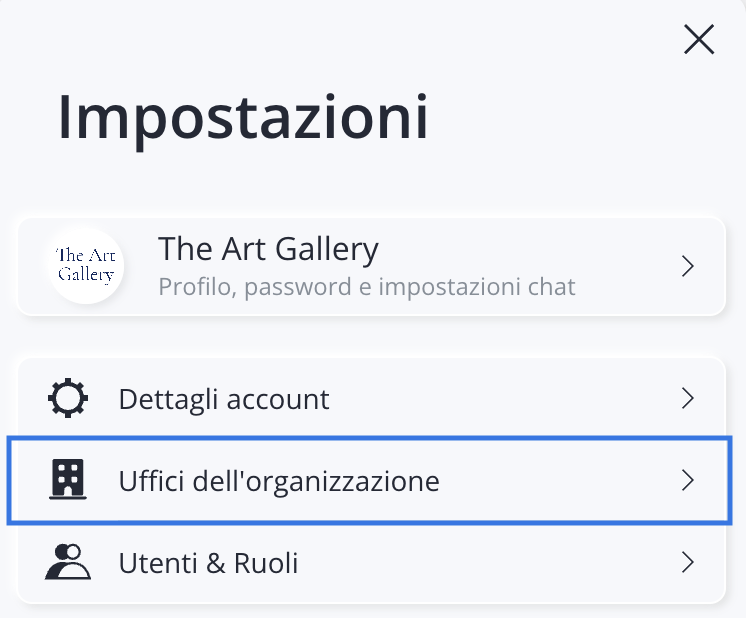
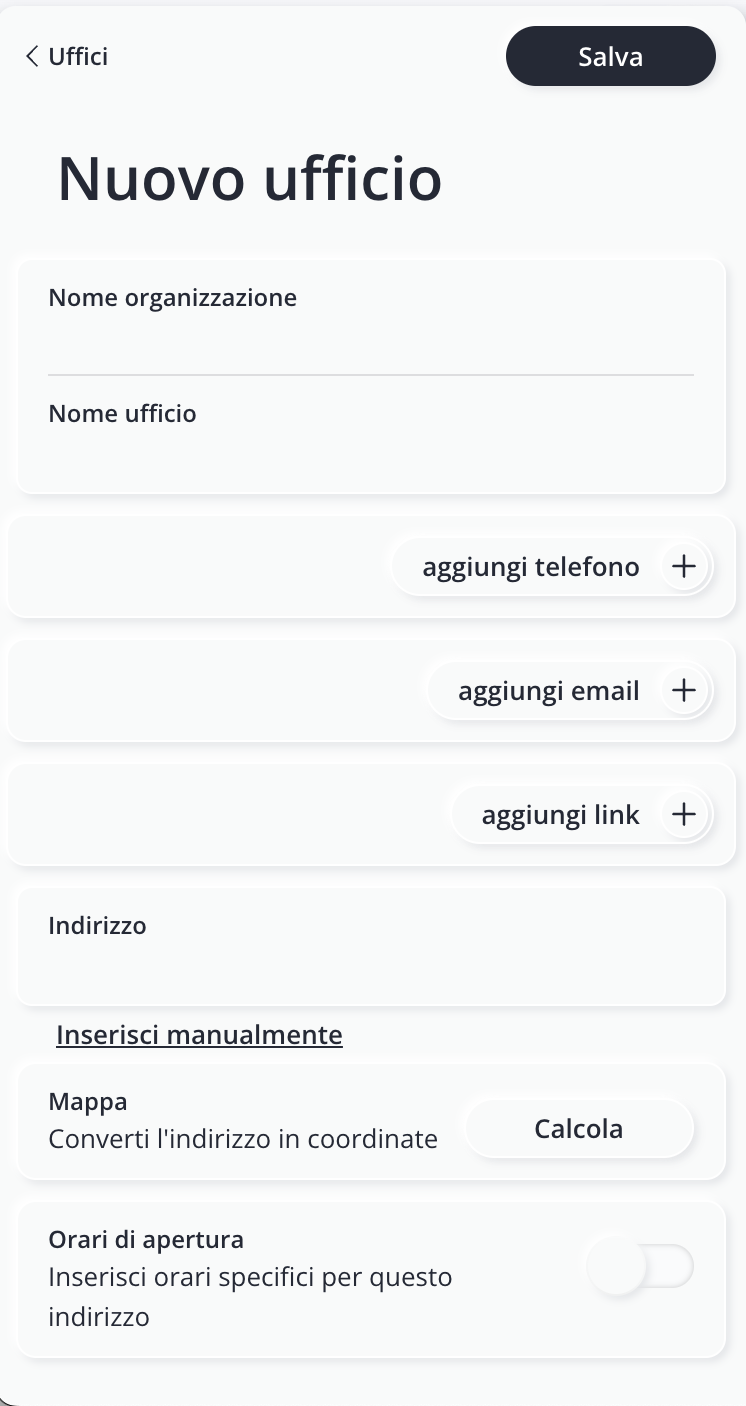
- Click " Add" in the upper-right corner to open the form for a new venue.
- Please fill in the fields. None of the fields are required, but we recommend that you provide all the information.
- Click " Save" in the upper-right corner to confirm the information.
Edit or delete an existing venue
To edit the details of a saved venue, click on an venue and edit the desired fields. Click Save in the upper-right corner to confirm the information.
To delete a saved venue, click the icon and choose Delete venue
Conclusions
Properly configuring your user profile and organization makes your identity more recognizable and ensures that exported and shared data always includes the correct information.