
Create an Artshell account
Introduction
Artshell is the software that allows you to manage artworks, artists, contacts, events, and art-related activities. In this article, find out how to create an account and start using the software.
If you prefer to use Artshell on your computer or smartphone, you can install the app by following the instructions:
Create your account
To create a new account, visit the website: https://app.artshell.eu/register
Alternatively, you can:
- Click " Register " on the website www.artshell.eu;
- Sign up directly from the Artshell app.
Registration is free and allows you to use Artshell for 15 days without providing any payment information.
Fill out the registration form
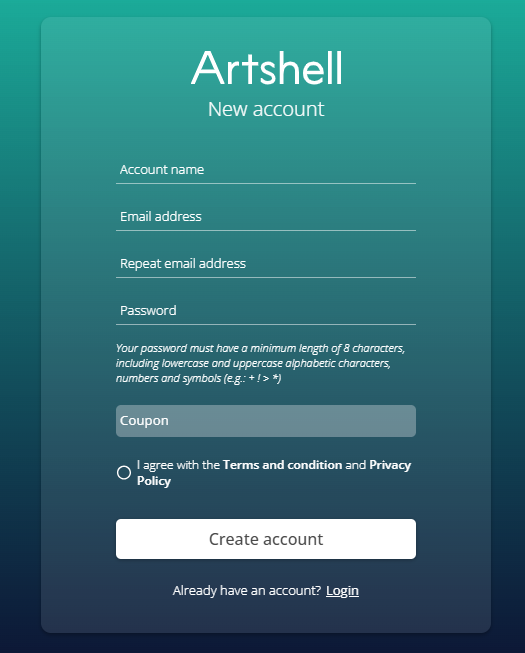
Account Name
This is the name by which your account will be identified within Artshell. You can enter, for example, the name of your gallery, collection, archive, or studio. You can change it at any time.
Email address
Enter a valid email address. It will be used to log in to Artshell and receive communications regarding your account.
Please note: This address cannot be changed.
Password
Choose a password that meets the specified requirements.
Coupon
Enter the coupon code if you have one.
Privacy and Terms
To complete your registration, you must agree to the following:
When you're done, click " Create Account."
Check your email inbox
Once you've created your account, check your email inbox to make sure you've received the 3 emails:
- A welcome from Artshell.
- Request to confirm your account activation.
- Request to confirm email address.
The second and third emails are sent from the address no-reply@artshell.eu
Activate your account
The first confirmation email from Artshell contains a link that you need to click to activate your account. Click the link within 24 hours to prevent it from expiring.
Can't find the confirmation email in your inbox?Check yourSpamorJunk folder. If it's not in either the Spam or Junk folder, you can request that the email be resent.

Confirm your email address
The second confirmation email from Artshell is intended to verify your email address and allow you to use it as the sender when sending messages from your Artshell account. Click the link within 24 hours to prevent it from expiring.
Sign out
To sign out of your account, click the icon at the bottom left. Scroll to the bottom and click the red Logout button.
Conclusions
To ensure that Artshell works properly, we recommend using a browser that has been updated to the latest version or the version immediately preceding it. Please note that if your operating system (whether on a computer or mobile device) prevents you from updating to the latest version, you may experience issues with the app.
Now that you've created your Artshell account, you can start setting up and customizing your profile, or learn more about the basics.
To get started, you can read these articles: