
The Preview app
Introduction to the Preview App
The Artshell Preview app is a tool designed to let you view and present your Artworks a simple, organized, and controlled way. Unlike the Artworks section Artworks your account—which is where you manage and store all your information—the Preview is designed as a viewing space, ideal for use during calls or in person with clients and collaborators, or at trade shows and events.
Its main advantage is that it allows you to display only a portion of the available information, keeping all sensitive or internal data—such as ratings, insurance details, or notes—hidden. This way, you can showcase your catalog on an iPad or other mobile devices in a professional manner, while avoiding the disclosure of content not intended for the public. For this very reason, the Preview app is not a copy of the Artworks section: the number of visible fields can be reduced to ensure clear, quick reading that’s suitable for a presentation setting.
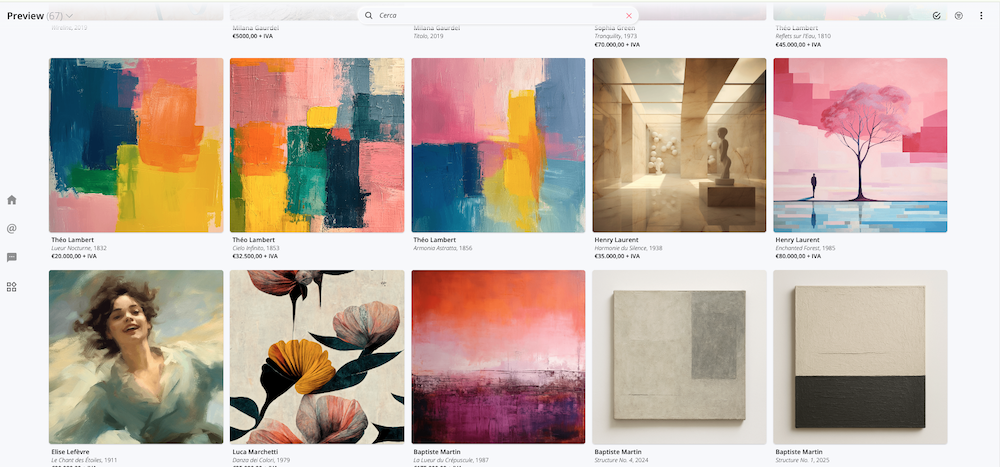
How the Preview app works
When you log in to the Preview app, you’ll automatically see all the Artworks your account, organized in a grid view. This view is designed to give you an immediate overview and make navigation easier, especially on mobile devices. If you prefer, you can Artworks view the Artworks in list view by using the button at the bottom:
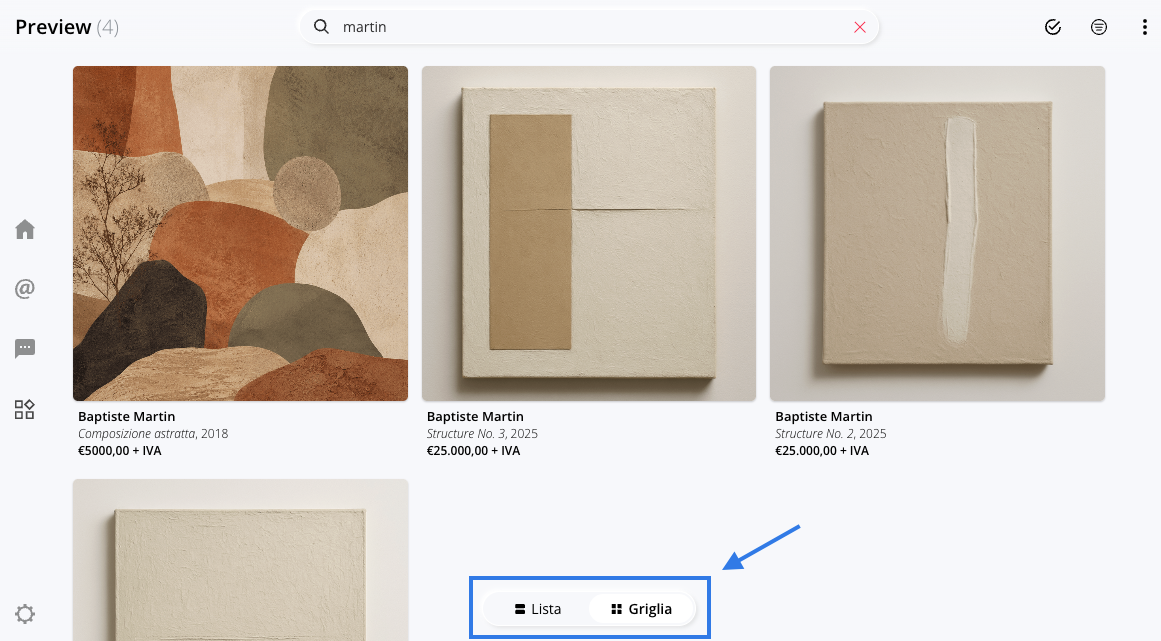
It’s important to know that what you see in the Preview depends on two factors:
- based on the settings you configure within the Preview app itself;
- from the content you've chosen to make visible in the Artworks section Artworks indicated by the open padlock). This means you always have control over what is shown and what remains hidden.
App Preview and Users & Roles
By default, the Preview app displays all the Artworks your Artworks section. However, you can also use Preview to restrict content visibility when multiple users access the same account.
In these cases, you can use the Preview app to provide a view-only mode (without the ability to edit), displaying only the information you want to share. This is particularly useful, for example, for collaborators or users who do not need full access to your database and, above all, must not be able to edit the information. To set up this mode correctly, please refer to the dedicated article: Limiting the Visibility of Artworks the Preview App.
Logging into the app and the first screen
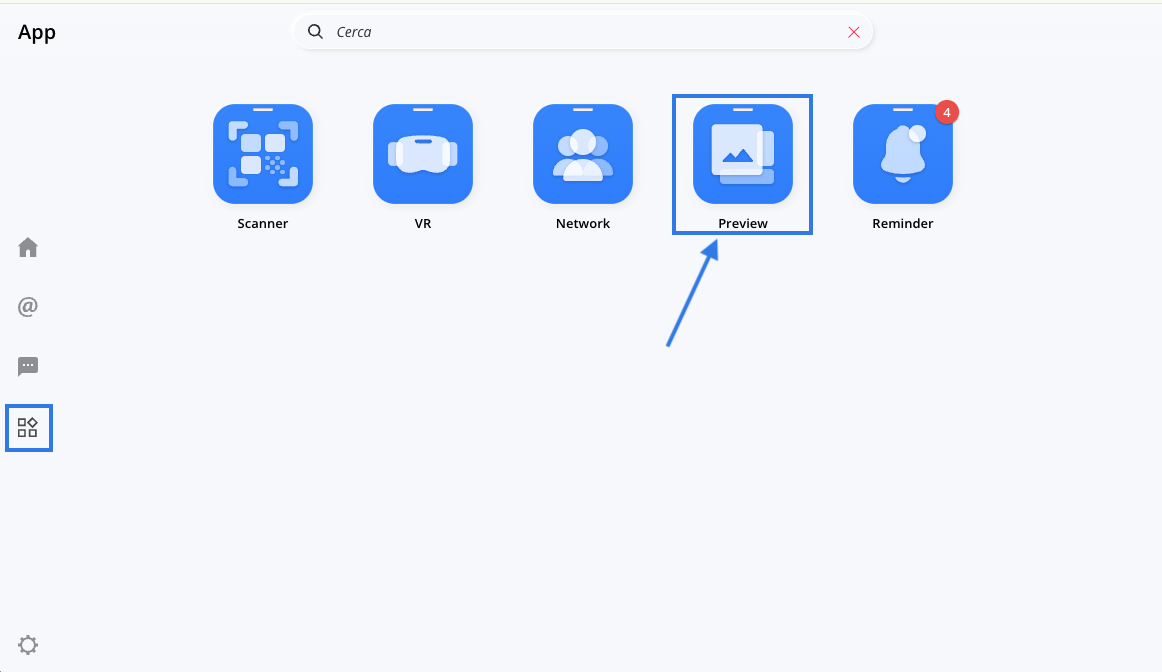
To open the Preview app, clickthe app icon in the left-hand sidebar and select the app named Preview.
Once you open the app, you’ll see the Artworks in grid view by default. Artworks grid aresorted alphabetically by the artist’s last name; the same sorting order applies when you view the Artworks list view. For each artwork, you’ll see the following information:
- the cover image;
- the artist's name (first and last name, pseudonym if applicable);
- title of the work;
- year of completion;
- the price, including VAT.
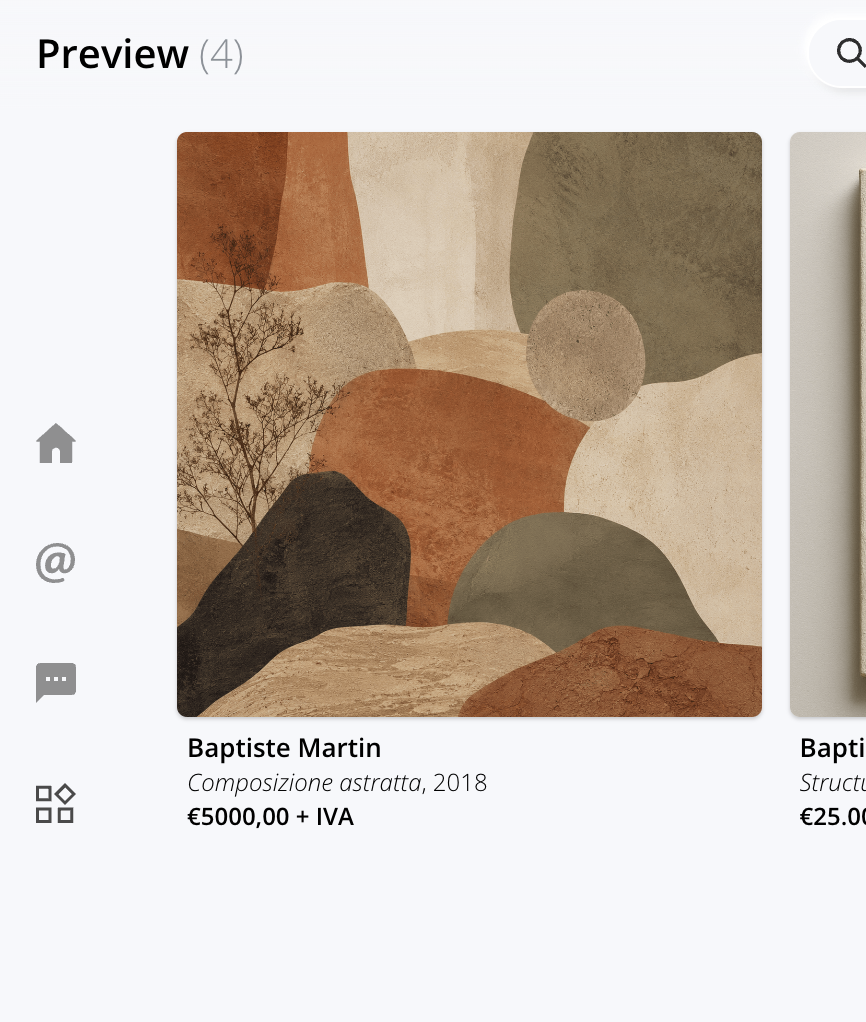
Note: The list view does not display the price.
This setup makes searching quick and easy and allows you to find your way around even very large catalogs. By clicking on a specific work, you can access its record and view additional information such as:
- acquisition data;
- insurance information;
- evaluation data;
- quantity and medium;
- notes;
- folders and attachments.
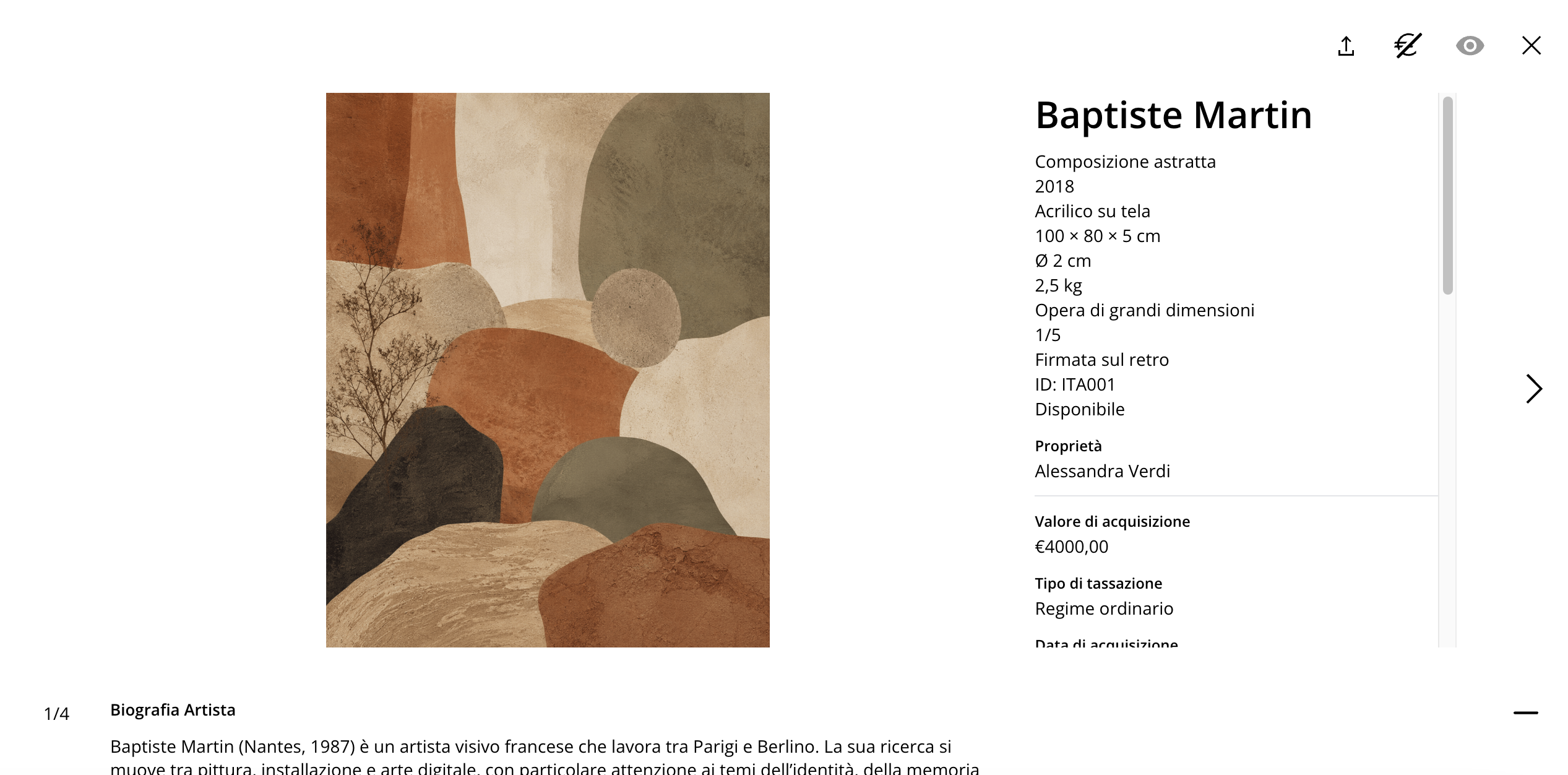
Note: If too much information is displayed in record , you can hide the content you don't need in the Preview app's Settings. To learn how, see the section Settings – How to Configure the Preview App.
Navigating and Using the Preview App
To help you navigate the Preview, there are several tools available that allow you to quickly find Artworks work on specific selections.
Below is an explanation of the icons:
|
|
The search bar allows you to quickly find Artworks keywords, without having to specify a particular field: the search is open-ended, and the system automatically searches through the available information. |
|
|
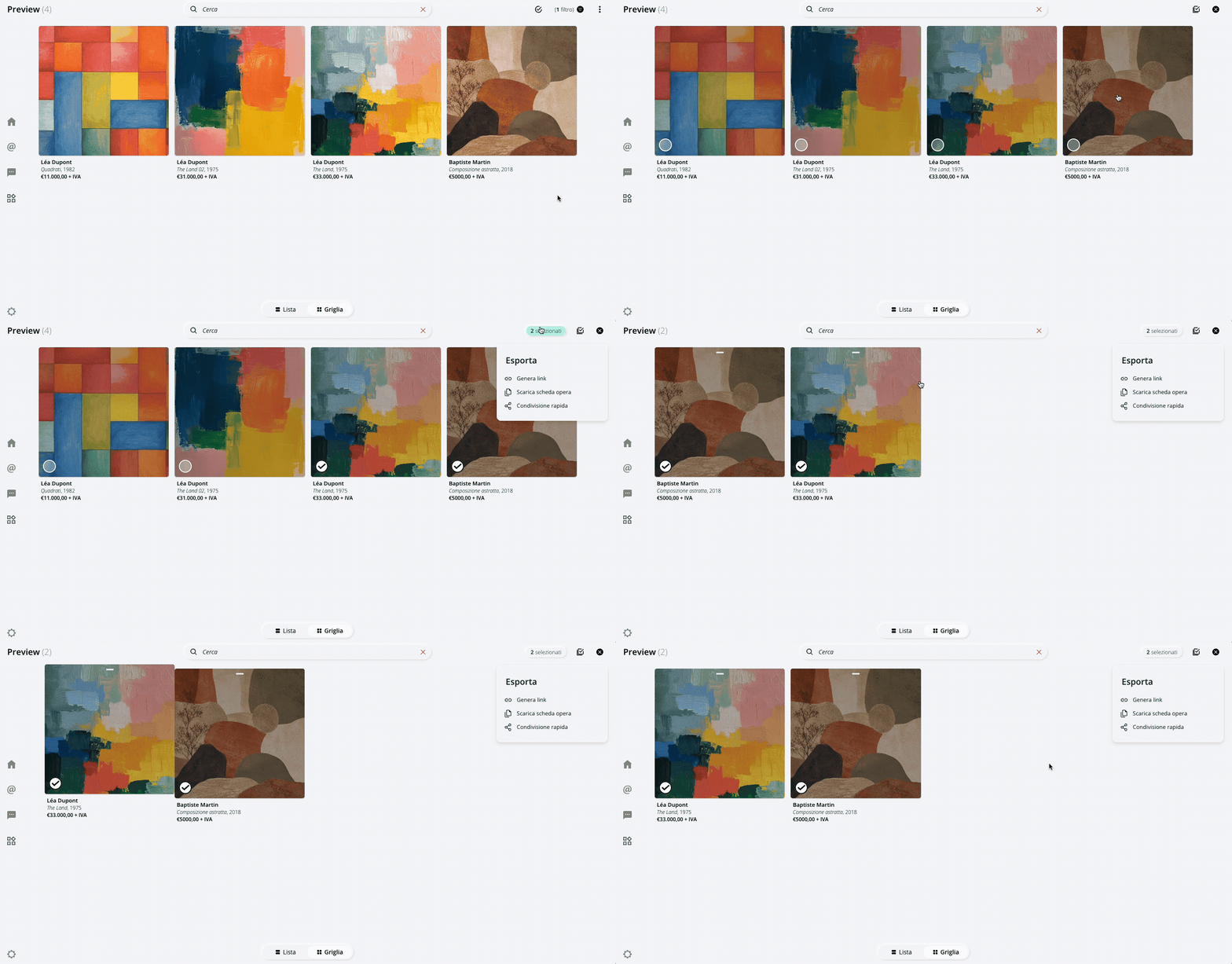
The "Select " feature allows you to work on specific Artworks. You can select them individually or in groups, view only the selected ones, change their order, export them, or share them. |
|
|
Filters let you narrow down the results based on criteria such as artist, playlist, status, or location. You can combine filters to create precise selections. |
|
|
Settings: These let you choose which content to display in the Preview app. |


Settings: How to Set Up the Preview App
Before using the Preview app, it is essential to properly configure the Settings to decide which information you want to be visible. Click the icon in the upper-right corner to open the settings panel.
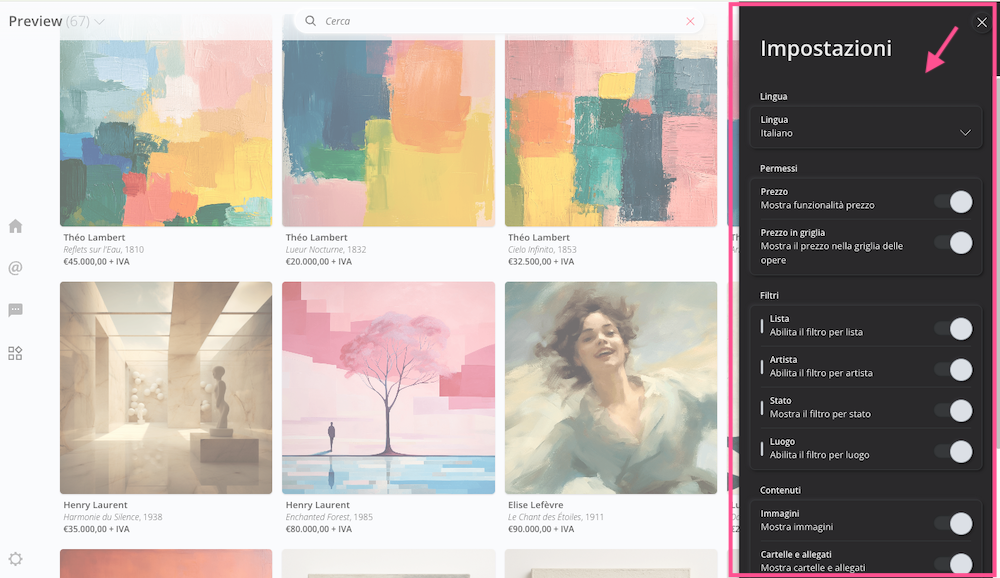
In the settings, you can configure:
-
Language - the language in which the content will be displayed (Italian, English, or French).
Please note:The language displayed depends on the content actually entered in record . Artshell does not automatically display text available in another language: if a translatable field has not been filled in for the selected language, it will not be displayed. However, fields common to all languages—such as numerical values, dates, and options selected from non-translatable lists — remain visible. - Pricing - You can control the visibility of the price by choosing whether to always display it, show it only in the grid view of the artwork, or hide it completely. This allows you to tailor the presentation to the context—for example, by distinguishing between an internal review and a presentation to a client.
- Filters - you can choose which filters to display and which to hide, thereby simplifying your browsing experience. If you disable a filter, it will no longer be visible in the interface, but the free search will still work.
- Content - You can manage the content displayed in record . Here, you can further limit the visible fields to create a consistent presentation and protect any confidential data.
Once you've configured the settings, you can return to the grid view. The selected settings will remain active until you decide to change them again.
View a single work
When you open a specific work, you’ll see a record contains the key information needed for reference. The image is accompanied by the data you chose to display in the Settings section described in the previous paragraph.
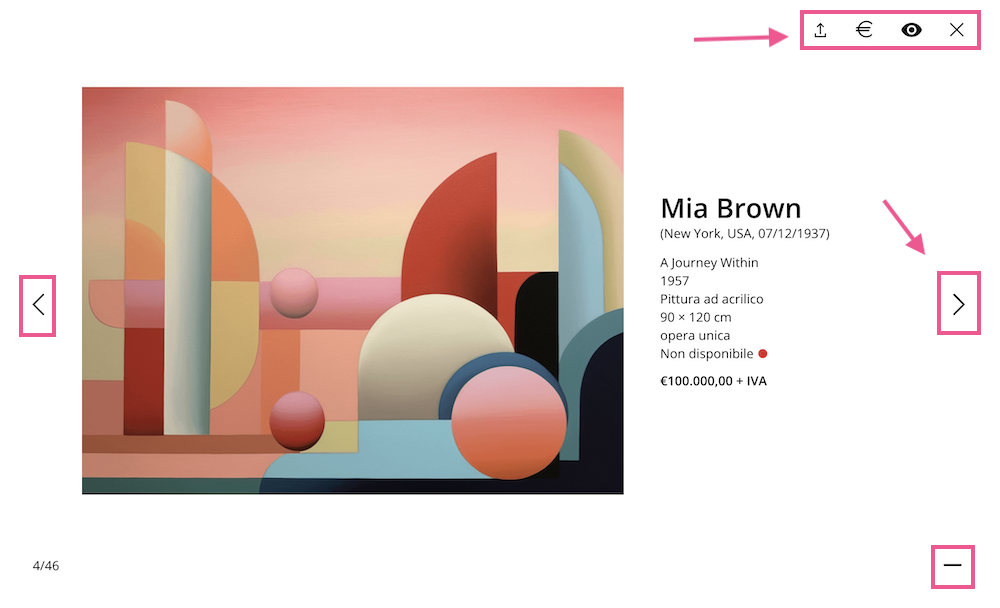
If you'd like to see more information, you can click on the icon
at the bottom right to expand the details, or on the icon
to minimize them. If some content isn't visible, check the app settings Preview or check to see if they have been filled out in record under the section Artworks from your database.
Within the record navigate through the Artworks the arrows (
and
), without having to go back to the grid.
Compared to the Artworks section Artworks your account, some information is missing: this is intentional and serves to keep the display clean and focused on the elements that are truly relevant when viewing the page.
Some of the information that isn't displayed in the Preview app includes, for example:
- Certifications and Rights
- Maximum dimensions
- Condition
- Packaging
Price and view on wall
If price display is enabled in the preview app settings, you'll see the corresponding icon ( ), which you can use to show or hide it while viewing the document. This icon always displays the euro symbol, even if the currency is different (e.g., dollars).
Another icon you'll find in the view of the artwork is the icon , which indicates the functionality View on wall. By selecting it, you can view the artwork (painting or photograph) hanging on the wall of a simulated room, which helps you better understand its proportions and how it looks in a space.
If the "View on wall " icon is not active, it means that no dedicated image has been configured for the artwork you are viewing. In this case, you can refer to the relevant article to find out how to enable it.
The icon Instead, it allows you to export the work in the three available formats: as a link, as record full-length record , or as record abridged record . Go to the section Export and sharing to learn more about the export features.
Preview App Filters
Within the Preview app, you can choose which Artworks by applying the available filters. Clicking the dedicated icon opens a sidebar on the right where you can set your selection criteria. You can filter the Artworks on various parameters: List (manual or automatic), Artists, Work Status, or Location.
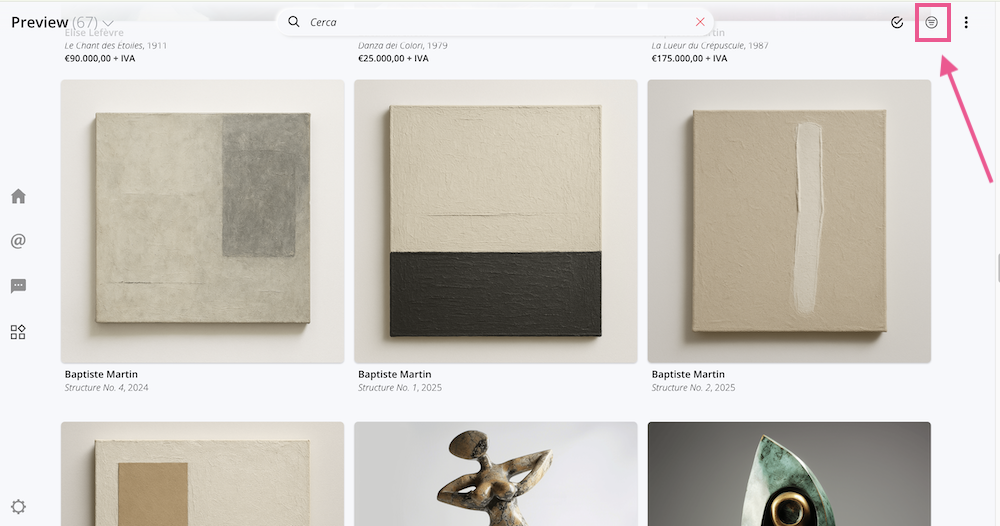
Filters can be combined: this allows you, for example, to view only the Artworks by a particular artist that are part of a specific list.
Once you've set your desired criteria, click Apply to view the results. In the top-right corner, you'll see a counter showing how many filters are active.
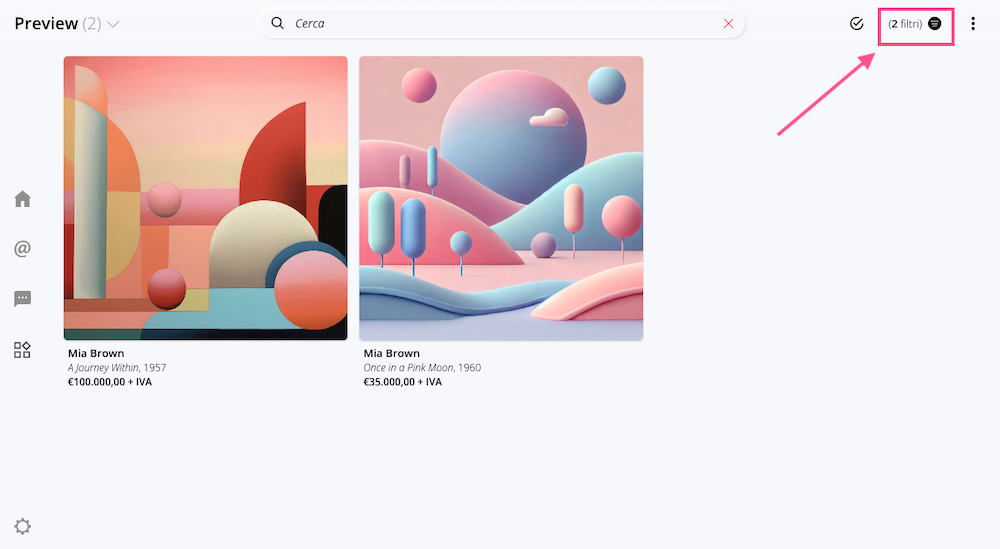
If you want to return to the full view, you can remove all filters by clicking " Clear Filters."
Exporting and sharing from the Preview app
One of the most useful features of the Preview app is the ability to quickly share Artworks .
You can export Artworks various formats:
- Link;
- Completerecord (PDF);
- Quick Share - Abridgedrecord ( PDF).
Share via Link
The "Share via Link" feature allows you to share Artworks via apublic link that is visible to anyone who has the URL.
For a detailed explanation of the available options, see the article " Exporting and Sharing Artworks."
complete record
Generate a detailed document that compiles images and information related to Artworks . This is the most comprehensive format, ideal for preparing proposals for interested clients, curatorial analyses, materials for publications, or presentation documentation.
By selecting this mode, you can choose which content to include in the export, even from among items that are not visible in the Preview app but are present in record of the artwork in the Artworkssection, such as Maximum Dimensions, Certifications, and other additional data.
For a detailed explanation of the fields, see the article " Exporting and Sharing Artworks."
Quick Share - Reduced record
This format is designed for quick sharing, which is useful when you want to send a selection to a client immediately after a meeting or during a trade show. It contains the images and key information about Artworks a landscape format, suitable for viewing on a desktop screen. Once the document has been generated, click the Share button to choose how you want to share your record :
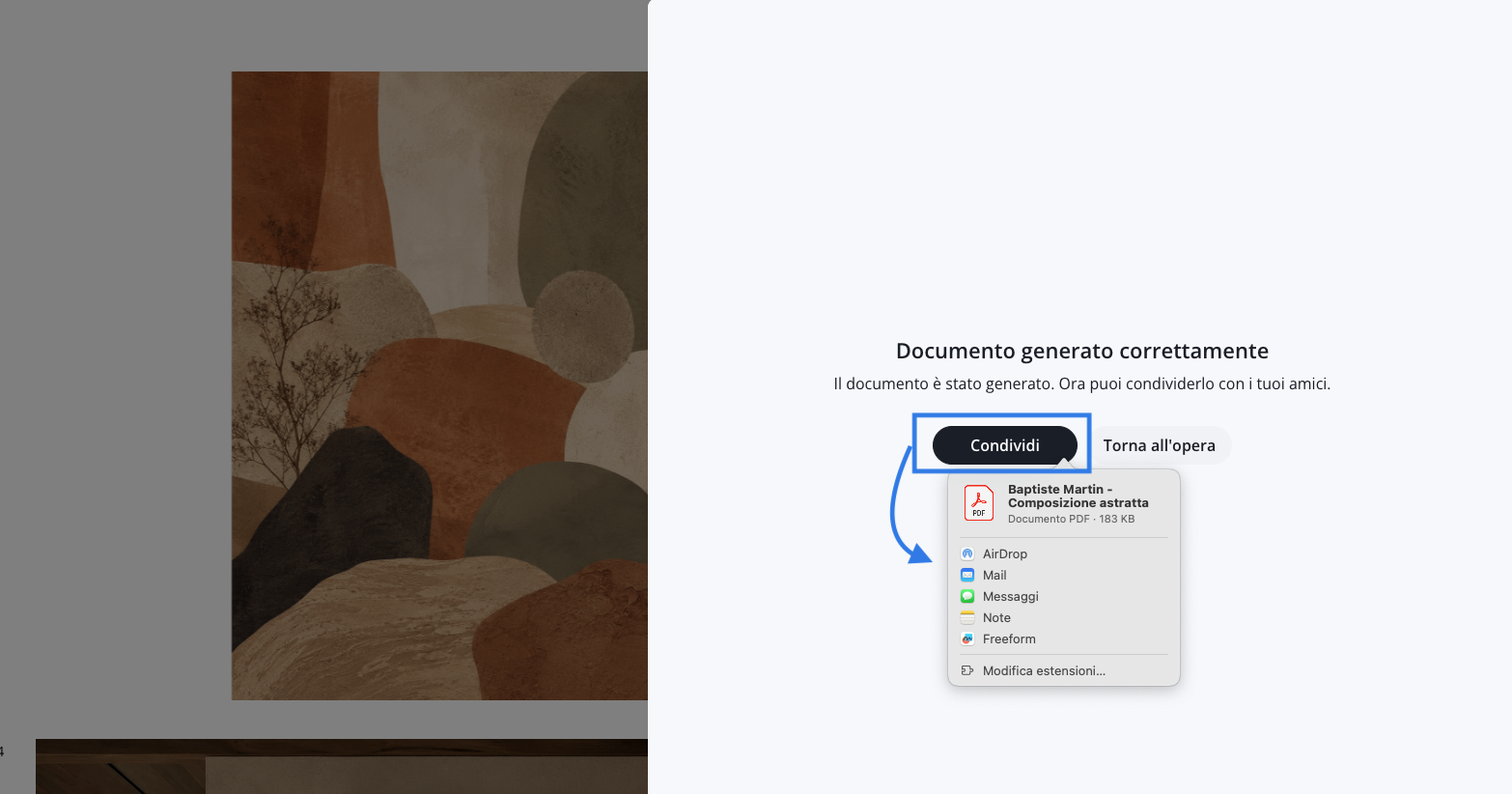
The information in this record has been intentionally limited to allow for a quick export of the essential data. You can then generate a more complete export by selecting the “Download record export option.
The reduced record contains the following fields:
- Cover image of the work;
- The artist's first name, last name, and pseudonym (if any);
- Title of the work and year;
- Technique;
- Dimensions and weight;
- Notes on dimensions and weight;
- Edition;
- Signature.
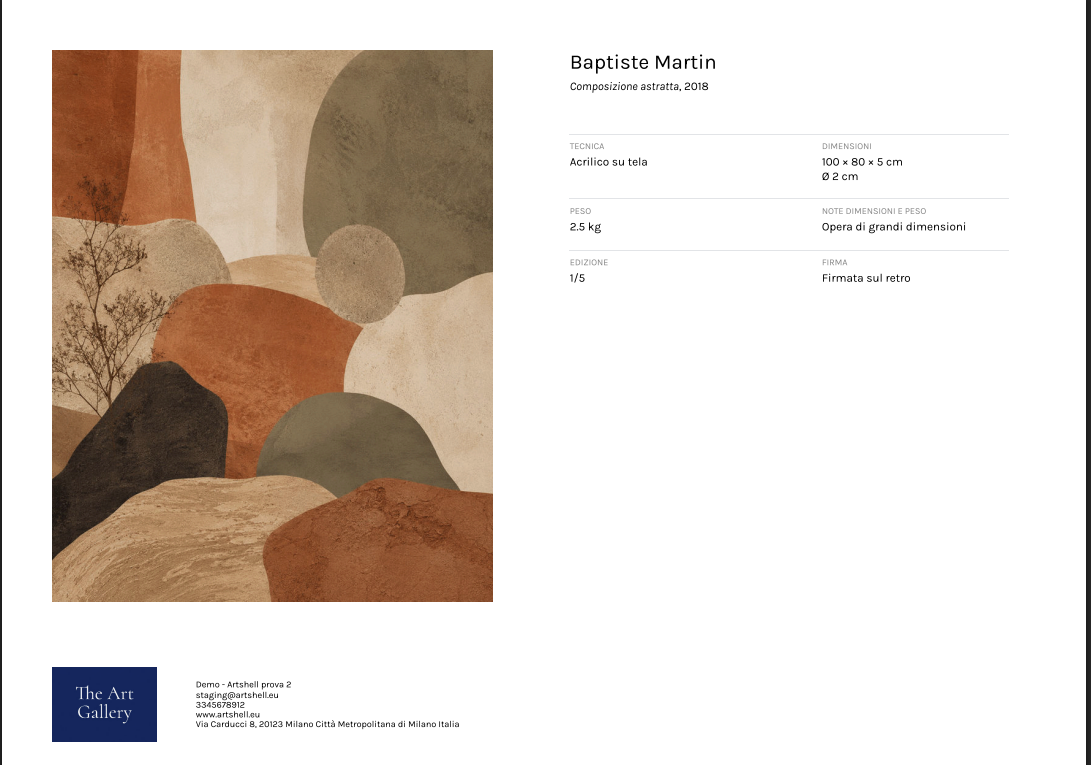
All exports are saved in the Export section of your account.
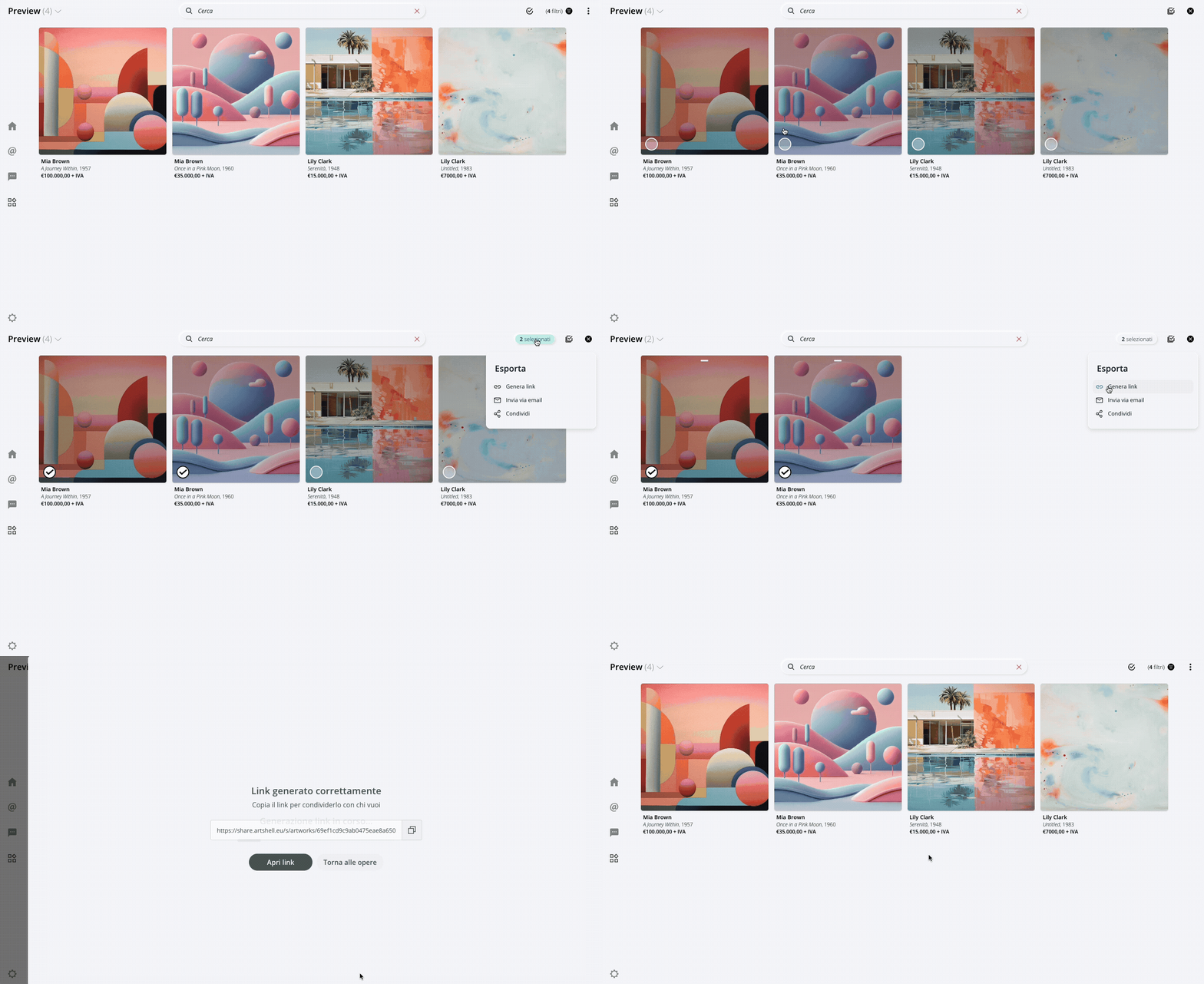
Sort the Artworks Exporting
After selecting the Artworks want to export, click the green counter. The system will display only the Artworks and allow you to reorder them by dragging and dropping them.
This feature allows you to both view an overview of your selection and export the Artworks you want.
Watch the short video below to see how it works:
Conclusions
The Preview app is an extremely useful tool for turning your database into a ready-to-use presentation. It allows you to work more efficiently while always maintaining control over what is displayed. When used correctly, it becomes a valuable sales tool, capable of improving the quality of your presentations and helping you manage relationships with clients and colleagues.