
Duplicate the artworks
Introduction
Artshell's " Duplicate " feature allows you to quickly create copies of one or more records , while retaining and modifying the content as needed.
This tool is particularly useful for streamlining the management and cataloging of Artworks, eliminating the need to re-enter information manually.
During the duplication process, you'll see several toggles— buttons that you can turn on or off to choose which elements to include in the copy.
Watch the explanatory video below:

How to Duplicate a Work of Art
- Select one or more Artworks you want to duplicate using the icon .
- From the panel Manage that appears on the right, select the second option Duplicate. If the panel doesn't appear Manage, for example, if your screen is small, click the icon top right.
- Choose which information to include in the copy using the available sections.

-
Artworks Data
Choose which fields from record to include in the copy as well, such as Details, Tags, Work ID, Status, etc.
Note: Among the available fields, see also the"Lists" field. This field allows you to include the duplicate work in the same lists—both manual and automatic—as the original work. Inmanual lists, the duplicate work is always added, while inautomaticlists it is included only if it meets the list's criteria.
For example: if you enable the"Lists"toggle but not the"Tags" toggle, and the automatic list was created based on specific tags, the duplicate work will not be included because it does not have the required tags and therefore does not meet the inclusion criteria.
-
Price
Use the toggle to include all price-related information and, if necessary, customize the amount and currency for each artwork without altering the original value in the main record . Turn on the second toggle if you want to display the text "+ VAT."
-
Images and videos
Select which media files to include.
-
Folders
Select the folders and attachments you want to include in the duplicate project as well.
-
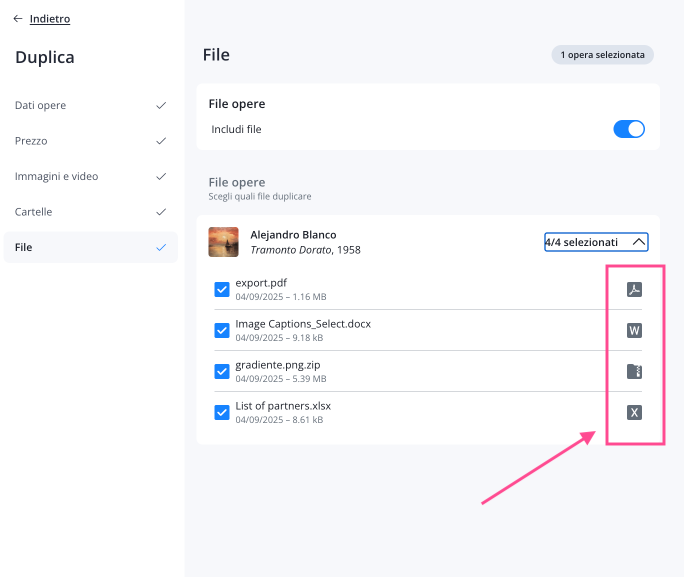
File
Select the files you want to include in the duplicate copy. When exporting the files, you'll also see the file type—such as Word, PDF, Excel, etc.
Once you've configured the options, click " Duplicate " in the lower-right corner. The system will create a copy of the record the selected content.
In record , the work ID will display the label (Duplicate) next to the original ID; you can edit or remove it at any time.

Conclusions
Artshell’s Duplicate feature is a practical and versatile tool designed to simplify and speed up the management of your archive. It allows you to create exact copies of records , retaining only the content that interests you and adapting it to your needs. By using it strategically, you can reduce data entry time, ensure consistency across records optimize your workflow for cataloging Artworks.
Find out how to duplicate events as well by reading the following article:
If, on the other hand, you'd like to continue reading articles about Artworks , we recommend Artworks read: